
FamilyPro Disney+ FAQ: Login, Profiles, PIN and Device Limits
For Disney+ bought through FamilyPro, use your order’s current account details and assigned profile. The shared package currently excludes direct TV login. Check that limitation before buying, rather than assuming every device supported by Disney+ is included in your purchase.
Contents
- Which plan, quality and devices are included?
- Where do I find my login and verification code?
- Which profile should I use?
- How do I set or recover my profile PIN?
- What about country restrictions and Household errors?
- How do I handle renewal or an unresolved problem?
Which plan, quality and devices are included?
The FamilyPro Disney+ listing describes Premium shared access for phones, tablets and computers, with no direct TV login. It suggests casting, but compatibility must be checked for your actual device and connection; casting is not a guarantee of television access.
Premium’s 4K capability does not mean every title or device plays in 4K. Content, playback hardware and connection all matter. A dedicated profile separates recommendations and viewing history; it is not a separately owned subscription, and profile count is not the number of simultaneous streams available to each buyer.
Where do I find my login and verification code?
Open your active purchase on the FamilyPro order page and use its latest credentials. A saved password may be outdated. If Disney+ requests a code, first request it in that login session, then use the order’s verification panel if provided. Check the account, recipient and request time before entering the newest code.
If nothing arrives, do not keep requesting codes or reset the shared password. Contact support with the order number, exact message, device and time. Redact credentials from screenshots. A TV password-reset prompt does not establish that you typed incorrectly; direct TV login is outside this shared package’s stated support.
Which profile should I use?
Select the profile number specified in your order, and do not use or delete someone else’s profile. Keep the number if support authorizes a name change. Disney’s profile guide explains the profile menu and personal settings, but those controls do not give a shared customer permission to alter the main profile or account-wide settings.
To change the interface language, open Edit Profiles, choose your assigned profile, select App Language and save. Audio and subtitles are selected separately during playback; availability varies by title and region.
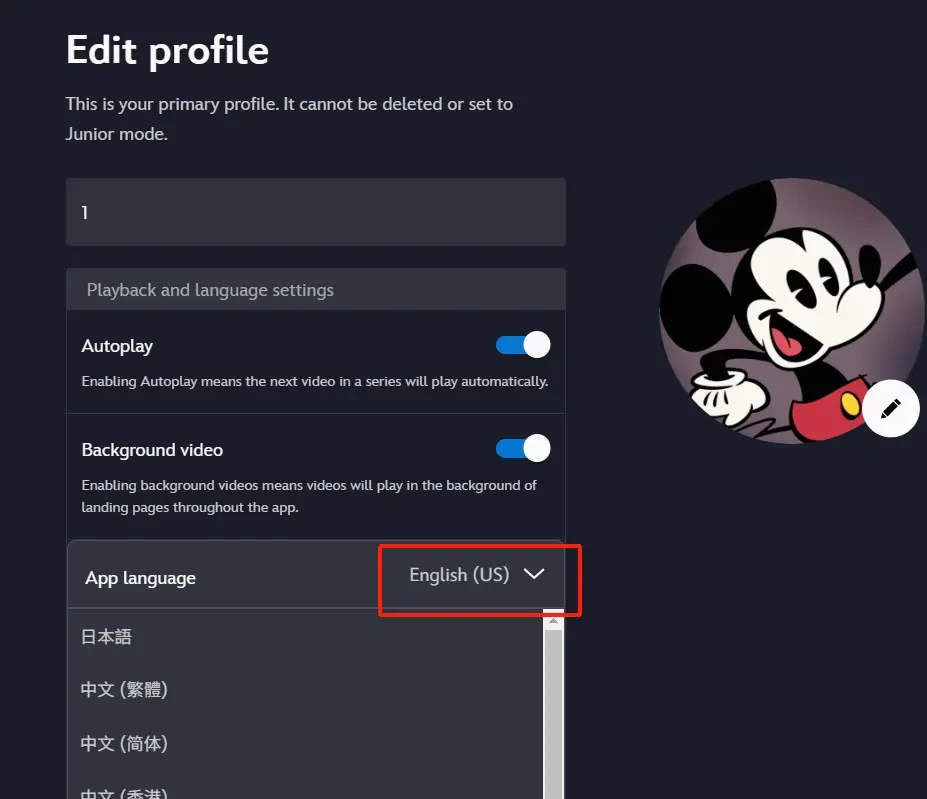
This retained image shows where the language menu appeared in an earlier interface. It depicts a primary profile; edit only your own assigned profile, not the pictured profile number by default.
How do I set or recover my profile PIN?
If your order permits PIN changes, follow Disney’s Profile PIN instructions: Edit Profiles → your assigned profile → Profile PIN, then complete the password check, choose a four-digit PIN and save. Menu labels may vary by device.
If you forget it, use the authorized recovery process or contact FamilyPro support. Do not unlock other users’ profiles or change the shared password. Profile PINs reduce casual access, but do not turn a shared account into a private account controlled only by you.
What about country restrictions and Household errors?
Do not interpret a seller’s “no regional restrictions” wording as a guarantee. Disney+ availability, local catalogues and Household rules still apply. Disney describes sharing within a Household; an eligible Extra Member arrangement is distinct from buying a shared profile from a third party.
If a device is blocked by a Household message, send the exact prompt to support and confirm whether the order fits your location and device. Do not update the shared Household or disconnect all devices on your own. A verification code does not permanently waive Household rules, and repeated VPN changes do not establish eligibility.
How do I handle renewal or an unresolved problem?
Check your order’s service end date and any renewal option before paying again. Ask whether renewal preserves the same account and profile, when the new period starts, and what remedy applies if access fails. Do not assume an old screenshot or a general marketing promise establishes your refund or replacement conditions.
If you also pay Disney+ directly or through an app store, that subscription is separate. Buying a FamilyPro place or uninstalling Disney+ does not cancel another bill. For account replacement, clarify what happens to the watchlist and history before agreeing; keeping the same profile data is not automatic.