
Free DeepL Translator Online: Translate Text, Improve Writing, and Translate Files
Looking for a simple way to translate text, improve writing, or translate documents online?
We built this free online tool for people who want a faster and more convenient workflow in the browser. Instead of switching between multiple apps, tabs, or editing tools, you can translate text, improve writing, and translate files in one place.
Whether you are working on emails, blog posts, school materials, business documents, or multilingual drafts, this tool is designed to make the process easier. You can paste text, upload files, choose a language, and get results quickly.
Important note: This is a free browser-based tool built around DeepL API capabilities. It is not the official DeepL website.
What This Free Tool Can Do
Our tool is designed around three common needs:
- Translate text online
- Improve writing and readability
- Translate files such as PDF, Word, and PowerPoint documents
Many users do not just want a text box translator. In real use, they often need a practical workflow:
- translate a paragraph from one language to another
- polish a draft before sending it
- improve grammar and tone
- translate a PDF or document for work or study
- reuse translated content without starting over elsewhere
That is exactly the gap this tool tries to fill.
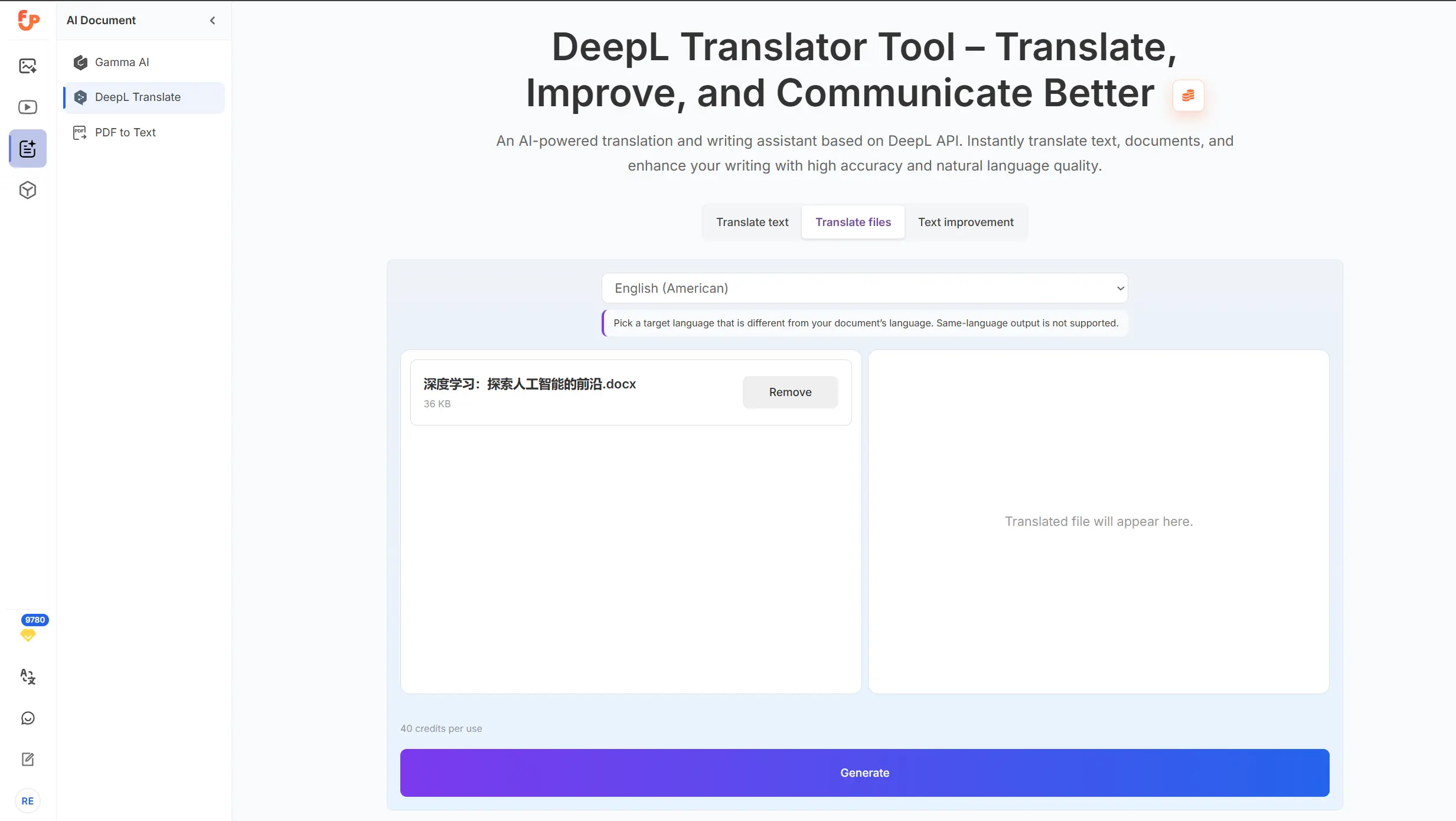
Hero / Full product overview
Why We Built This Tool
Online translation is not only about converting words from one language to another. In many real situations, people need more than that.
For example:
- A student wants to translate a PDF handout quickly
- A marketer wants to improve English copy before publishing
- A freelancer needs to translate a proposal and keep the wording natural
- A team member wants to rewrite translated content so it sounds more polished
- A user wants a browser-based experience without installing anything
A lot of tools solve only one part of this process. Some are good at basic text translation. Some are focused on documents. Some are more about rewriting. But many users want all three in one simple page.
So we built a practical workflow around those needs:
- translate
- improve
- file translate
The goal is simple: make multilingual work easier in everyday scenarios.
Key Features of Our Free DeepL-Based Translator
1. Translate Text Online
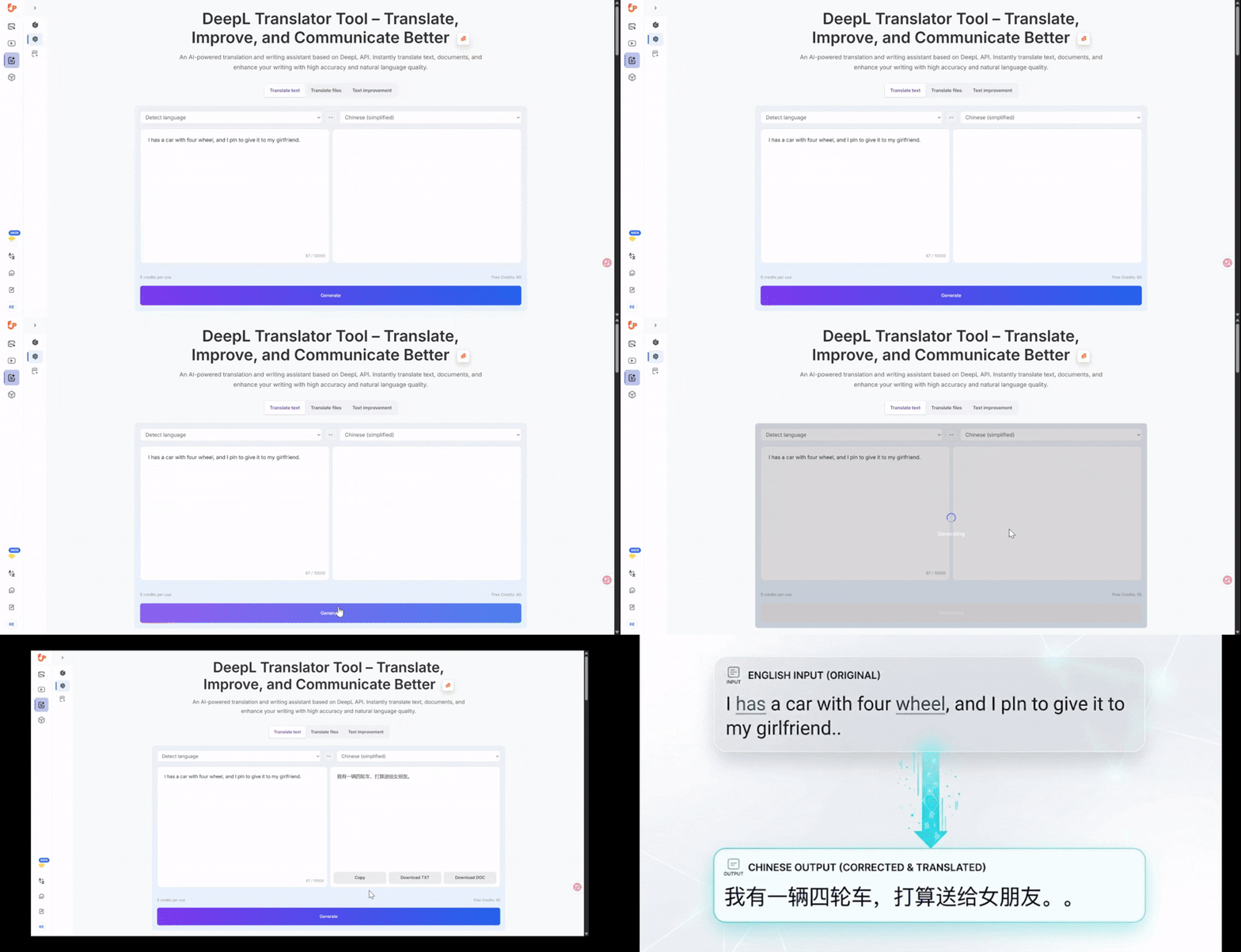
If you only need fast text translation, the tool keeps the process simple.
Just paste your content, choose the target language, and get the translation in seconds. This is useful for:
- emails
- messages
- landing page copy
- product descriptions
- support replies
- study notes
You do not need a heavy workflow for short content. Sometimes a simple browser-based translator is the best option.
Paste text and translate instantly
2. Improve Writing and Tone
Translation is only part of the job. In many cases, the output still needs editing.
That is why the improve feature matters.
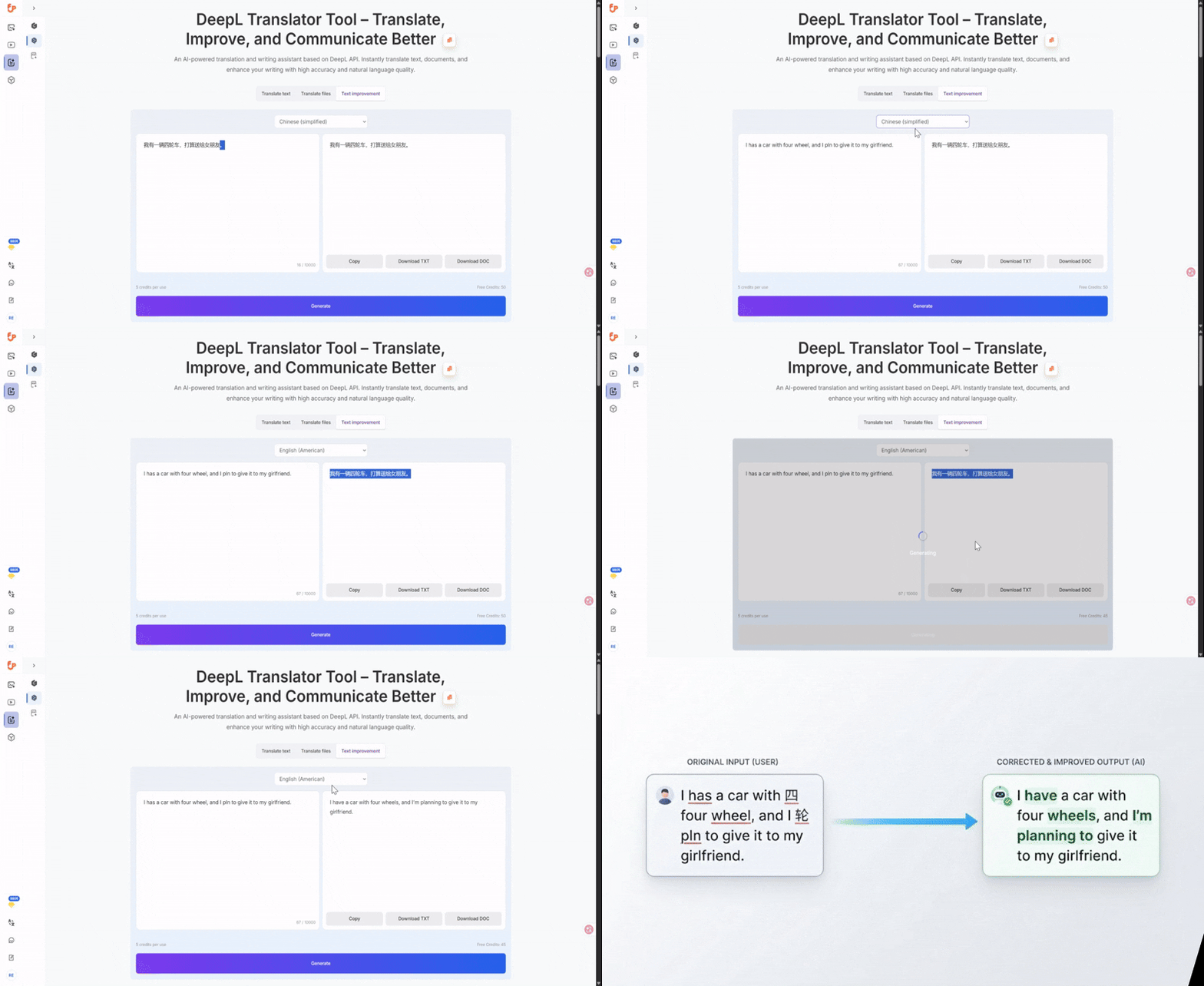
You can use it to:
- polish grammar
- improve clarity
- make wording smoother
- refine tone
- clean up awkward phrasing
- prepare content for publishing or sharing
This is especially useful when:
- the translation is understandable but not natural enough
- you wrote something directly in a second language
- you want cleaner and more professional wording
- you want to make copy easier to read
For many users, this feature is just as valuable as translation itself.
Improve mode UI
3. Translate Files Online
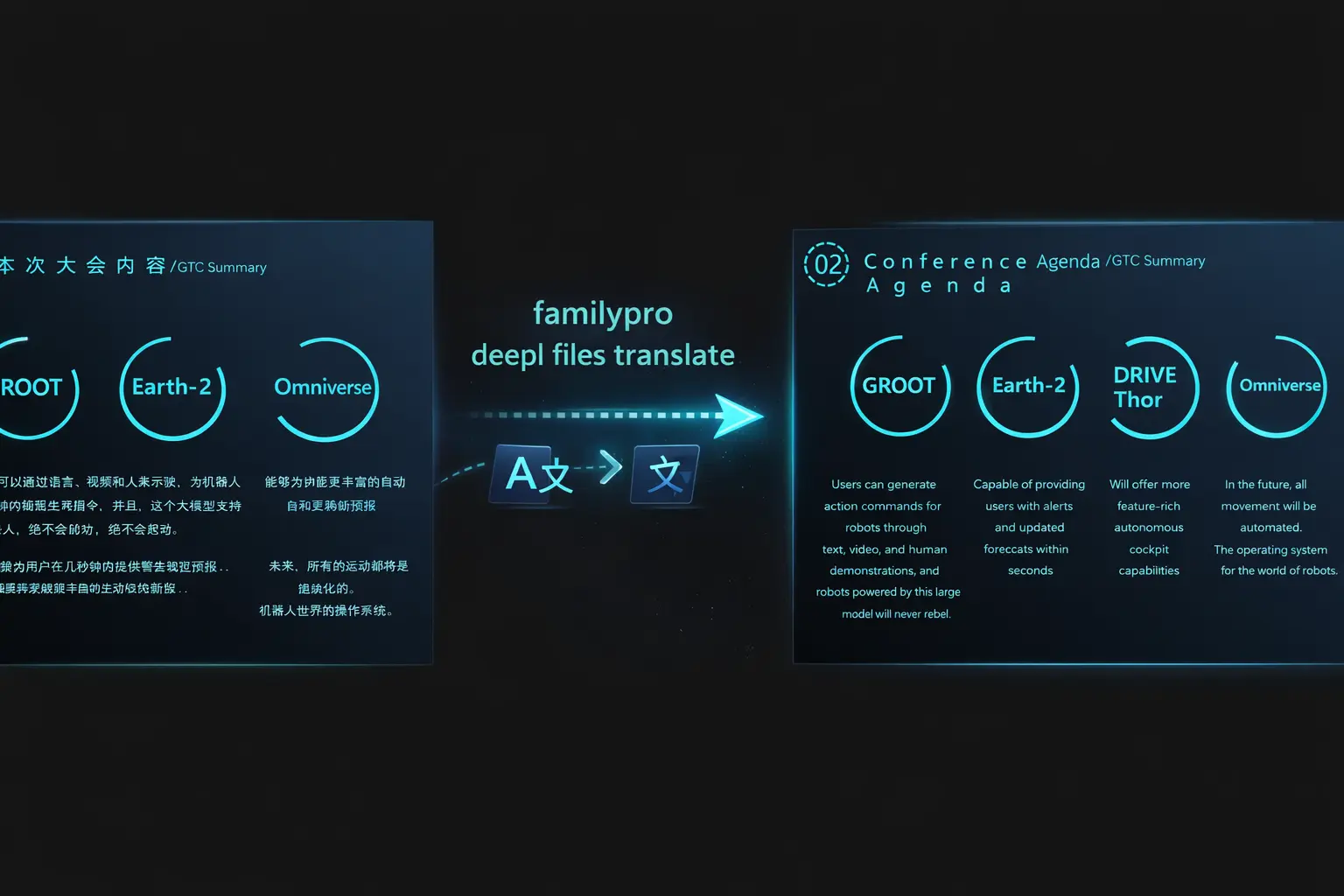
One of the most useful parts of the tool is file translation.
Instead of copying text out of a document manually, you can upload a file and let the tool handle it in a more direct way. This is helpful when you need to work with:
- PDFs
- Word documents
- PowerPoint files
- other text-heavy files in your workflow
Common use cases include:
- translating work documents
- reading foreign-language study materials
- reviewing presentation decks
- translating reports for internal use
- preparing multilingual drafts
For many users, file translation is the main reason to use a tool like this.
Upload a file and translate it
4. Browser-Based Workflow
A good tool should reduce friction.
This one runs directly in the browser, which means:
- no software installation
- no extra editing app needed for basic tasks
- easier switching between translation and writing improvement
- a more convenient workflow for quick daily use
For many users, convenience matters as much as translation quality.
5. One Place for Translation and Editing
A lot of users do not stop after the first translated result.
They often want to:
- translate the source text
- review the output
- improve the wording
- refine the final version for sharing
That is why combining these steps into one workflow is useful. It saves time and reduces unnecessary back-and-forth.
How to Use the Tool
Using the tool is straightforward.
Step 1: Open the translator page
Go to the page and choose the mode that matches your task:
- text translation
- writing improvement
- file translation
Step 2: Paste text or upload a file
If you are translating short content, paste your text directly.
If you are working with a document, upload the file instead.
Step 3: Choose the language or task
Select the target language for translation, or choose the improve option if you want to polish the text rather than translate it.
Step 4: Review the result
Read the output carefully. For important content, it is always a good idea to do a quick review, especially if the source text includes:
- technical terms
- legal wording
- idioms
- industry-specific expressions
- heavily formatted content
Step 5: Copy, reuse, or continue refining
Once the result looks good, you can:
- copy it
- use it in your document
- continue editing
- run an extra improve pass if needed
What Kinds of Content Is This Best For?
This tool works especially well for common real-world tasks.
Emails and messages
Need to reply to a client, partner, or customer in another language? A quick text translation followed by an improve pass can make the message more natural and clear.
Articles and blog drafts
If you write in more than one language, or translate drafts before publishing, the improve feature can help smooth out awkward phrasing.
Product and marketing copy
Short copy often needs more than direct translation. It needs to sound natural, clear, and persuasive. Translation + improvement can help with that.
PDF study materials
Students and researchers often need to understand the content first, not produce a perfect literary translation. File translation can make this much faster.
Business documents
Proposals, decks, summaries, and reports often need quick translation for internal review. Browser-based file translation can help save time.
Text Translation vs Writing Improvement
These two functions look similar, but they solve different problems.
Use Translate when:
- the text is in one language and you need it in another
- you want a direct converted version
- your main goal is understanding or cross-language communication
Use Improve when:
- the text is already in your target language
- the message is understandable but not polished
- you want better grammar, tone, fluency, or readability
- you want a cleaner final version
A good rule of thumb is this:
- Need a new language? Use translate.
- Need better wording? Use improve.
In some cases, the best workflow is to do both:
- translate first
- improve second
That often produces a cleaner result for public-facing content.
Translate first, then improve
Translating Files Online: Why It Matters
File translation solves a very different problem from text translation.
With plain text, you can copy and paste small pieces of content. But with documents, the pain points are usually:
- too much content to paste manually
- formatting and structure
- multiple pages
- tables or slide content
- repeated editing steps
A file translator helps simplify that process.
This is especially helpful when working with:
- PDF reading materials
- Word documents
- presentation decks
- internal summaries
- training documents
If your workflow often starts with a file, a document-based translation tool can save a lot of time compared with manual copy-and-paste.
What to Expect From File Translation
File translation can be very useful, but it is still good to stay realistic.
Results may vary depending on:
- file type
- layout complexity
- amount of text
- tables or charts
- embedded elements
- source language quality
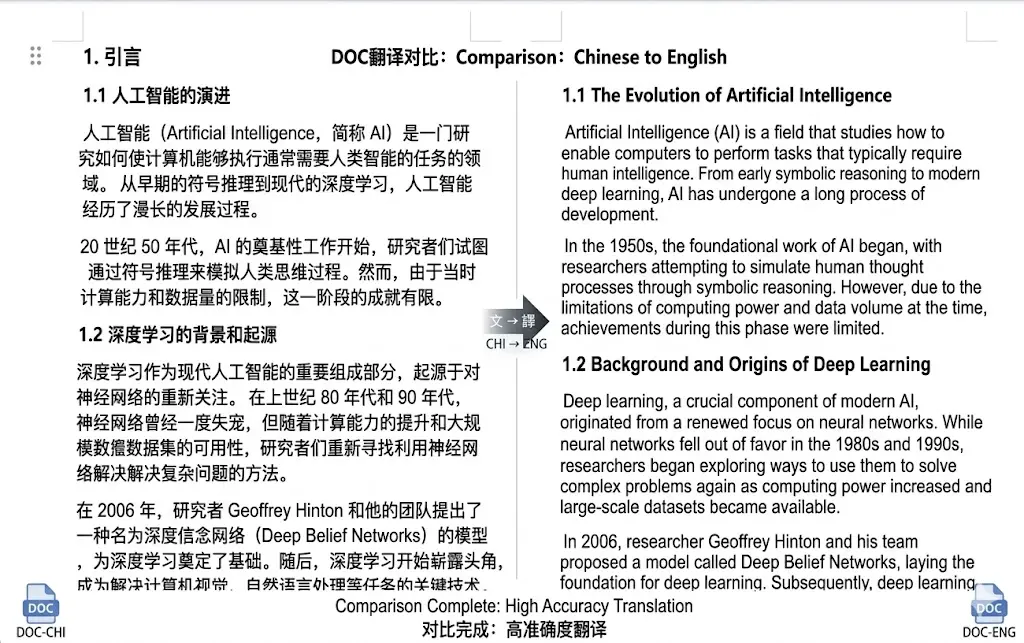
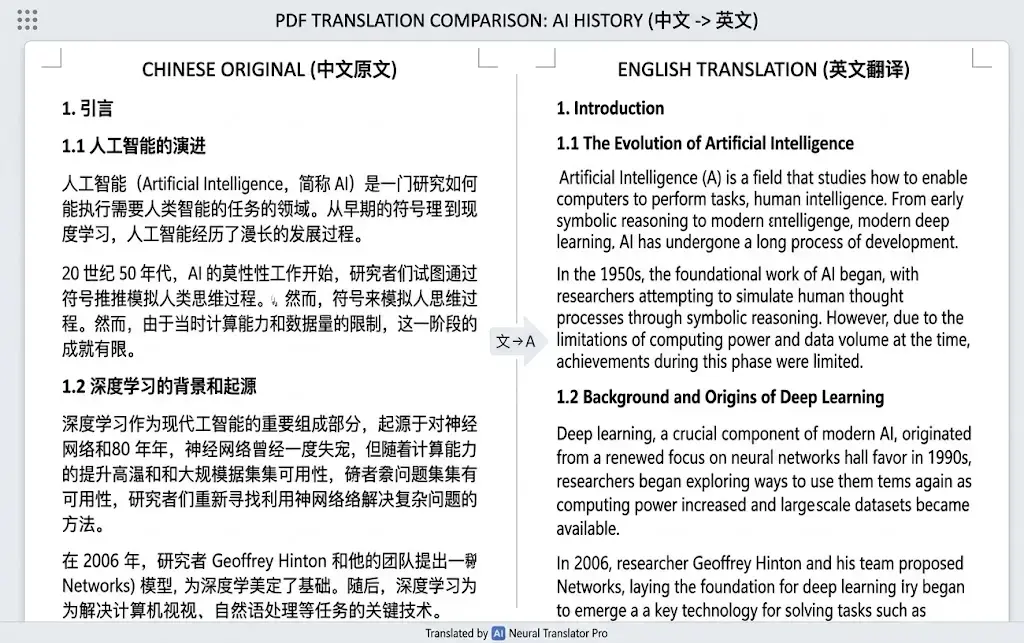
In general, simpler documents are easier to process cleanly. Highly designed files, complex PDFs, or files with unusual formatting may require a little review afterward.
That does not make file translation less useful. It just means users should treat it as a practical productivity tool, especially for understanding content and building first drafts.
File translate before/after
A Practical Workflow for Better Results
If you want better results from any translator, the input matters.
Here are a few practical tips:
Keep source text clear
Short, well-structured sentences are usually easier to translate accurately.
Avoid unnecessary ambiguity
If a sentence has multiple meanings, the translation may choose the wrong one.
Review names, terms, and product wording
Brand names, technical terms, and custom phrases often need a manual check.
Use improve mode for final polish
If the translation is correct but not smooth, improvement mode can help make it more natural.
Double-check important files
For business, legal, medical, or highly sensitive content, always do a human review before final use.
These are simple habits, but they make a big difference.
Who This Tool Is For
This tool can be useful for many kinds of users:
Students
Translate learning materials, summaries, handouts, and notes more efficiently.
Marketers
Draft and polish multilingual copy faster.
Freelancers
Handle proposals, client communication, and content localization in one browser workflow.
Teams
Translate internal documents, decks, or reference files for quick understanding.
Everyday users
Translate messages, improve writing, and work with documents without installing extra tools.
What Makes This Tool Useful
There are many online translators. So what makes this one worth trying?
Not because it promises magic. Not because it replaces every other workflow. But because it tries to be practical.
Its value is in the combination:
- text translation
- writing improvement
- file translation
- browser convenience
That combination fits common everyday tasks better than a single-purpose page.
A lot of people do not need an advanced enterprise localization workflow. They just need a clean and reliable way to:
- translate something
- make it read better
- move on with their work
This tool is built for that kind of use.
Full workflow demo
Result Comparison: What Users Should Pay Attention To
If you are planning to include comparison screenshots or examples, here are the most useful angles to show.
1. Clarity
Does the translated result clearly communicate the original meaning?
2. Tone
Does the output sound too literal, too stiff, or reasonably natural?
3. Readability
Would a normal reader understand it easily?
4. File convenience
How much time does the file workflow save compared with manual copy-and-paste?
5. Editing effort
How much cleanup is still needed after translation?
These are more useful comparison points than simply saying one result is “better.”
Common Use Cases
Here are some realistic examples of how people may use the tool.
Translate an email before sending
You drafted a message in English and need a Spanish version. Translate it first, then improve the result to make the tone smoother.
Improve non-native writing
You wrote an article draft in English, but it still feels a little rough. Use improve mode to make it cleaner and easier to read.
Translate a PDF for quick understanding
You received a PDF in another language and want to understand the content without manually copying everything.
Translate presentation content
You have a deck or document to review, and you need a fast browser workflow rather than a slower manual process.
Refine translated copy before publishing
Translation gets you close. Improvement helps prepare the final version.
FAQ
Is this the official DeepL website?
No. This is not the official DeepL website. It is a browser-based tool built to help users translate text, improve writing, and translate files in a simple workflow.
Is the tool free to use?
Yes, this page is positioned as a free online tool for practical translation and writing improvement tasks.
Can I translate PDF files online?
Yes, file translation is one of the main use cases of the tool, including PDF-related workflows.
Can I translate Word and PowerPoint files?
Yes, the tool is designed to help with document-based translation workflows, including common work and study formats.
What is the difference between translate and improve?
Translate changes text from one language to another. Improve keeps the language but rewrites the text to make it clearer, smoother, or more natural.
Should I still review the result?
Yes. For important content, professional communication, or specialized terminology, a quick review is always recommended.
Who should use this tool?
It is useful for students, marketers, freelancers, teams, and everyday users who want a fast browser-based translation and writing workflow.
Final Thoughts
A good online translator should help people get real work done.
That means more than translating isolated text. It means making everyday tasks easier:
- understanding documents
- improving writing
- handling multilingual drafts
- translating files more efficiently
- moving from draft to usable result faster
If that sounds like your workflow, this free online DeepL-based translator may be a useful option to try.
Whether you need to translate a short message, improve writing for publication, or translate a file for study or work, the goal is the same: make the process simpler, clearer, and more practical.
Try the Tool
Ready to test it yourself?
Use our free online tool to:
- translate text
- improve writing
- translate files in your browser
Tool page:Try the free tool