
Grok Login Error: Why Can't I Log In to Grok?
Seeing a Grok login error when you try to access Grok? A failed login does not always mean that your password is wrong.
Grok login problems can be caused by several different things, including an incorrect login method, browser session issues, network problems, account restrictions, or a temporary service-side problem.
Some users see an error while loading the login page. Others can log in with Google but not with email. In some cases, Grok works on one device but not another. There are also cases where users can access Grok but cannot access SuperGrok after signing in.
This guide explains how to identify the type of Grok login error you're experiencing and what you can do next.
Quick answer: If Grok won't let you log in, first determine whether the problem happens only in one browser or device. Try an incognito window, another browser, another device, and another network. If Google login works but email login does not, check the login method and account associated with your credentials. If you can log in but cannot access SuperGrok, you're likely dealing with a subscription or access issue rather than a login error.
Table of Contents
- Why Am I Getting a Grok Login Error?
- Quick Diagnosis: What Kind of Grok Login Error Do You Have?
- How to Fix a Grok Login Error
- Common Grok Login Errors and What They Mean
- Real Grok Login Problems Reported by Users
- I Can Log In to Grok but Can't Access SuperGrok
- When Is the Grok Login Problem Not on Your Side?
- Frequently Asked Questions
Why Am I Getting a Grok Login Error?
There isn't one single cause behind a Grok login error.
A useful way to troubleshoot the problem is to divide it into several categories:
- Login method — You may be using a different authentication method from the one associated with your account.
- Browser or session — Cookies, cached session data, or browser extensions can interfere with the login process.
- Network — VPNs, proxies, DNS problems, firewalls, or network restrictions can affect access.
- Device — A problem may occur on one computer or phone while another device works normally.
- Account — Your account may have an authentication, access, or status issue.
- Service — A temporary problem on Grok's side can prevent users from logging in.
- Subscription access — You may be able to log in successfully but still be unable to access a paid Grok feature.
This distinction matters because the solution is different for each situation.
For example, repeatedly changing your password will not necessarily fix a browser session problem. Similarly, clearing your browser cookies will not fix an account that has been suspended.
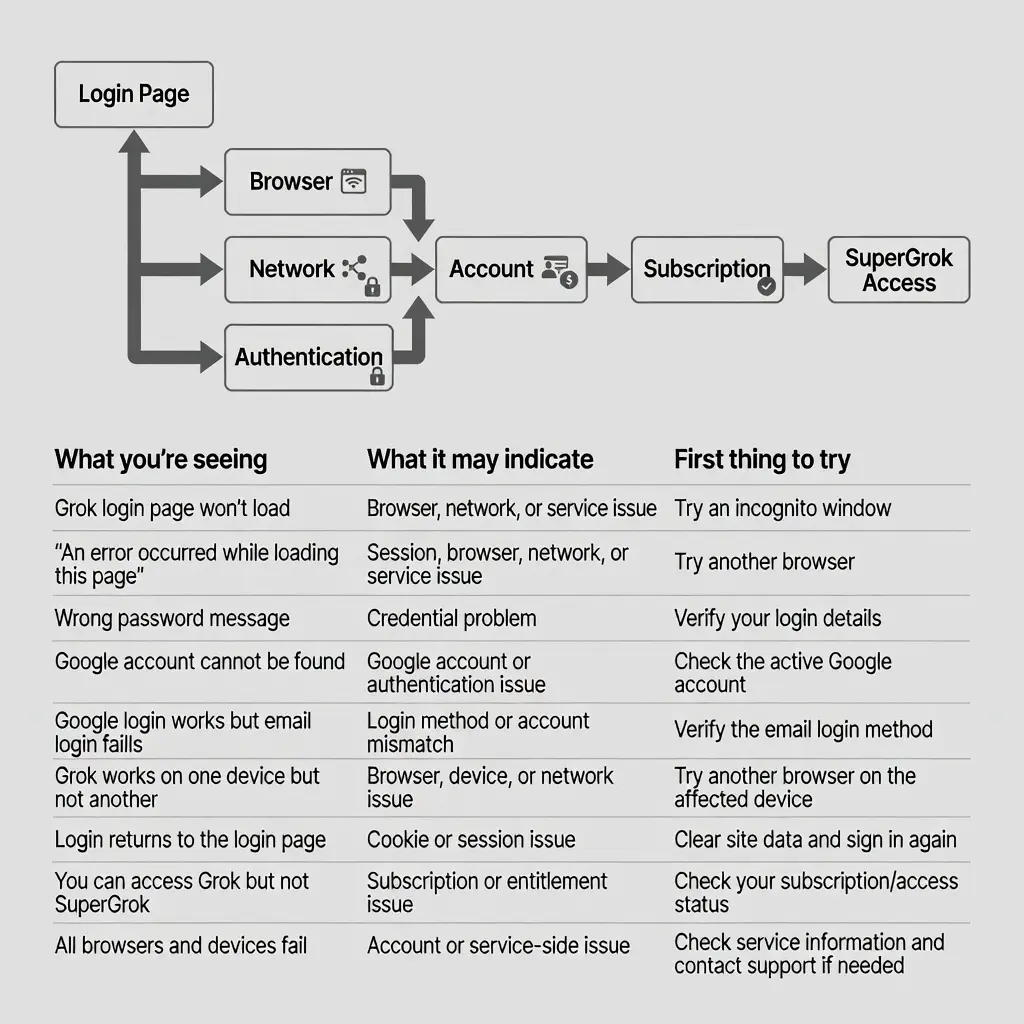
Quick Diagnosis: What Kind of Grok Login Error Do You Have?
Before changing anything, identify exactly what happens when you try to log in.
| What you're seeing | What it may indicate | First thing to try |
|---|---|---|
| Grok login page won't load | Browser, network, or service issue | Try an incognito window |
| "An error occurred while loading this page" | Session, browser, network, or service issue | Try another browser |
| Wrong password message | Credential problem | Verify your login details |
| Google account cannot be found | Google account or authentication issue | Check the active Google account |
| Google login works but email login fails | Login method or account mismatch | Verify the email login method |
| Grok works on one device but not another | Browser, device, or network issue | Try another browser on the affected device |
| Login returns to the login page | Cookie or session issue | Clear site data and sign in again |
| You can access Grok but not SuperGrok | Subscription or entitlement issue | Check your subscription/access status |
| All browsers and devices fail | Account or service-side issue | Check service information and contact support if needed |
The goal is not to try every possible fix.
Instead, use the symptoms to narrow down the likely source of the problem.
How to Fix a Grok Login Error
Work through the following steps in order.
You do not necessarily need to complete every step. Once you identify where the problem occurs, you can focus on that area.
Step 1: Confirm That You Are Using the Correct Grok Login Page
Start with the basics.
Make sure you are accessing Grok through the intended official website rather than an old bookmark, an unfamiliar link, or a page shared by someone else.
If the login page itself does not load correctly, don't immediately assume that your username or password is incorrect.
First determine whether the problem is happening before authentication even begins.
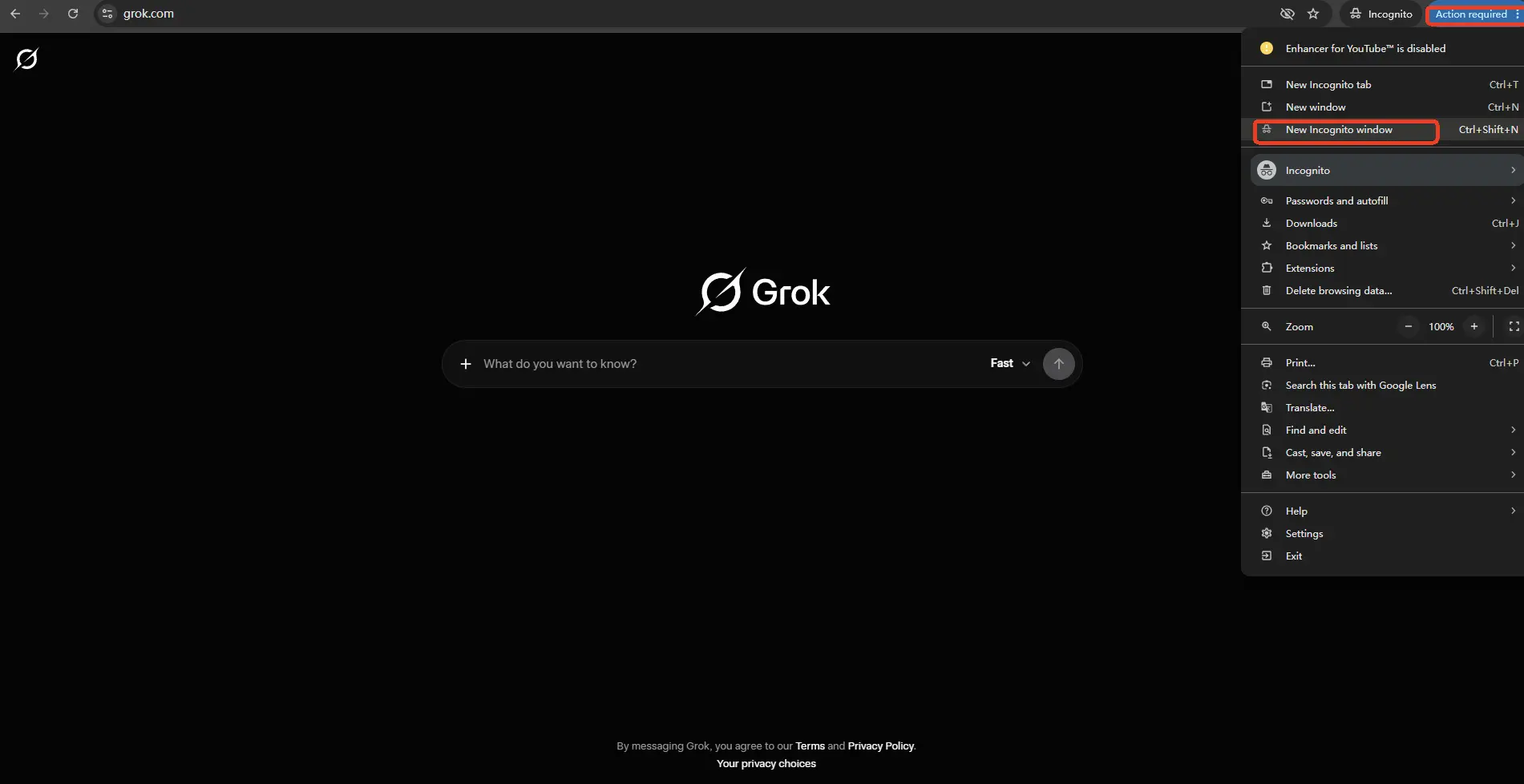
Step 2: Try an Incognito or Private Window
Open a new private browsing window and try to access Grok again.
For example:
- Chrome: Incognito mode
- Edge: InPrivate
- Firefox: Private Window
- Safari: Private Browsing
If Grok works in a private window but not in your normal browser, the problem may be related to existing cookies, cached session information, or browser extensions.
This is one of the quickest ways to distinguish a browser-session problem from an account problem.
Step 3: Clear Grok-Related Site Data
If the login page behaves differently in a private window, clear the site data associated with Grok in your normal browser.
You may need to remove:
- Cookies
- Cached site data
- Existing login sessions
After clearing the data, close the affected browser tab, reopen the browser, and try logging in again.
You generally do not need to delete your entire browsing history just to troubleshoot one website.
Step 4: Temporarily Disable Browser Extensions
Some browser extensions can interfere with authentication pages or scripts.
Potential sources include:
- Ad blockers
- Privacy extensions
- Script blockers
- Anti-tracking extensions
- VPN browser extensions
- User-agent modification extensions
You can temporarily disable extensions and reload the login page.
If the login process starts working afterward, enable extensions one by one to identify the one causing the conflict.
Step 5: Try Another Browser
If the problem continues, try another browser.
For example:
Chrome → Edge
Edge → Firefox
Firefox → Chrome
If Grok works normally in another browser, the problem is more likely to be related to the original browser's configuration, cookies, extensions, or cached session.
If it fails in every browser, continue with the next steps instead of repeatedly reinstalling the same browser.
Step 6: Check Your Login Method
Pay attention to how you normally authenticate.
Depending on your account, you may use a method such as:
- Another supported authentication method
A particularly important scenario is:
Google login works, but email login does not.
This does not automatically mean that Grok is unavailable.
It may indicate that you are using different authentication paths or that the credentials are not associated with the account you expected.
Make sure you are using the login method associated with the correct account.
Step 7: Try Another Device
If you normally use Grok on a desktop computer, try another device.
For example:
Desktop → Laptop
Laptop → Phone
If Grok works on one device but not another, focus your troubleshooting on the device that fails.
Check:
- Browser
- Browser extensions
- Cookies
- VPN or proxy
- Network configuration
- Security software
- DNS configuration
This can save you from unnecessarily changing account credentials when the problem is actually device-specific.
Step 8: Try Another Network
Network conditions can also affect access.
If possible, compare:
Wi-Fi → Mobile hotspotor:
Home network → Another trusted networkIf Grok works after changing networks, investigate the original network environment.
Possible factors include:
- DNS configuration
- Firewall rules
- Proxy settings
- VPN
- Network filtering
- ISP or local network restrictions
A network-specific failure is different from an account-wide login failure.
Step 9: Check Whether the Problem Is Account-Specific
If the same login problem occurs across:
- Multiple browsers
- Multiple devices
- Multiple networks
the issue is less likely to be caused by a single browser configuration.
At this point, review the exact error message and account status.
If the account is reported as locked, suspended, disabled, or otherwise restricted, repeatedly attempting to log in may not solve the problem.
Step 10: Determine Whether This Is Actually a Subscription Problem
If you can successfully log in to Grok but cannot access SuperGrok or another paid feature, don't keep treating the issue as a login error.
You may have an access or subscription problem instead.
The distinction is important:
Cannot log in to Grok
        ↓
Authentication / Browser / Network / Account

Can log in to Grok
        ↓
Cannot access SuperGrok
        ↓
Subscription / Entitlement / Account Access
Common Grok Login Errors and What They Mean
"An Error Occurred While Loading This Page"
One of the most important login-related scenarios is an error that appears while the page is loading.
A user may see a message similar to:
"An error occurred while loading this page."
The same type of problem was reported by multiple users in support cases.
This message alone does not identify a single root cause.
Depending on the circumstances, investigate:
- The URL
- Browser cookies and session data
- Browser extensions
- Network connection
- Another browser
- Another device
- Whether the problem is occurring more broadly
The important point is that this message should not automatically be interpreted as a wrong-password error.
"We Couldn't Find Your Google Account"
Another user-reported scenario involved Grok being unable to find the user's Google account.
If this happens, check which Google account is currently active in your browser.
This is especially important if you regularly use multiple Google accounts.
Try:
- Check the active Google account.
- Sign out of unrelated Google accounts if necessary.
- Select the account associated with your Grok access.
- Try the login process again.
- If appropriate, compare the result with email-based authentication.
Wrong Password or Invalid Credentials
If Grok specifically reports that your password or credentials are incorrect, verify the credentials before trying more complicated browser troubleshooting.
Check:
- Email address
- Password
- Caps Lock
- Password manager entry
- Whether the credentials belong to the intended account
If you genuinely cannot remember the password, use the supported password recovery process rather than repeatedly guessing.
Login Page Keeps Failing to Load
If the login page itself fails before you can enter your credentials, prioritize:
- Incognito mode
- Another browser
- Browser extensions
- Site data
- Another device
- Another network
This helps determine whether the problem occurs before authentication.
Real Grok Login Problems Reported by Users
The following examples are based on real user-reported support cases. Personal information has been removed or anonymized.
These examples illustrate the symptoms users actually encountered. They should not be interpreted as proof that every user with the same symptom has the same underlying cause.
Case 1: "I Can't Log In to Grok"
Several users reported the problem in very simple terms:
"I can't log in to Grok."
Other users reported essentially the same issue with messages such as:
"Grok login error."
These reports are important because they show that users often arrive at support without knowing the exact technical cause.
When the only symptom is "I can't log in," the first step should be diagnosis rather than immediately assuming that the password is wrong.
Start with:
- Can the Grok website open?
- Can the login page load?
- Does incognito mode work?
- Does another browser work?
- Does another device work?
- Does another network work?
- Does another login method work?
This quickly separates a general access problem from an authentication-specific problem.
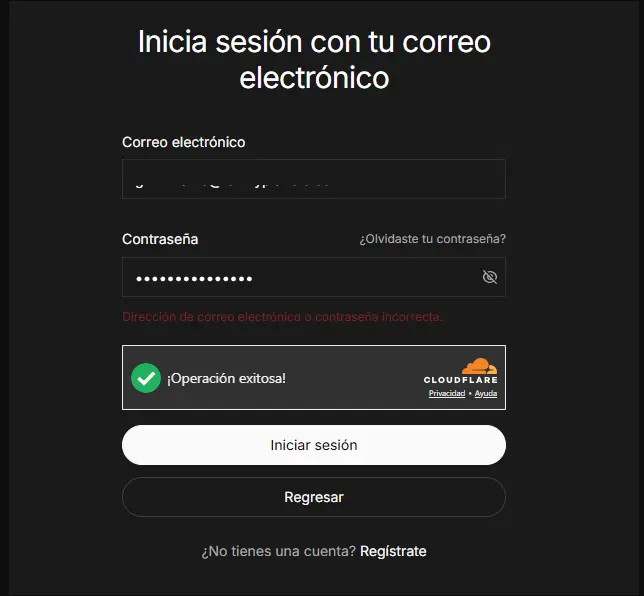
Case 2: "An Error Occurred While Loading This Page"
Multiple users reported a more specific error:
"An error occurred while loading this page."
Some reports also included instructions to confirm that the URL was correct.
This is a particularly useful troubleshooting scenario because the error occurs at the page-loading stage.
Instead of immediately resetting the password, first determine whether the page behaves differently in:
- Incognito mode
- Another browser
- Another device
- Another network
If the behavior changes between environments, that gives you a useful clue about where to continue investigating.
Case 3: Google Login Works, but Email Login Does Not
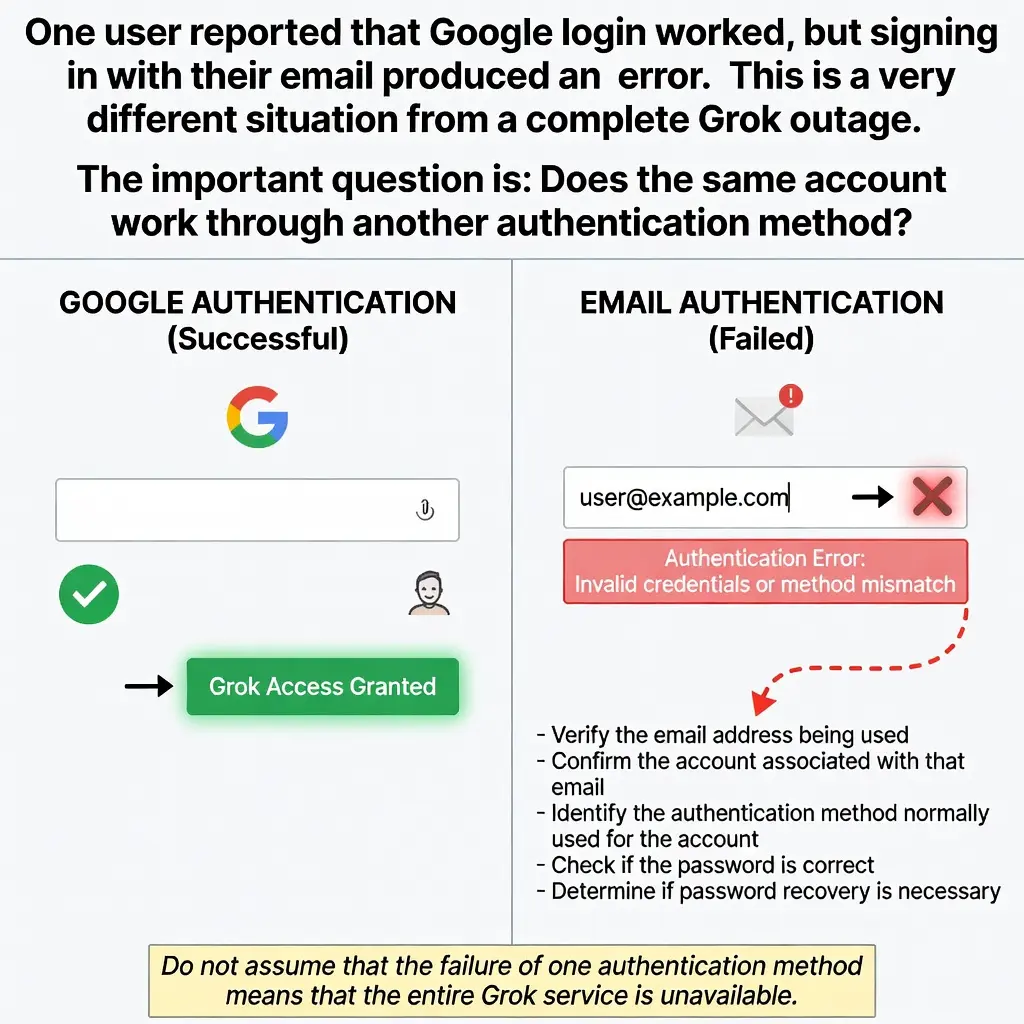
One user reported that Google login worked, but signing in with their email produced an error.
This is a very different situation from a complete Grok outage.
The important question is:
Does the same account work through another authentication method?
If Google authentication works but email authentication fails, check:
- The email address being used
- The account associated with that email
- The authentication method normally used for the account
- Whether the password is correct
- Whether password recovery is necessary
Do not assume that the failure of one authentication method means that the entire Grok service is unavailable.
Case 4: "We Couldn't Find Your Google Account"
Another user reported that Grok could not find their Google account.
This can be particularly confusing when the user has multiple Google accounts signed in at the same time.
Before changing anything else, check the Google account currently selected in the browser.
If you have multiple accounts, make sure you are using the one associated with the Grok access you are trying to use.
Case 5: Grok Works on Desktop but Not on Laptop
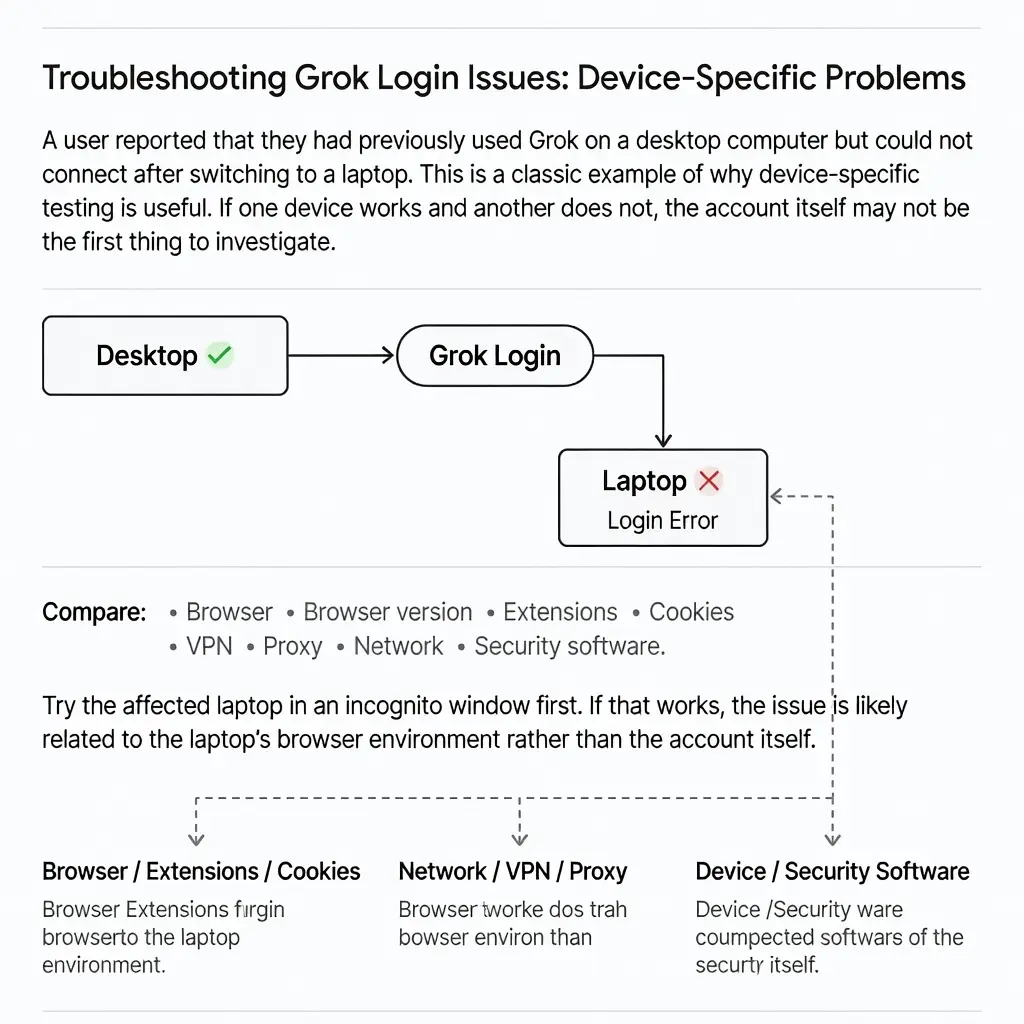
A user reported that they had previously used Grok on a desktop computer but could not connect after switching to a laptop.
This is a classic example of why device-specific testing is useful.
If one device works and another does not, the account itself may not be the first thing to investigate.
Compare:
- Browser
- Browser version
- Extensions
- Cookies
- VPN
- Proxy
- Network
- Security software
Try the affected laptop in an incognito window first.
If that works, the issue is likely related to the laptop's browser environment rather than the account itself.
Case 6: Paid for SuperGrok but Cannot Access It
Some users reported that they had already paid for a SuperGrok subscription but could not access the feature.
This is an important distinction:
Being unable to access SuperGrok is not necessarily the same as being unable to log in to Grok.
If the user can successfully enter Grok but the expected paid features are missing, investigate the subscription or entitlement status separately.
Case 7: Grok Opens, but the User Is Asked to Pay Again
Another user reported that they expected to access SuperGrok but were instead shown the regular Grok experience and asked to pay for SuperGrok again.
This should be treated as an access or subscription problem rather than a basic login problem.
Before attempting browser fixes repeatedly, verify:
- Which account is currently signed in
- Which subscription is associated with that account
- Whether the expected subscription is active
- Whether the feature is available to the current account
Case 8: Account Appears Blocked After Payment
A separate user reported that after purchasing access, the SuperGrok account appeared to be blocked.
If an account is explicitly reported as blocked or suspended, repeated login attempts are unlikely to resolve the underlying account-status issue.
The appropriate next step is to identify the exact account status and use the relevant support or account-recovery process.
I Can Log In to Grok but Can't Access SuperGrok
This is one of the most important distinctions to make when troubleshooting Grok.
Login Problem
You cannot successfully authenticate or enter Grok.
Possible areas to investigate:
- Login method
- Password
- Browser
- Cookies
- Network
- Account status
Subscription Problem
You can successfully enter Grok, but a paid feature is missing.
Possible areas to investigate:
- Subscription status
- Account association
- Entitlement
- Feature availability
- Account status
A simple way to think about it is:
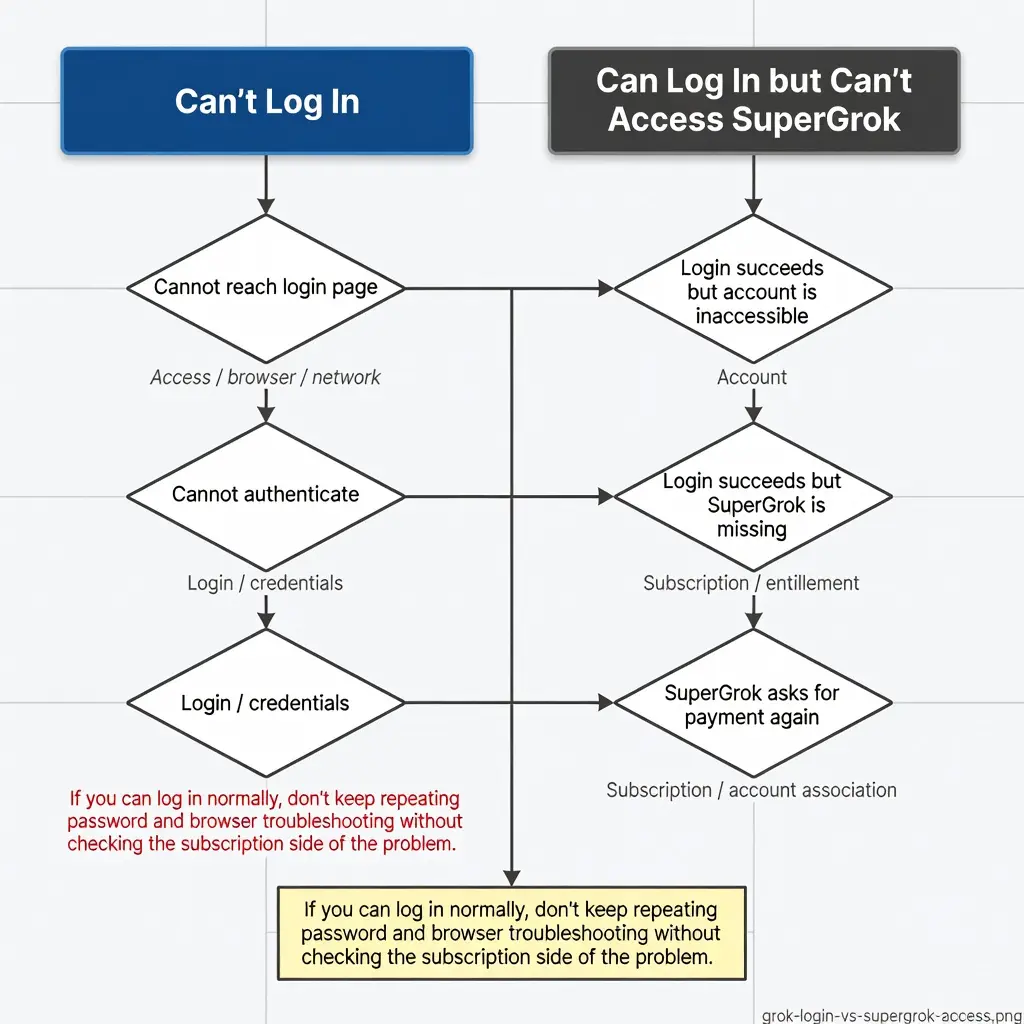
| Situation | Problem category |
|---|---|
| Cannot reach login page | Access / browser / network |
| Cannot authenticate | Login / credentials |
| Login succeeds but account is inaccessible | Account |
| Login succeeds but SuperGrok is missing | Subscription / entitlement |
| SuperGrok asks for payment again | Subscription / account association |
If you can log in normally, don't keep repeating password and browser troubleshooting without checking the subscription side of the problem.
When Is the Grok Login Problem Not on Your Side?
One of the hardest parts of troubleshooting is knowing when to stop changing your own settings.
A local browser problem is more likely when:
- Only one browser fails.
- Incognito mode works.
- Only one device fails.
- Another network works.
- Disabling an extension fixes the problem.
An account-specific problem becomes more likely when:
- The same account fails across multiple browsers.
- The same account fails across multiple devices.
- Authentication consistently fails.
- The account reports a restriction, lock, or suspension.
A broader service-side issue becomes more plausible when:
- Multiple browsers fail.
- Multiple devices fail.
- Multiple networks fail.
- The same service behavior is being reported by other users.
In that situation, repeatedly clearing cookies or reinstalling browsers is unlikely to provide much additional information.
Instead, check the latest official service information or support channels and preserve the exact error message you are seeing.
What Information Should You Save Before Contacting Support?
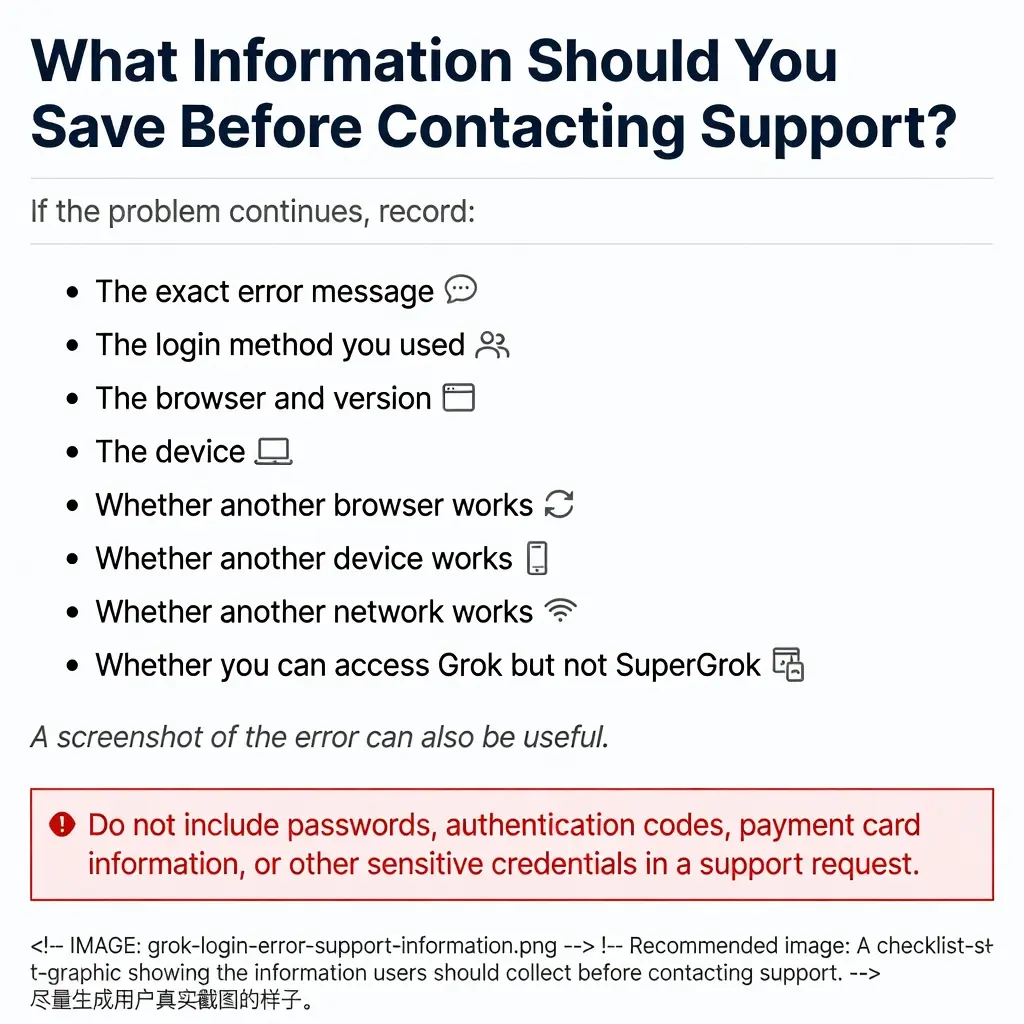
If the problem continues, record:
- The exact error message
- The login method you used
- The browser and version
- The device
- Whether another browser works
- Whether another device works
- Whether another network works
- Whether you can access Grok but not SuperGrok
A screenshot of the error can also be useful.
Do not include passwords, authentication codes, payment card information, or other sensitive credentials in a support request.
Frequently Asked Questions
Why can't I log in to Grok?
A Grok login error can be caused by your login method, browser session, network, account status, or a temporary service-side problem. Start by checking whether the problem occurs in an incognito window, another browser, another device, or another network.
Why is my Grok login not working?
First determine whether the login page itself fails or whether authentication fails after the page loads. Then test another browser and an incognito window. If the problem occurs everywhere, investigate account or service-side issues.
What does "An error occurred while loading this page" mean on Grok?
This message indicates that the expected page did not load successfully, but it does not identify one specific cause. Browser session data, extensions, network conditions, or a service-side issue may need to be investigated.
Why can I log in with Google but not email on Grok?
Google and email authentication are different login paths. Confirm that you are using the correct email address, the correct account, and the authentication method associated with your Grok access.
Why can't Grok find my Google account?
Check which Google account is currently active in your browser. If you use multiple Google accounts, make sure you are selecting the account associated with your Grok access.
Why does Grok work on one device but not another?
If Grok works on one device but not another, the issue may be specific to the affected device's browser, cookies, extensions, network, VPN, proxy, or security settings.
Why can't I access SuperGrok after logging in?
If you can successfully log in to Grok but SuperGrok is unavailable, the problem may be related to subscription or account entitlement rather than login authentication.
How do I know whether Grok is down?
Test Grok using another browser, device, and network. If the same problem continues across different environments, the issue may not be specific to your browser or device. Check the latest official service information or support channels for broader incidents.
Final Checklist for Grok Login Errors
Before contacting support, work through this checklist:
Page & Login Method
- [ ] Confirm you are using the correct Grok login page.
- [ ] Confirm the login method you normally use.
- [ ] Verify your email or Google account.
Browser
- [ ] Try an incognito/private browser window.
- [ ] Try another browser.
- [ ] Temporarily disable browser extensions.
- [ ] Clear Grok-related site data.
Device & Network
- [ ] Try another device.
- [ ] Try another network.
- [ ] Check VPN or proxy settings.
Account & Subscription
- [ ] Review the exact error message.
- [ ] Check whether your account shows any restriction.
- [ ] If you can log in but cannot access SuperGrok, check subscription/access status.
- [ ] If every environment fails, check for a broader service-side issue.