
How to Clear ChatGPT Memory in 2026: Delete, Wipe & Reset
You typed "how to clear ChatGPT memory" into Google because something ChatGPT remembers is wrong, stale, or just not its business to keep. Fair enough. The problem with how to clear ChatGPT memory is that it is not the single click most guides make it sound like.
To get this right, I actually ran every step below on my own ChatGPT Plus account, both in the desktop browser and the iPhone app. What follows is not a summary of the help docs; it is what I saw when I clicked through it myself while working out how to clear ChatGPT memory for real. One thing I learned the hard way: I thought I had cleared everything once, and the next day ChatGPT brought up a company I had mentioned earlier. I assumed the feature was broken. It wasn't. I had just cleared the wrong layer.
Delete a chat and it still knows your name. Flip the memory switch off and the old facts are still sitting there. It usually isn't. You just deleted the wrong layer.
Here is the straight version of how to clear ChatGPT memory: Settings > Personalization > Manage Memories > Clear all. That deletes what ChatGPT has saved about you. It does not delete your chats. Below you get the click-by-click steps for desktop, mobile, and in-chat, the five reasons memory sometimes "won't clear," and a table to pick the right action between deleting one entry, wiping all, or turning memory off.
How to Clear ChatGPT Memory Step by Step (Desktop, Mobile & In-Chat)
When you want to know how to clear ChatGPT memory step by step, the path is the same on every device. ChatGPT stores memory in one place (Settings > Personalization), but you can reach it three ways. Pick whichever you are already holding.
On Desktop
These are the desktop steps for how to clear ChatGPT memory: 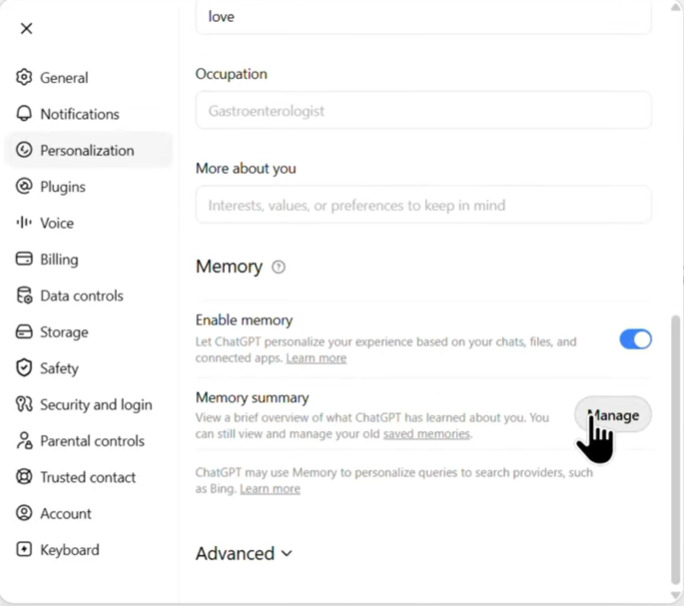
- Click your profile picture, top right.
- Open Settings, then Personalization.
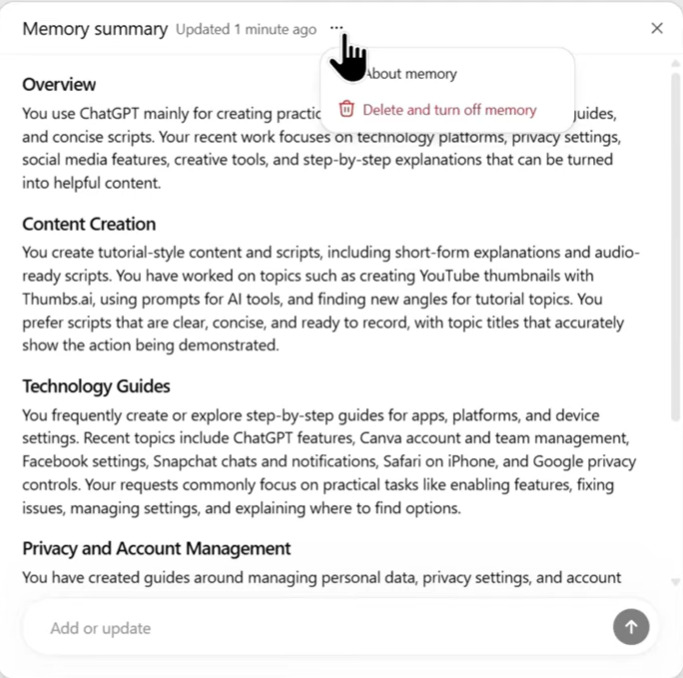
- Select Manage Memories (in the 2026 interface this opens the memory summary, a plain-language list of what ChatGPT currently remembers). The first time I opened it I froze for a second, thinking the list had failed to load. That is just the new 2026 layout, not a bug, and it is the screen you land on whenever you want to know how to clear ChatGPT memory the right way.
- Edit or delete individual entries directly in the list (there is no separate trash icon; just tap the text you want to change or remove). To wipe everything at once, open the three-dot menu at the top right of the memory summary and choose Delete and turn off memory.
The path is the same whether you are on Plus, Pro, Free, or Team. If you only see a memory summary and not a long list, that is the new system working as intended. You can still edit or clear it from the three-dot menu.
On Mobile (iPhone and Android)
This is the fastest way to clear ChatGPT memory on iPhone and Android. 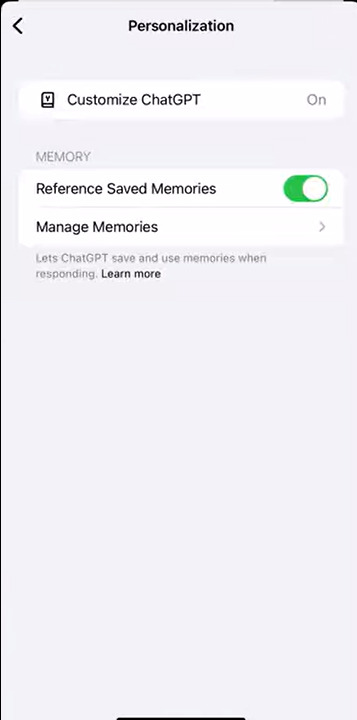
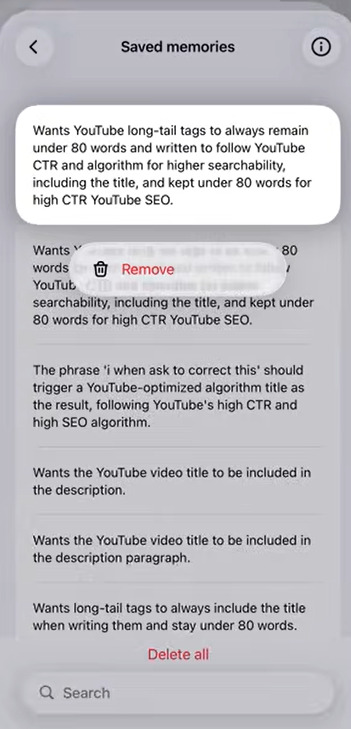
- Tap the menu icon (three lines), top left.
- Tap your name at the bottom of the sidebar.
- Open Personalization, then Manage Memory.
- Remove a single entry, or clear all from the menu.
The mobile steps match the desktop ones. If a setting looks missing, update the app. OpenAI has moved memory controls around during the 2026 rollout, and an old app version sometimes hides the new toggle. If your how to clear ChatGPT memory checklist includes "update the app," that is exactly why.
In-Chat (No Menus Required)
You can handle how to clear ChatGPT memory mid-conversation by telling ChatGPT what to forget. Type something like:
Forget that I mentioned I work at Acme Corp.
ChatGPT confirms and drops that detail. This is the fastest way to remove one fact without digging through settings, and it is the method OpenAI's own help docs recommend for single-item cleanup.
Delete One Entry vs. Clear All
When you clear ChatGPT memory, the first choice is whether to remove one entry or everything:
| Action | What it removes | When to use it |
|---|---|---|
| Delete one memory | Only that single fact | One detail is wrong or sensitive |
| Clear all | Every saved memory at once | You want a clean slate |
When you clear ChatGPT memory, clearing all cannot be undone, but ChatGPT can relearn facts from your remaining chats if memory stays on. So "clear all" is not as final as it sounds, which is either reassuring or annoying depending on what you wanted.
Why Won't ChatGPT Memory Clear? 5 Gotchas Most Guides Miss
If you searched how to clear ChatGPT memory and it still remembers you, one of these five gotchas is why. This is the part almost every tutorial skips. You followed the steps, and ChatGPT still brings up the thing you deleted. Here are the five real reasons, straight from OpenAI's memory FAQ.
1. Deleting a chat is not deleting memory. This is the trap most people hit when learning how to clear ChatGPT memory. Chats and saved memories are stored separately. As OpenAI's community explains, even if you delete a chat, any saved memories from it can still be used in future conversations. Clearing memory means going into Manage Memories, not the chat list.
2. Turning memory off does not delete what is already saved. A common question in how to clear ChatGPT memory guides is whether the off switch wipes data. It does not. The toggle stops ChatGPT from making new memories. It leaves the old ones in place until you clear them. People flip the switch, relax, and never actually delete anything.
3. Deleted memories can linger up to 30 days. I learned this one the annoying way. I cleared a memory about a specific company, and for roughly two days afterward ChatGPT still slipped it into a reply, which made me think the clear had not worked at all. It had. OpenAI keeps a log of deleted saved memories for up to 30 days for safety and debugging, so a "deleted" fact can still surface for a few days after you remove it. That delay is normal, not a bug, and when you clear ChatGPT memory you should give it about a week before deciding it failed.
4. "Reference chat history" has its own clock. When you read how to clear ChatGPT memory tutorials, few mention that this layer has its own clock. If you turn off Reference chat history, the info ChatGPT learned from past chats is deleted from OpenAI's systems within 30 days. Until then, it can still inform replies. Turning off saved memory alone does not clear this layer.
5. Connected apps keep their own data. If you linked Gmail, Google Drive, or files, those sources feed memory separately. Clearing the memory list does not disconnect them. To fully remove something, OpenAI's 2026 memory docs say you must delete the memory, the original chat, and disconnect the connected app.
So when it comes to how to clear ChatGPT memory, the right move is Manage Memories, not the chat list or the toggle. A real OpenAI community thread sums up the confusion well: users report that after deleting all chats and toggling memory off, ChatGPT still recalls personal details, because a profile layer between the UI and the model holds inferences from past conversations. The fix is to clear every source, not just the visible one. The same pattern comes up constantly on r/ChatGPT.
Special case: shared or third-party seats
If you use ChatGPT through a shared plan to clear ChatGPT memory cheaply, memory behaves differently and matters more. On these accounts, memory is account-level. Several people share one login, and their memories mix into the same pool. When you clear memory, the next person on that seat can still see what you saved, and vice versa. Usually only the plan owner can manage it. If you are weighing whether a shared seat is right for you, How to Get a Shared ChatGPT Account covers how access actually behaves day to day.
This is a trade-off, not a defect. The upside is cost: a shared plan like FamilyPro runs about $5.5 a month versus the $20 OpenAI charges for a solo Plus subscription, roughly 70 to 80 percent cheaper. The downside is that memory is not isolated between users. If that trade-off works for you, a shared plan is a genuinely good deal. If memory isolation matters (client work, sensitive personal details), use your own account instead. You can top up a personal ChatGPT Plus seat or start a ChatGPT Plus free trial, and keep your memory fully to yourself.
Either way, if your goal for how to clear ChatGPT memory is privacy on a shared seat, clear it before someone else uses it. That is basic privacy hygiene.
Delete vs. Turn Off vs. Clear All on ChatGPT: Which One Do You Need?
Before you work out how to clear ChatGPT memory, decide which action you actually need. I will be honest: I mixed up "turn off memory" and "clear all" myself at first, because the names sound so close. Most "why won't it clear" problems come from picking the wrong action. They are four different operations, and only one of them does what people mean by "clear."
| Action | What it deletes | Stops future saving? | Best for |
|---|---|---|---|
| Delete one memory | That single fact | No | One entry is wrong or stale |
| Clear all | Every saved memory | No | Fresh start, remove lots at once |
| Turn off Reference chat history | Insights from past chats | Yes (for history) | Stop being shaped by old conversations |
| Turn off memory entirely | Stops new memory, disables the feature | Yes | Maximum privacy mode |
So before you work out how to clear ChatGPT memory, match the action to the result. Read that table twice. "Turn off" and "clear" sound similar and do opposite things. Turning memory off leaves everything saved; clearing all leaves memory on but empty. If your goal is "make it forget," you want clear all or delete one. If your goal is "make it stop learning," you want the toggle.
How to Clear ChatGPT Memory FAQ
These are the questions people ask most when they look up how to clear ChatGPT memory.
Does clearing memory delete my chat history? No. When you clear ChatGPT memory, chats and saved memories stay separate. Clearing memory only removes what ChatGPT has saved about you. Your conversation history stays until you delete those chats directly.
How do I delete a single memory without wiping all of them? Open Settings > Personalization > Manage Memories, then tap the specific entry to edit or remove it directly in the memory summary list. You can also type "forget that I mentioned [X]" in any chat.
Does turning memory off delete what is already stored? No. Turning the memory toggle off stops new memories from being created but leaves existing ones intact. You have to choose Clear all separately to remove them.
How long until deleted memories are gone from OpenAI's servers? Up to 30 days. OpenAI retains a log of deleted saved memories for that long for safety and debugging, and it can take a few days for a deleted memory to stop showing up in replies.
Can I clear memory on the ChatGPT mobile app? Yes. Tap the menu (three lines) > your name > Personalization > Manage Memory, then delete individual entries or clear all. The steps mirror the desktop version.
How to Clear ChatGPT Memory: The Bottom Line
Learning how to clear ChatGPT memory is not one action, it is three, and they live in different menus. Delete one entry for a single fix, clear all for a reset, turn it off for privacy mode, and remember that deleting a chat does none of the above. The reason a how to clear ChatGPT memory guide seems to fail is almost always that you cleared the wrong layer: chat instead of memory, or toggle instead of clear.
Two timing notes. First, when you clear ChatGPT memory in 2026, OpenAI's rebuilt memory system, the one Sam Altman announced in April 2026, means your settings screen may show a memory summary rather than a raw list. The controls are the same, just reorganized. Second, if you just went through how to clear ChatGPT memory and it still shows up, deleted memories can hang around for up to 30 days, so give it a week before deciding it failed.
If you are on a shared or family plan, clearing memory is a privacy step, not just a cleanup one, because memory is account-level and mixes between users. A shared plan is far cheaper (FamilyPro runs about $5.5 a month versus $20 for solo Plus), but the cost is that memories are not isolated. If isolation matters to you, use a personal account instead. If you are deciding whether a solo Plus subscription is worth the $20, Is ChatGPT Plus Worth It looks at it from the personal-plan side.
These days I have a habit: whenever I finish on a shared seat, I clear memory before I log off. Ten seconds, and it saves a lot of awkwardness later, which is the same routine I suggest to anyone working out how to clear ChatGPT memory on a shared plan.
Want the cheaper seat without the memory-mixing headache? Get ChatGPT Plus for $5.5 a month on FamilyPro (no credit card required, trusted by 1,200+ users), then keep your sensitive work in a personal account where only you can see it.