
Adobe Login, Install & Sign In: Step-by-Step Guide (2025)
Ever been racing to finish a design when Adobe Creative Cloud suddenly pops up asking for a Login? You type in your info, hit Adobe Login, and… nothing happens. Yep, that was me last week. Client deadlines were staring me down, and I sat there refreshing the Adobe login screen for what felt like forever. Every tutorial online was either outdated or just plain confusing. I nearly threw my laptop out the window!
If you’re new to Adobe, I get it—logging in, installing apps, buying the right plan… it’s a lot. That’s why I wrote this guide. From getting your Adobe Login sorted to installing your apps, plus insider tips on buying Adobe smartly, it’s all here. The goal? Keep you stress-free, save some money, and get you back to designing fast.
Adobe Login Made Simple: How to Log In Without Any Roadblocks
Before you can dive into any Adobe software, the first step is sorting out your Adobe Login. But don’t just click around—you need to know what type of user you are. New users can grab that sweet 7-day trial, but school or enterprise accounts work differently. Pick the wrong type, and you’ll run into headaches.
My colleague Alex tried logging into Adobe Creative Cloud for our company and just clicked “Personal” on a whim. Surprise—enterprise SSO didn’t recognize it. He spent ages figuring it out before IT had to reset everything. Lesson learned: students or enterprise users, always use your official institution email. Personal users? Stick with your usual email—it’s that simple.
This is stuff my friends and I have tripped over before, so I’m sharing it here. Follow the steps carefully, and your Adobe Login will go smoothly—no drama, no wasted time, and you can get back to using Adobe Creative Cloud like a pro.
Scenario 1: Personal User Adobe Login (Including Registration, Free Trial & Post-Purchase Login)
For personal users, doing an Adobe Login is super simple. You just head to the official Adobe site, sign up, and you can snag the 7-day free trial! My friend wanted to make a birthday poster for the first time—signed up, tried out Photoshop, played with cutouts and filters, and didn’t spend a dime. Perfect for beginners to get a feel for things during the trial.
Step 1: Visit the Website and Sign Up
Just search for the Adobe Creative Cloud official site. Right on the homepage, you’ll see a “Free Trial” button.
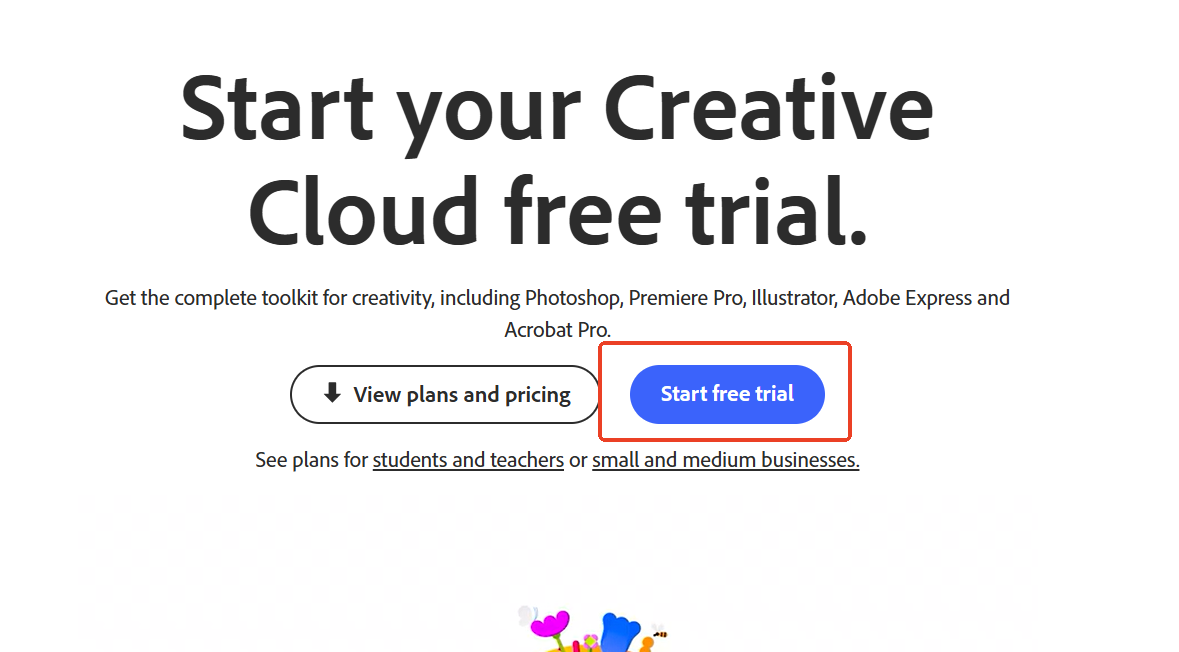
Click it and choose the personal plan—no need to stress over the other options.
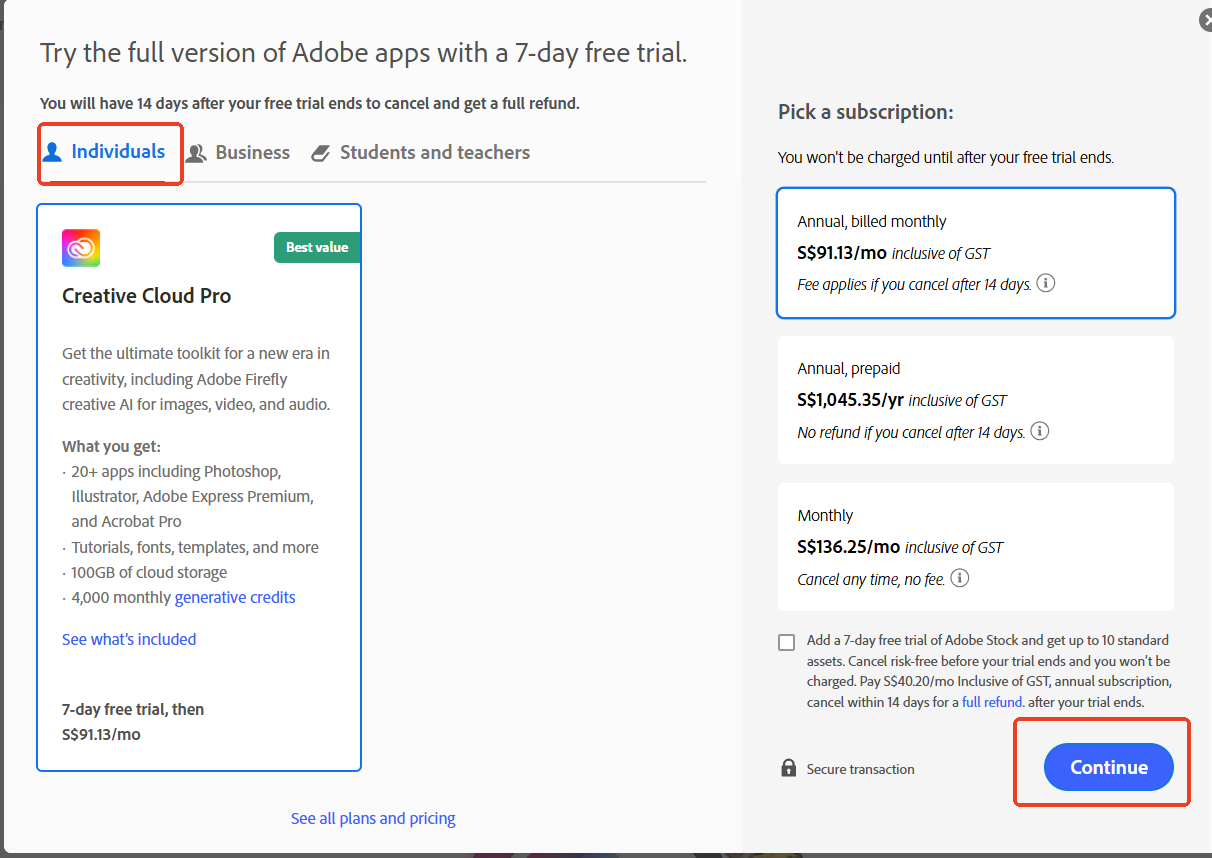
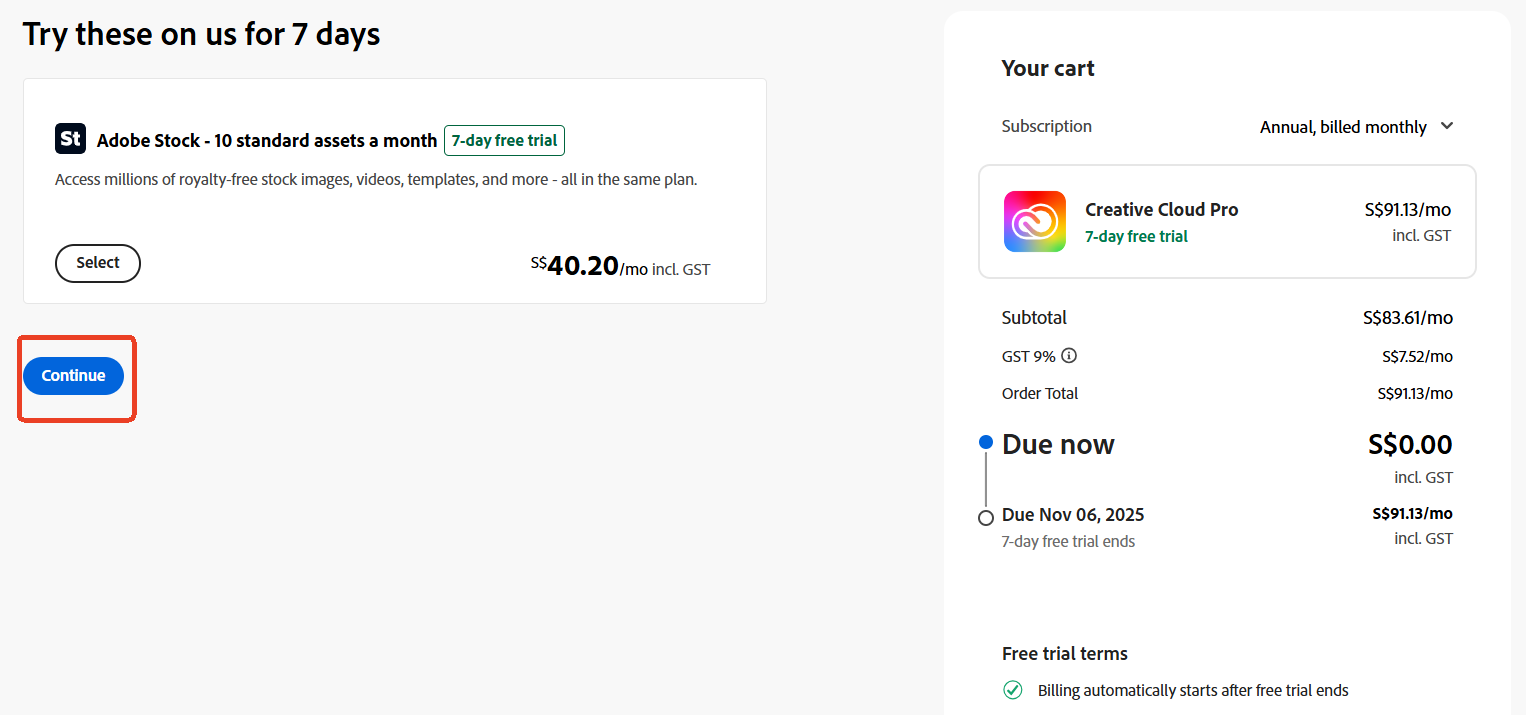
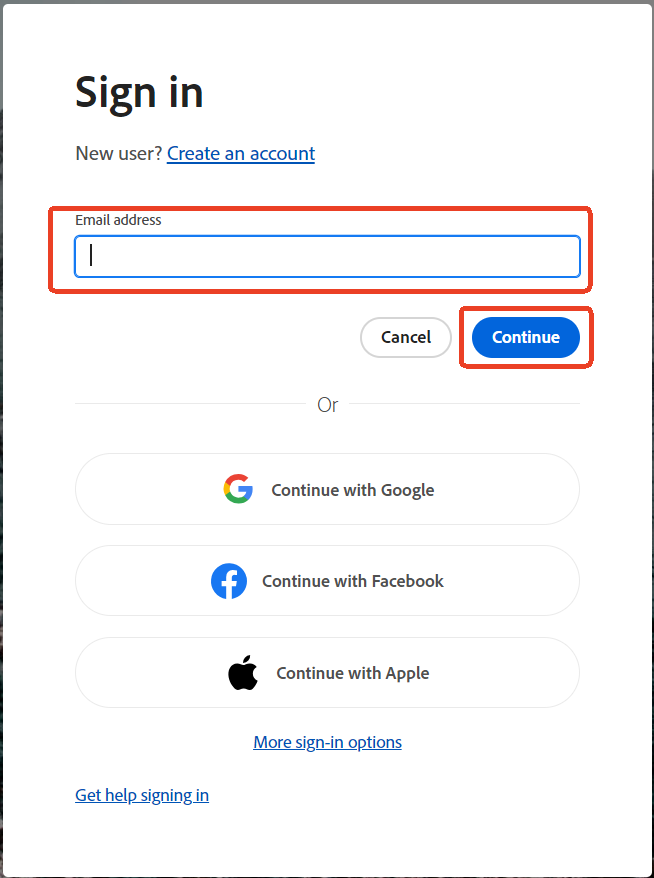
The system will ask you to log in. Just choose your usual email to set up your Adobe Login for the first time.
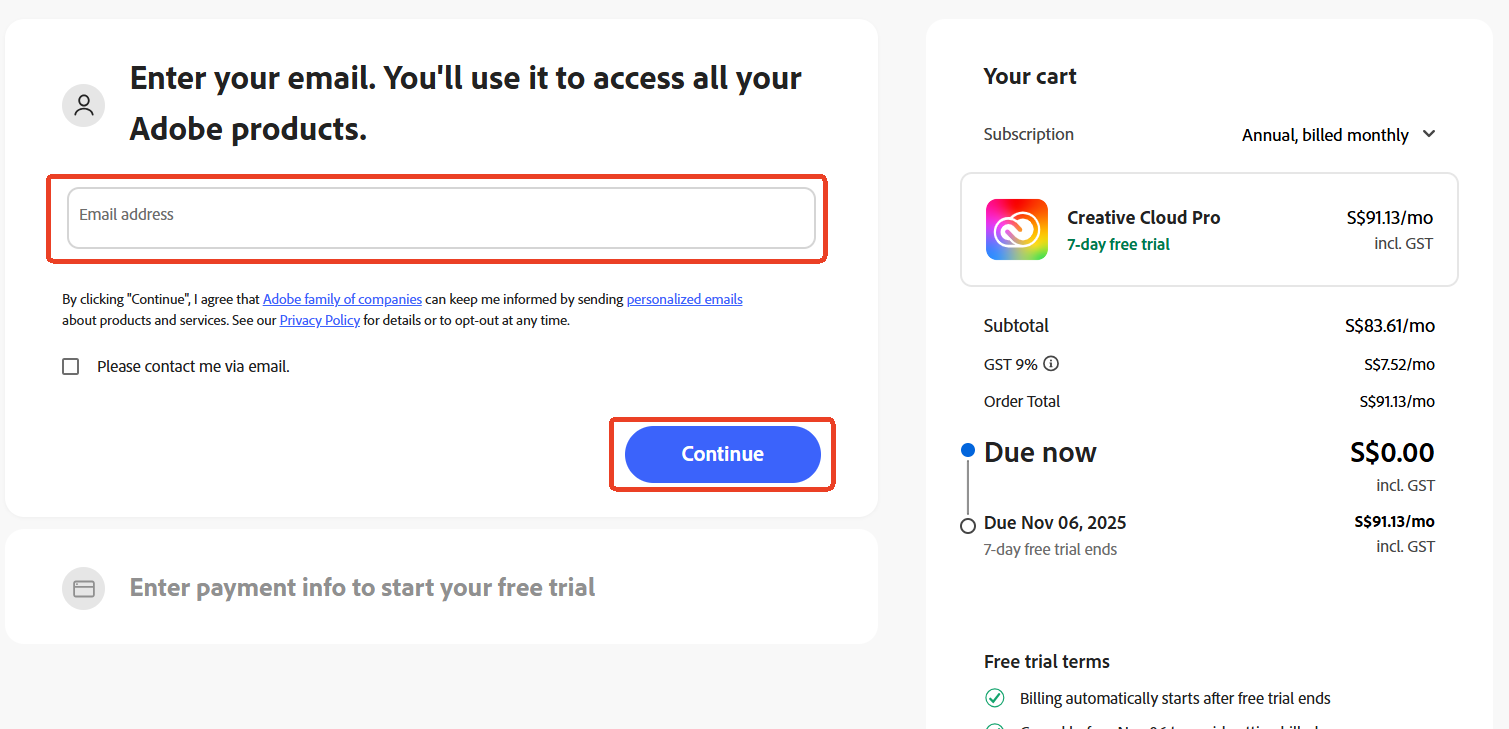
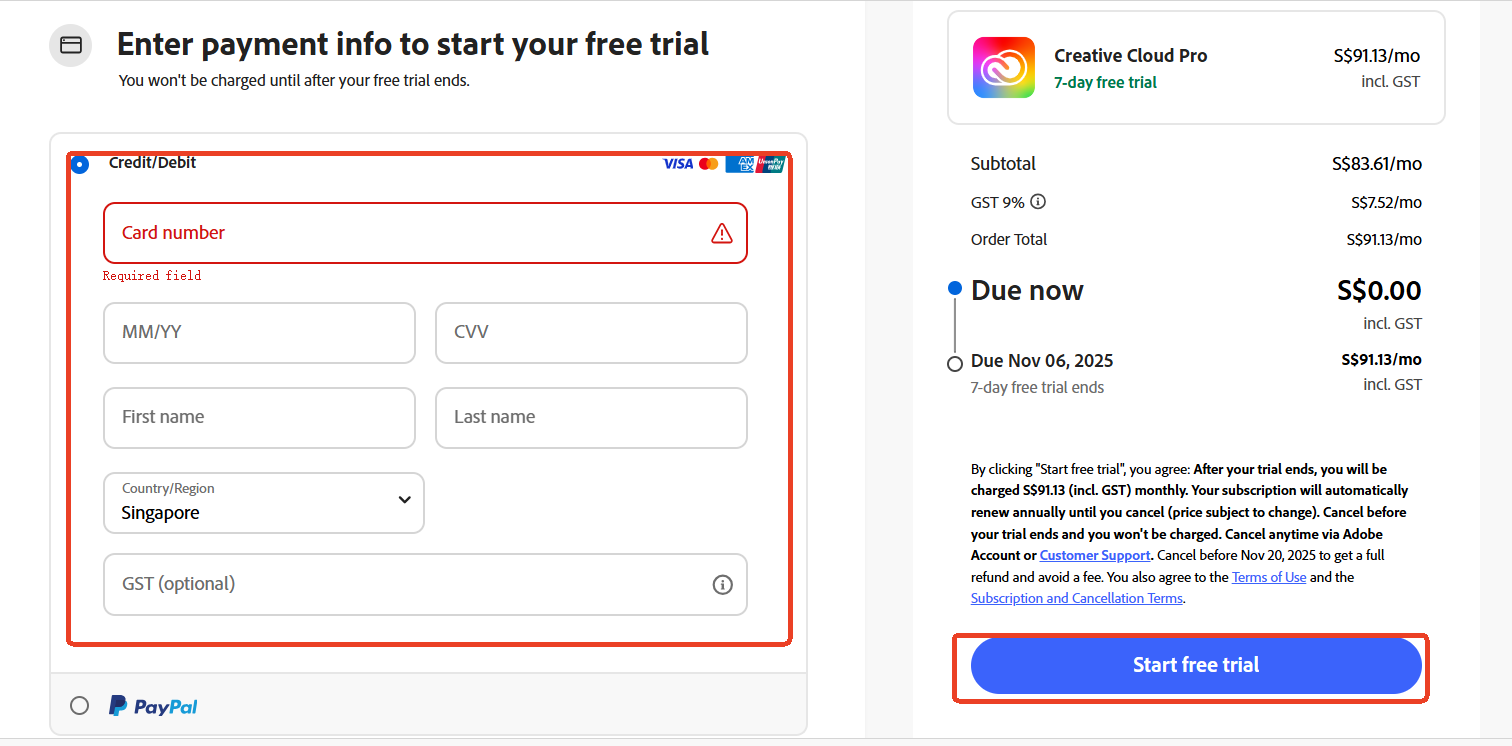
Fill in the billing info as prompted, click “Start Free Trial,” verify your email, set up a password, and you’re ready to enjoy 7 days of free access!
Step 2: Download and Install Adobe Creative Cloud
- After signing up, the download link usually pops up automatically. Click it to start downloading the Adobe Creative Cloud app—no need to hunt around for the installer, super convenient!
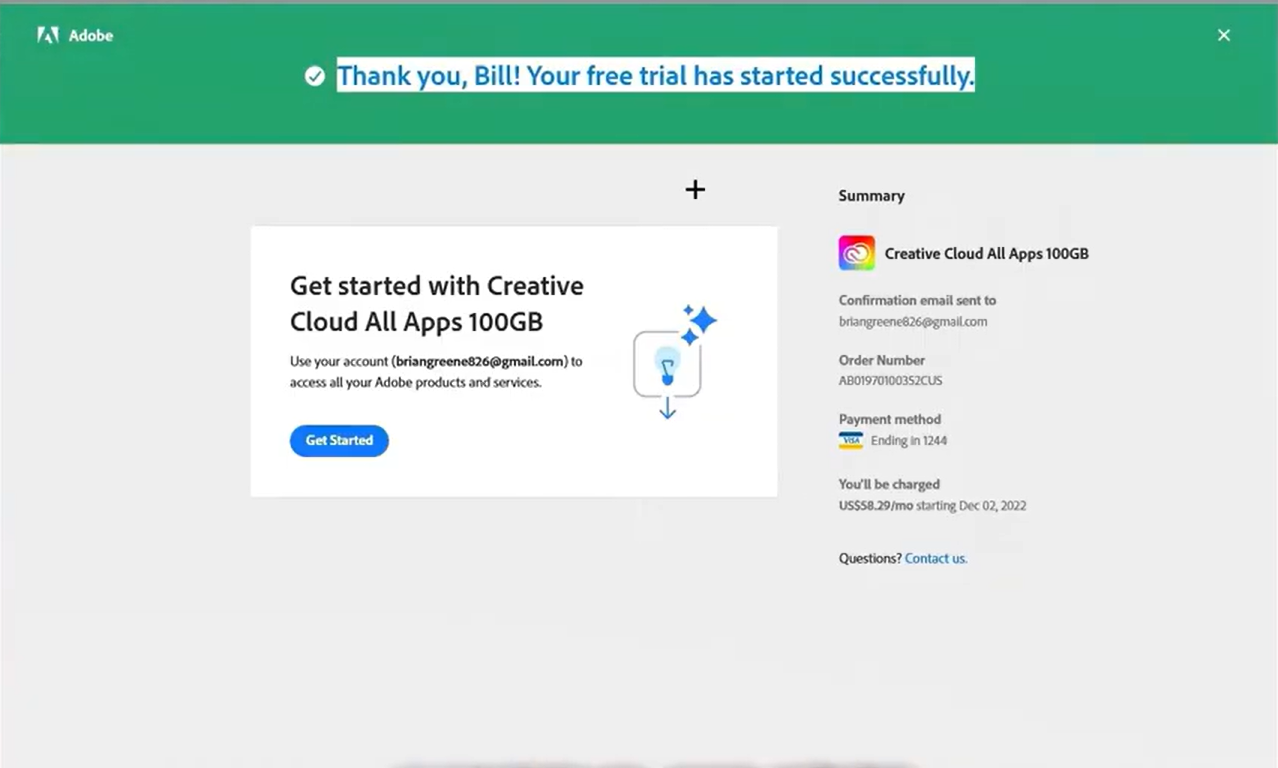
- Once downloaded, double-click the installer, follow the prompts (just stick with the default settings), and in a minute or two, your Adobe Login will be ready to use in the app.
Step 3: Login and Install Apps
- Open the Adobe Creative Cloud app, log in with the email and password you just used. First-time Adobe Login may take a few seconds, so be patient.
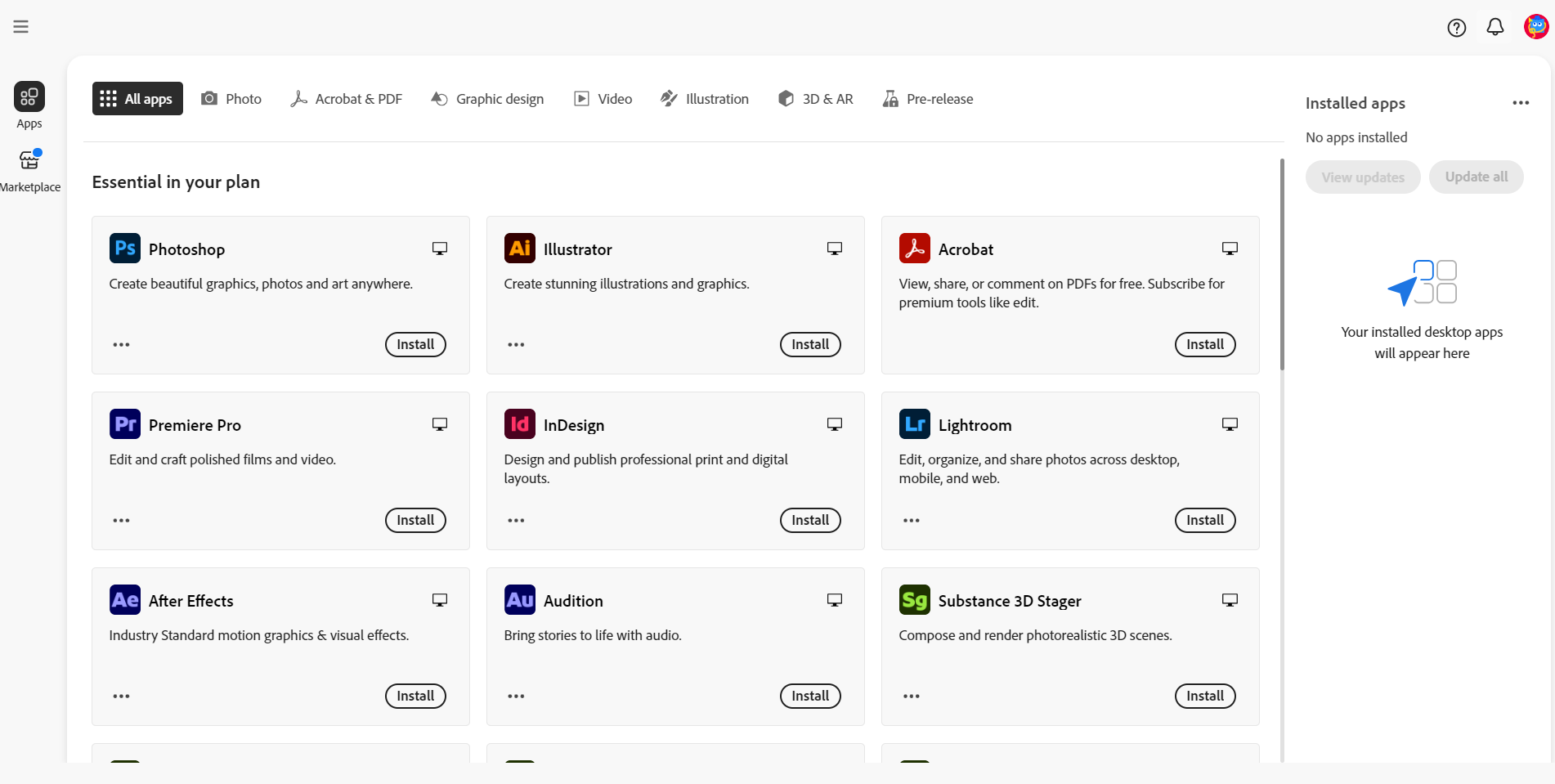
- Once logged in, click “Apps” on the left. You’ll see all Adobe software there. Want Photoshop? Find it, click “Install,” wait for the progress bar, and once it says “Open,” you’re ready to go!
Personal Trial Tips:
- The 7-day free trial can’t be paused once it starts.
- One Adobe Login (Adobe ID) can usually only use the free trial once. If you’ve tried it before, you’ll need a new account to start another trial.
- Once the trial ends, if you haven’t purchased a full license, the software will stop working.
Scenario 2: School/Enterprise User Adobe Login (Including Registration Steps)
Logging in as a school or enterprise user is a bit different from personal accounts—you need to use your institution email and go through single sign-on. My colleague Jake just started his new job last week and tried an Adobe Login with his personal email. After entering his password multiple times, he kept getting “No Access” errors and was seriously stressed. Later, IT told him to use his corporate email linked to his employee ID, choose “Company or Team” for Adobe Login, and enter his credentials on the enterprise authentication page—and boom, he was in instantly.
Step 1: Get Your Institution Account Ready
- Contact your school admin or company IT. They’ll usually provide you with your school or enterprise email (like xxx@school.edu or xxx@company.com) and sometimes a temporary password. This is what you’ll use for your Adobe Login.
Step 2: Download and Install the Adobe Creative Cloud App
- Just like personal users, go to the Adobe Creative Cloud official site, download the client for your system, and follow the prompts to install. Super easy and straightforward.
Step 3: Choose the Right Login Type and Register (If First Time)
- Open the Adobe Creative Cloud app and click “Login.”
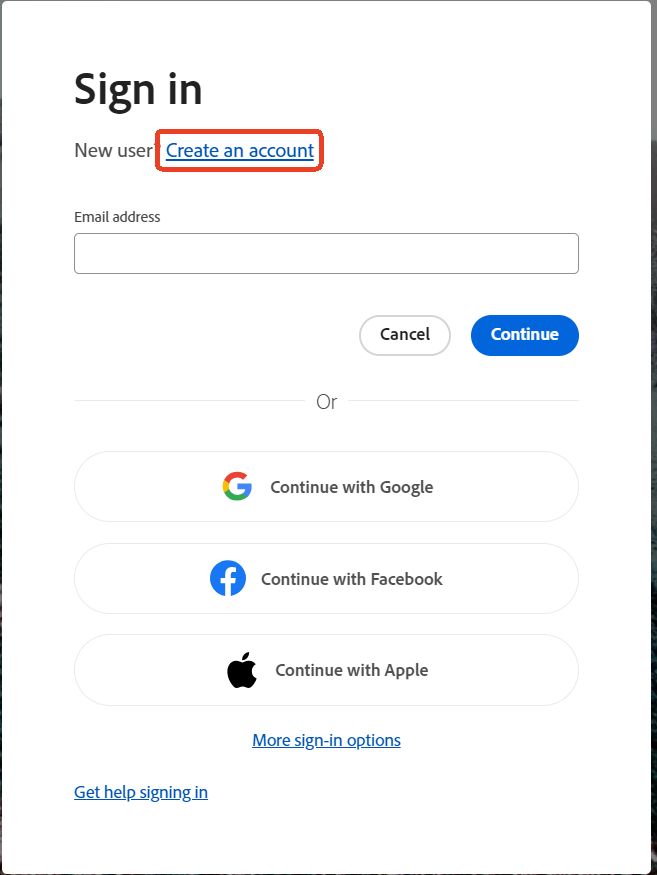
- Select “Company/School Account” for your Adobe Login.
- If it’s your first time, click “Register with School/Company Email,” enter the email provided by your institution, and follow the prompts to activate your account. This sets up your Adobe Login for school or enterprise access.
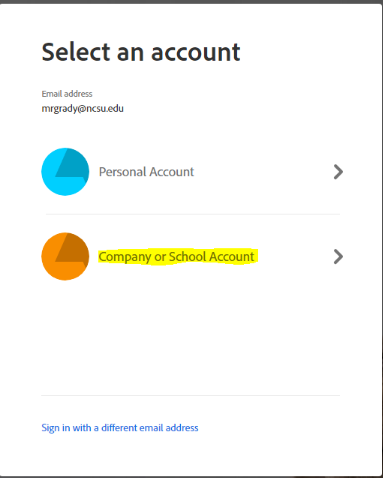
Step 4: Enter Your Credentials to Complete Login
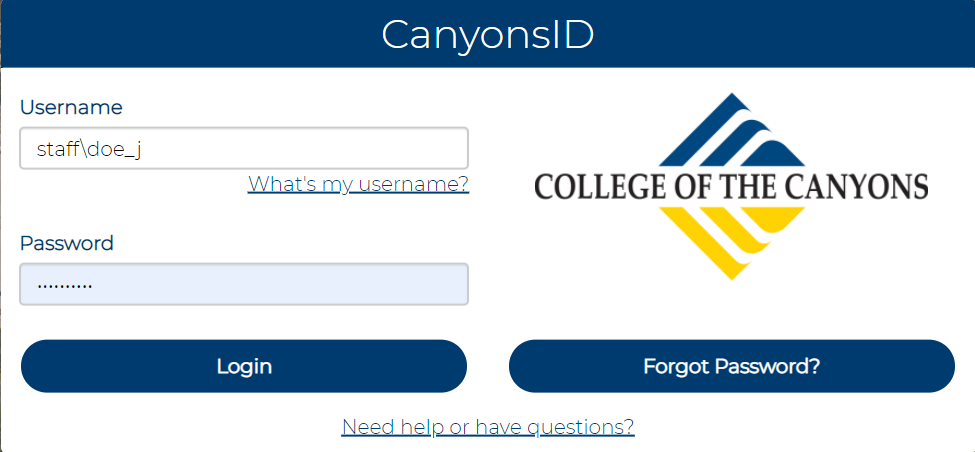
- The system will automatically redirect you to your school’s or company’s single sign-on page. Enter your student/employee ID and password, complete the authentication, and your Adobe Login is done—you’re in!
Access Reminder:
- Once you leave the company or graduate, your Adobe Login access will expire immediately according to Adobe and your institution’s agreement.
How to Install Adobe Programs After Adobe Login
After completing your Adobe Login, installing Adobe apps is as easy as grabbing an app from the app store – totally effortless. I still remember installing After Effects last month: from search to launch, it took me less than five minutes. Here’s how to get started with Adobe Creative Cloud:
Step 1: Navigate to the "Apps" Section Open your Adobe Creative Cloud desktop app and look for the "Apps" tab in the left sidebar – you can’t miss it. Click it, and you’ll see the full Adobe creative suite laid out like a buffet.
Step 2: Pick Your Tools Need Photoshop? Find it in the list and hit the “Install” button on the right. The download starts immediately. 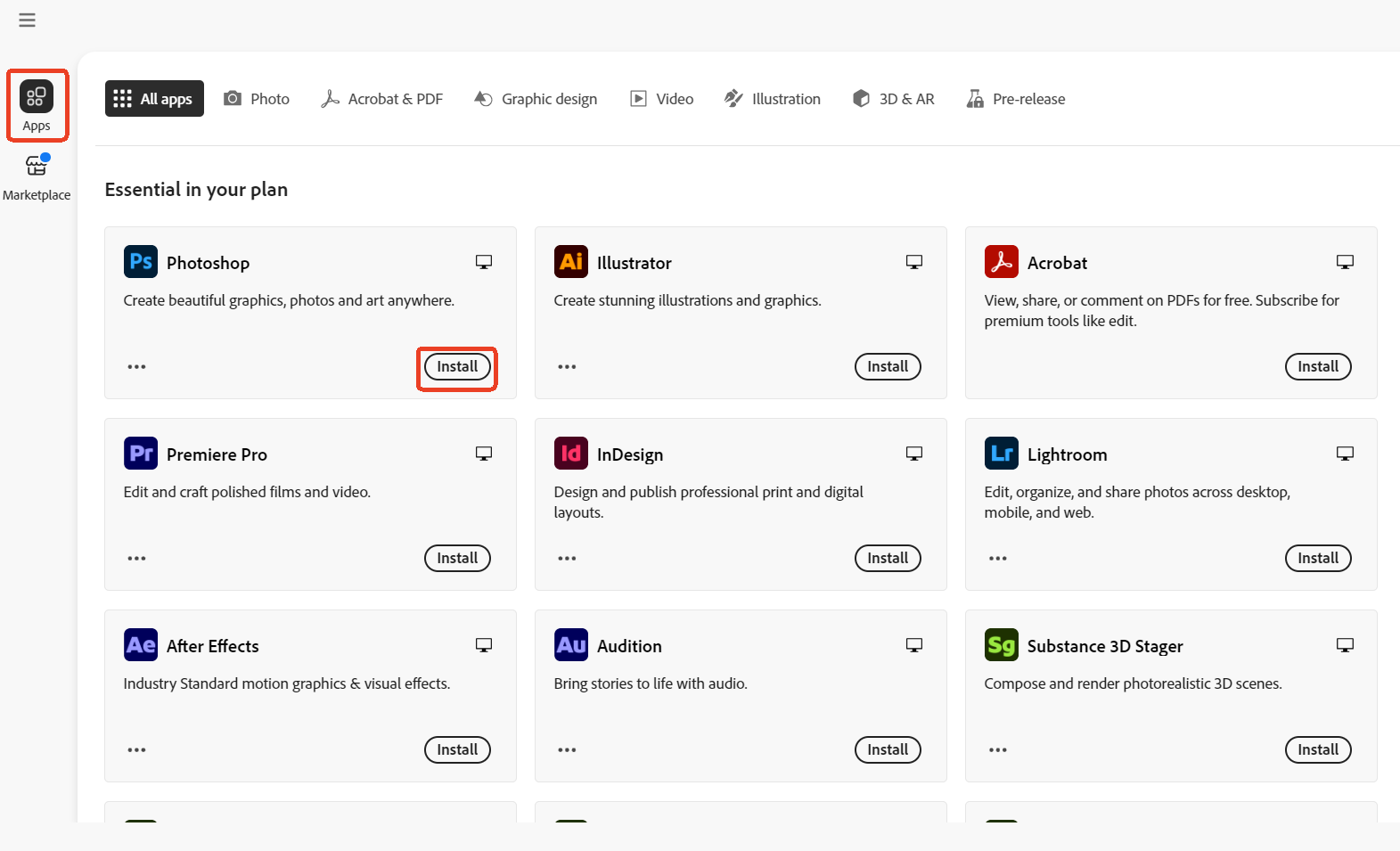 → Pro tip: Need an older version for compatibility? Click the three dots next to any app and explore “Other Versions.” That’s how I grabbed an older AE build when some plugins weren’t updated.
Step 3: Let the Installation Finish A progress bar will show under the app icon. Don’t just stare at it – grab a coffee. Within minutes (faster if your Wi-Fi is good), the “Install” button will change to “Open.” That’s your green light to start creating.
Once you see that “Open” button, your Adobe Login is officially linked to the app. Now you’re ready to dive in and start creating with Adobe Creative Cloud.
What Exactly Is Adobe?
Let’s clear this up first: Adobe isn’t just one piece of software—it’s the big boss of creative tools. Tons of must-have apps for design, video, and even office work all come from Adobe. When I first got into design, I thought Photoshop was Adobe. Later I realized: Premiere Pro (PR) for video editing, Illustrator (AI) for logos and vectors, Acrobat for PDFs… all Adobe. Honestly, it’s like the ultimate creative toolbox.
Adobe basically does two things:
- Makes professional software, each with its own specialty—Photoshop is king for photo editing, Illustrator rules vector art.
- Runs cloud services, and Adobe Creative Cloud (aka CC) is the “manager” that ties all the software and cloud features together. To be clear, CC isn’t for creating—it’s for managing your creative tools.
From my experience, Adobe Creative Cloud has three super practical perks:
- Super easy software management Installing Photoshop, updating Premiere, uninstalling Audition—it’s all just a click in CC. No need to hunt for installers. I used to spend ages finding old versions of After Effects, but with CC, I just clicked “Other Versions” and done.
- Cloud sync to save your butt One time I was rushing a design at home and hadn’t finished it. I saved it to the cloud, went to the office, logged in with my Adobe Login, and pulled it up instantly—no USB drives, no panic.
- Beginner-friendly perks CC comes with ready-made assets and tutorials. When I was learning Illustrator, I followed the CC beginner guide to make a logo. Way faster than figuring everything out by trial and error.
So yeah, once you set up your Adobe Login, Adobe Creative Cloud really makes managing your creative work a breeze.
What Products Does Adobe Include?
Adobe covers everything for design, video editing, and office tasks. To get started, just log in with your Adobe Login. Once you're in, use Adobe Creative Cloud to easily install and manage your tools. Here are the five I use the most:
- Photoshop (PS): Perfect for editing and poster design. My friend Aki brightened up dark wedding photos, and the client ordered 10 extra albums.
- Illustrator (AI): The go-to for logos and vector designs. My freelance friend uses it for logos, and it looks great on everything, no matter the size.
- Premiere Pro (PR): The best tool for video editing. I use it for my vlogs—quick edits, subtitles, and transitions in 30 minutes.
- After Effects (AE): For special effects. My cousin used it to make a washing machine spin in an ad, and the client loved it so much they extended the contract.
- Acrobat Pro: Ideal for PDFs. I edited a contract and added an electronic signature—done in minutes, no print needed.
Once you set up your Adobe Login, all these tools are ready to go through Adobe Creative Cloud—super easy to use and manage.
How to Buy Adobe Software: Official Packages You Need to Know
If you want to buy Adobe software legally, you have to go through Adobe Creative Cloud. Let me share a painful lesson from last year: my friend Kevin tried to save a few bucks by buying a “permanent pirated license.” Two months later, Photoshop kept crashing, and when he tried logging into his Adobe Login, his account got blocked. All his client poster files were gone. He had to redo everything overnight—and even paid a penalty. Lesson learned: always go legit.
Adobe Creative Cloud is the official platform for buying Adobe software, and it keeps you safe by combining “choose the right plan + buy through official channels.” Based on my experience and what I’ve seen friends do, here’s the lowdown:
| Plan | Who it’s For | Key Benefits | US Price (Annual / Monthly) | Pricing Notes |
|---|---|---|---|---|
| Individual – All Apps (Pro) | Personal users who need multiple creative apps | 20+ desktop apps (Photoshop, Illustrator, Premiere Pro, etc.), 100 GB cloud storage, updates & support | ~$69.99/month (annual, monthly billing) | Standard price, flexible annual/monthly billing |
| Individual – Single App | Users who only need one specific app (like Photoshop or Illustrator) | Full features of one app, updates, cloud storage | From ~$22.99/month (Photoshop single app) | Standard price, flexible annual/monthly billing |
| Teams | Small business, design/content teams | Multi-user license management, 1 TB cloud per seat, centralized admin console, team collaboration | From ~$99.99/seat/month (annual contract) | Official purchase via Admin Console; resellers require contacting to cancel |
| Enterprise | Large organizations, design teams, multinational companies | Enterprise deployment, security control, SSO management, advanced collaboration, unlimited scalability | Custom quote (example: ~$326.99/year/user for 3-year commitment) | Managed via Admin Console; highly customizable |
| Education (Students & Teachers) | Students, teachers, educational institutions | Same as individual All Apps, but with education discount, identity verification required | First year ~$24.99/month (annual contract) | Education discount, identity verification required, perfect for students & teachers |
The key takeaway: once you set up your Adobe Login, all these plans are accessible through Adobe Creative Cloud, making it super easy to install, manage, and update your apps without any hiccups. Stick to official channels and you won’t end up like Kevin!
Comparing Adobe Creative Cloud Purchase Channels (Money-Saving Tips)
After getting a handle on Adobe Creative Cloud benefits, let’s talk about where to buy it. I did some research and combined my own experiences with friends’, and it turns out most people get tripped up by pirated licenses or unclear shared access. I’ve broken down the two main purchase channels, their pros and cons, so you can make a smart choice and avoid headaches.
- Official Channel
- How to Buy: Open the Adobe Creative Cloud client, click the “Subscribe” button in the top-right corner, or visit Adobe’s official website to select your license type. Follow the prompts to enter payment info and complete your purchase.
- Pros: My first purchase was through the official channel. I had an urgent order and needed an invoice for reimbursement. Three days later, the paper invoice arrived, and finance approved it right away. Later, Photoshop crashed unexpectedly. I called official support, waited about 15 minutes, and the technician remotely helped me step by step—turns out it was a plugin conflict, solved fast. Perfect if you need stable after-sales support and proper invoicing.
- Cons: It’s the most expensive channel with no extra perks. When my first-year discount expired, the monthly fee jumped to ¥499—ouch.
- Authorized Third-Party Platforms (Example: FamilyPro)
- How to Buy: Visit an authorized reseller’s site (e.g., FamilyPro, pick your license type, submit your order, pay, and then get an activation code or link it directly to your Adobe Login.
- Pros: My studio needed a personal exclusive account this year, and we went with FamilyPro. Their exclusive plans are super cost-effective: $4.99 for 1 month, $11.99 for 3 months, $35.00 for 12 months, which is 90%+ cheaper than Adobe’s first-year individual plan. Last week, designer Jake had AE crashing; we contacted their support, and within 20 minutes they helped submit an official Adobe ticket. The issue was resolved in 2 hours—faster than going through Adobe directly. Great for individuals or small teams looking for max value.
- Cons: You have to check the license proof carefully. I specifically asked their support to send a screenshot of Adobe’s authorization certificate to make sure it was legit—avoid pirated licenses at all costs.
With either option, once you set up your Adobe Login, managing and activating your Adobe Creative Cloud apps is smooth and painless. Choosing the right channel can save you money while keeping everything official and secure.
FAQ
Q: I clicked “Adobe Login” but nothing happens. What should I do?
A: This happens sometimes if the Adobe Creative Cloud app is acting up. First, try quitting the app and reopening it. If that doesn’t work, log out completely, restart your computer, and then try logging in again. Make sure you’re using the correct Adobe Login type (personal, school, or enterprise) and the email linked to your account.
Q: I get an “incorrect username or password” message when logging in, but I’m sure it’s right. What should I do?
A: I helped an intern with this once—her Caps Lock was on, so all the letters were uppercase. Another time, my own account got locked automatically. Adobe sometimes flags unusual login activity. Just click “Forgot Password” to reset it, and you can log in again with your Adobe Login.
Q: I get a “not enough disk space” error when installing software, but I have plenty of space. What’s going on?
A: I ran into this with Premiere Pro. My C: drive only had 5 GB left, but D: had 100 GB. Before installing, click “Options” and change the installation path to a folder on D:, like “Adobe Apps.” Installation started instantly. By default, Adobe installs on C:, so make sure that drive has enough space.
Q: I bought an individual plan. Can I use it on two computers?
A: Yes! Adobe allows you to activate your individual plan on two computers, but you can only use it on one at a time. Once you log in on one device, the other is blocked until you log out.
Q: My subscription expired. Can I still open the files I made?
A: Absolutely! Your files stay on your computer. You just won’t be able to edit them until you renew. As long as your Adobe Login is active again, you can pick up right where you left off in Adobe Creative Cloud.
Adobe Login Tips: How to Avoid Pitfalls and Save Money
Honestly, Adobe Login isn’t that complicated. From my hands-on experience, just remember these two “avoid-pitfall & save-money” tips and you’ll be fine:
- Check your account type before logging in
- Make sure you know whether you’re a personal, business, or student user. Enterprise or student accounts must use the official institution email—avoid getting stuck like my colleague Sam, who picked the wrong type and couldn’t authorize.
- If the Adobe Login ever freezes, try turning off your firewall and restarting the Adobe Creative Cloud app first. Way faster than rebooting your whole computer (I’ve tested this twice, worked both times).
- Choose the right plan, don’t just pick randomly
- For personal users needing multiple apps like Photoshop, Premiere, and Illustrator, the All Apps plan is the most cost-effective. If you only need one app, go with a Single App plan.
- If you’re looking to save big, check out FamilyPro’s exclusive plans: $4.99 for 1 month, $11.99 for 3 months, $35 for 12 months.
- For small teams buying from third-party authorized resellers, always ask the support team to provide a screenshot of the official Adobe license certificate—never risk shared or pirated accounts.
Bottom line: get your Adobe Login right first, then pick the plan that fits your needs. Avoid these two pitfalls, and your Adobe Creative Cloud experience will be smooth and stress-free. Time to activate your Adobe account and max out your creative efficiency!