
How to Fix the GPT Authentication Error (2026 Guide)
If you are staring at an authentication error right now, here is the short answer. The GPT authentication error usually means your login could not be verified. It does not usually mean your account has been banned. If you see a separate suspicious-login warning, treat that as a security issue and follow the account-security steps in the next section. In most cases the problem comes down to one of three things: you are using a different sign-in method than the one you chose when you created the account, your browser or app is holding onto corrupted cookies or an old session, or OpenAI itself is having a temporary service issue. 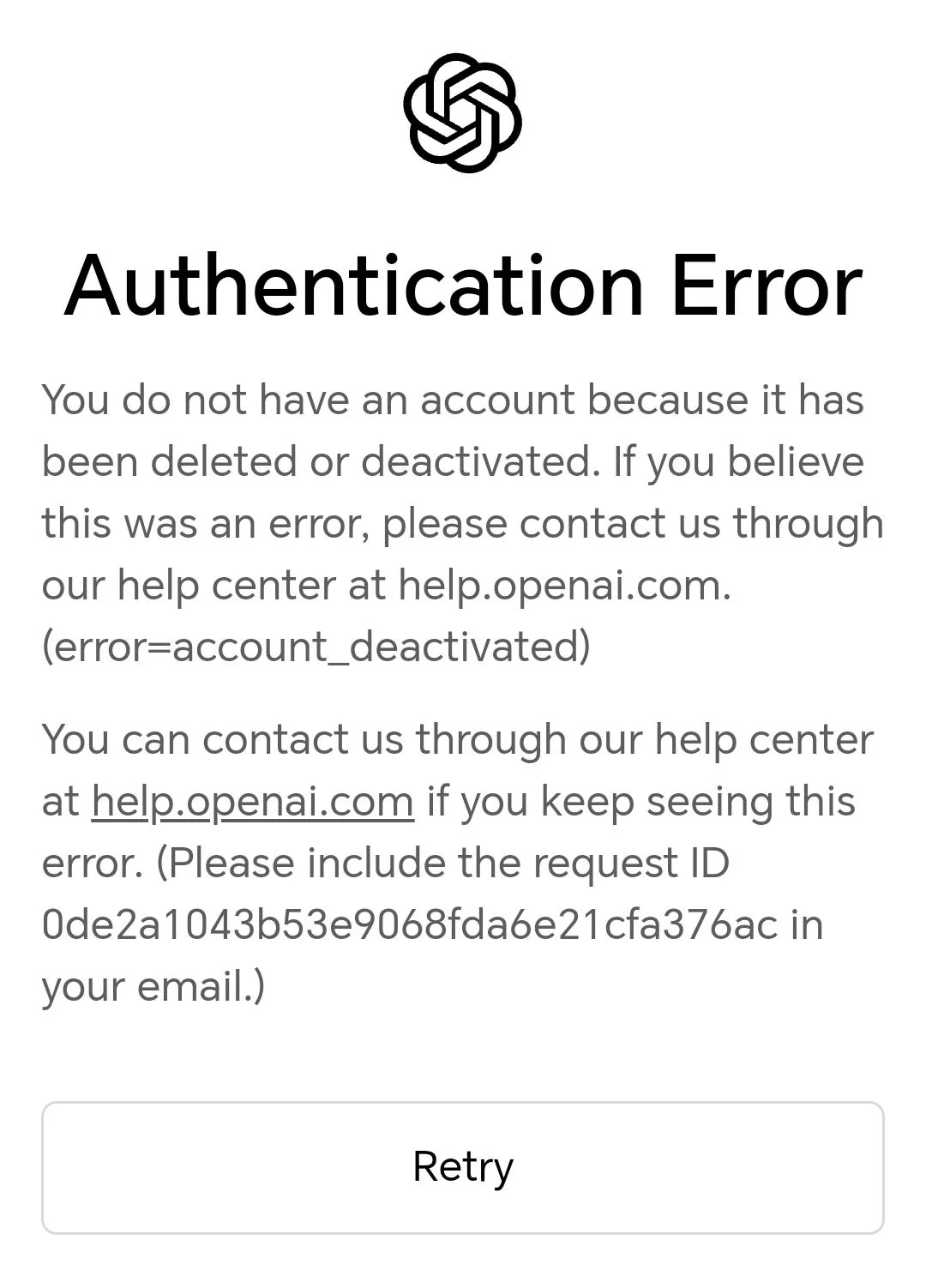 Try this first before you reset anything:
- Check the OpenAI status page at https://status.openai.com to rule out a company-wide outage.
- Sign in using the same method you used when you created the account, such as Continue with Google, Continue with Apple, or email plus password.
- Clear cookies and site data for chatgpt.com and openai.com, or open GPT in an incognito or private window.
That fixes a large share of cases. If the authentication error is still there, the sections below walk through every common cause, starting with a quick diagnosis so you do not waste time fixing the wrong thing.
What Does the "Authentication Error" on GPT Actually Mean?
An authentication error appears when GPT cannot confirm that you are who you say you are. It is a verification failure at the login step, not a message about your account being deleted. OpenAI's own help article on login problems lists the standard checks, which start with browser cache and cookies and then move to your sign-in method.
Different error text points to different root causes. Here is a quick translation table based on the messages users actually report:
| Error or message | What it usually means |
|---|---|
| Authentication Error | GPT could not verify your session or your login details |
| Wrong authentication method | You are signing in with a different method than the one used at signup |
| Invalid token or session | Your saved login session has expired or is no longer valid |
| Suspicious login or activity | The system flagged unusual activity on the account |
The last row is the one that makes people panic. A suspicious-login notice is a security check, not proof that anything was stolen. When that appears, the safest move is to confirm it is really you signing in from a device and location you normally use, and to update your password afterward.
GPT Authentication Error or Outage? Diagnose Before You Fix
The biggest mistake people make with this error is jumping straight into cache clearing and app reinstalls when the real problem is on OpenAI's side. Diagnose first. The table below maps what you see to the likely cause and the fastest action:
| What you are seeing | Likely cause | What to do |
|---|---|---|
| Everyone seems unable to log in, and status.openai.com shows an incident | OpenAI outage | Wait and retry after the status page clears |
| Only your account fails, on every device | Account or login issue | Check that you use the exact sign-in method from signup |
| It works in an incognito window but not in your normal browser | Cookie or session issue | Clear site data for chatgpt.com and openai.com |
| Google login fails but email login works | OAuth or login provider issue | Try your original method, then check the provider status |
| GPT keeps sending you back to the login page | Stale session or cookie issue | Log out completely, clear cookies, then sign in again |
Outages do happen and they can hit login hard. In early June 2026, users who registered GPT with a Microsoft account reported a wave of login failures, collected in this OpenAI Community thread. In August 2026, OpenAI confirmed another login and signup outage on chatgpt.com, which Forbes covered here. If the status page shows an incident, nothing you do on your device will help until OpenAI resolves it, so check that page before anything else.
Fix "Wrong Authentication Method" by Signing In the Way You Signed Up
One common cause of this error is using a different login method from the one you used when you signed up. Here is the part that confuses people: using the same email address is not the same as using the same authentication method.
If you originally signed up with Continue with Google, you should normally keep using Google to sign in. Switching to your email address with a password is a different authentication method, even when the email is the same. The reverse also trips people up, when someone created the account with email and password and then tries Continue with Google.
To fix it:
- Recall how you created the account. The options are email and password, Google, Apple, or Microsoft.
- Sign in with that exact method and nothing else.
- If you do not remember a password because you always used Google, do not reset it. Choose Continue with Google instead.
- If you are not sure which method you used, work through the list one at a time in a private window.
- If the account genuinely needs a password reset, use the forgot password flow on the official login page.
Repeatedly trying different methods can trip a temporary security lock, which looks like another authentication error. Pause for 15 to 30 minutes if that happens, then try only your original method. If you keep hitting login walls on GPT, our guide on what to do when you cannot log in covers the same ground with a few extra device-specific checks.
How to Fix GPT Authentication Errors on Web, iPhone, and Android
Once you have confirmed the problem is on your side, work through the platform you are using. These steps clear the stale sessions and corrupted data that cause most repeat authentication errors.
On the web
- Clear cookies and site data for chatgpt.com and openai.com. In Chrome, go to Settings, Privacy and security, then Cookies and other site data, and remove those two sites.
- Close the browser completely and reopen it.
- Disable browser extensions that block scripts or cookies, then try again.
- If it still fails, use an incognito window as a clean-slate test.
On the iPhone or iPad app
- If the app appears stuck in a login loop, delete and reinstall it from the App Store to test with a clean session.
- Make sure the date and time are set to automatic under Settings, General, Date and Time.
- Check the App Store for an app update before you sign in again.
On the Android app
- Clear the app cache under Settings, Apps, GPT, Storage. Do not clear data yet if you want to keep the saved login.
- If the error persists, clear data as well, or uninstall and reinstall the app.
- Confirm the date and time are automatic in the system settings.
- Update the app to the latest available version from the Play Store, then try again.
Some authentication errors also show up as a session problem, where GPT keeps returning you to the login page. Our guide on GPT sessions that expire explains why that happens and how to stop the loop. If the error text is vague, like "something went wrong", the generic GPT error guide lists the fastest recovery paths.
Can Shared GPT Accounts Cause Authentication Problems?
If you use a shared GPT Plus account, you may wonder whether the account itself is behind the authentication error. Sharing can make logins more complicated, but an authentication error alone does not prove that an account was flagged because it is shared.
A shared account is used from more devices, locations, browsers, and sometimes at the same time. That pattern can look like unusual activity to an automated security system, which is why providers of shared accounts usually recommend steady behavior. FamilyPro's GPT Plus service rules make the same point: use a fixed device and a fixed IP where possible, never change the sign-in method or password the provider set, and check the order page for updated credentials if a routine security rotation locks you out. Shared accounts cost less, but they are a worse fit if several people expect to sign in at once from different countries.
If login trouble keeps interrupting you and you want fewer shared-session variables, a personal account gives you your own login method, chat history, and memory. OpenAI requires an international card and accepts only certain regions, which is where a GPT Plus top-up helps: FamilyPro pays on your behalf and your own account stays yours. On a tight budget, a shared GPT Plus plan still unlocks full Plus features at a fraction of the official price, as long as you accept the trade-offs above.
Either way, the fix for an authentication error stays the same: check the status page, use your original sign-in method, and clear stale sessions.
FAQ: GPT Authentication Error Questions Answered
Q1. Why am I getting an authentication error on GPT?
The GPT authentication error usually appears when your login cannot be verified. The most common causes are using a sign-in method different from the one used at signup, corrupted cookies or an expired session, and a temporary OpenAI outage. Check the status page first, then sign in with your original method.
Q2. Does a GPT authentication error mean my account is banned?
No. An authentication error is a verification failure, not a ban notice. Bans are communicated through account messages and emails, not through login errors. If you see a suspicious-login notice instead, that is a security check, so confirm it is you signing in and update your password.
Q3. What should I try first when GPT shows an authentication error?
Check the OpenAI status page first to rule out an outage. Then sign in with the same method you used when you created the account. If that still fails, clear cookies and try an incognito window.
Q4. Why does GPT keep sending me back to the login page?
This is usually a stale session or corrupted cookie problem. Log out completely, clear site data for chatgpt.com and openai.com, then sign in again. On mobile, reinstalling the app clears the stored session and fixes the loop in most cases.
Q5. Why does GPT say I used the wrong authentication method?
GPT expects you to sign in with the same method you used when you registered. If you signed up with Continue with Google, logging in with an email and password triggers this error even when the email is the same. Use your original method, and if you forget it, work through the options in a private window.
Q6. Can a shared GPT account cause authentication errors?
Sharing an account means more devices, locations, and concurrent sessions, which can make logins look unusual. An authentication error alone is not proof that the account was flagged for sharing. Follow the provider's rules, such as using a fixed device and never changing the sign-in method, and check your order page for updated credentials if the password stops working.
Q7. Will a GPT authentication error go away on its own?
Sometimes, yes. If OpenAI is having an outage, the error clears once the service recovers. If the cause is a temporary security lock from too many login attempts, waiting 15 to 30 minutes usually helps. If the cause is a wrong sign-in method or corrupted data, it will not fix itself, so use the steps above.
Conclusion: What Actually Fixes the GPT Authentication Error
To recap, the GPT authentication error is rarely a disaster. It is usually one of three things: a mismatched sign-in method, a stale session or cookie, or an outage on OpenAI's side. Diagnose first by checking the status page, then sign in with your original method, and only then start clearing data or reinstalling apps.
If the error keeps interrupting real work, think about the account setup rather than the fix. A personal account with your own login method removes the shared-password variable entirely, and FamilyPro can top it up when you cannot pay OpenAI directly because of card or region limits. If budget matters more, a FamilyPro shared GPT Plus plan still costs a fraction of the official price, as long as you follow the service rules and accept the trade-offs. The fix list above stays the same either way, so you can get back to your chats in a few minutes instead of a few frustrating hours.