
GPT Voice Not Working? Fix It in 2026 (iOS & Android)
GPT voice not working usually comes down to microphone access, Voice settings, an app issue, audio routing, or account-level availability. Start with Voice settings and microphone permissions, then check the app, Bluetooth, account, and region before you reinstall anything. In 2026 the Voice interface also changed with the rollout of GPT-Live-1, so older screenshots and tutorials may no longer match what you see. 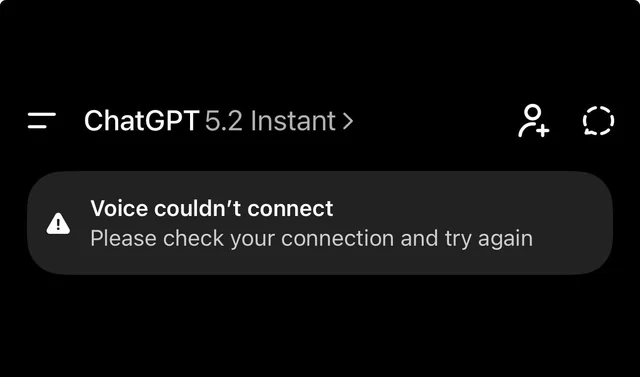 The same troubleshooting pattern applies across iPhone, Android, and desktop: confirm Voice is on in your settings, allow microphone access, check audio output, update the app, and finally look at your account or OpenAI's service status.
Why is GPT voice not working?
Before the fixes, a quick map of what goes wrong. Reports of GPT voice not working almost always trace to one of these:
| What you see | Likely cause |
|---|---|
| Voice button missing or moved | Voice mode interface changed in 2026 |
| Mic opens but GPT can't hear you | Microphone permission off |
| Works until you connect earbuds | Audio routed to Bluetooth |
| Stops after an app update | Outdated app version |
| Only one account affected | Account or region limit |
| Fails on every device at once | OpenAI service issue |
Most reports of GPT voice not working land in one of the rows above. In 2026 OpenAI rolled out a new Voice experience powered by GPT-Live-1 on paid plans and GPT-Live-1 mini on Free, and the options you see (Live, Advanced, or Standard) can depend on your plan, workspace, region, and app version. If a tutorial from last year shows the mic in a different spot, that is why. Check Settings first.
If Voice works on one account but not another on the same device, the difference is at the account level rather than your hardware.
Fix 1: Check which voice mode you're in
Open GPT and select the Voice icon in the message bar. If Voice is available on your account, you can manage the experience under Settings, then Voice, where you may see Live, Advanced, or Standard. OpenAI moved these controls in 2026, so the button may sit where you do not expect.
When GPT voice not working starts right after an interface change, this is the first place to look. Switch to the Voice experience your plan supports, then try again. If GPT voice not working continues after that, the app version is the next check.
Fix 2: Update the app and restart
If GPT voice not working began after an app or system update, check that you are running the latest GPT version before trying more drastic fixes. Open the App Store or Google Play, search GPT, and update if the button shows. Then fully close the app (swipe it away, do not just minimize) and reopen.
A clean close restarts the app's background services, which an OS update can leave in a stale state. Make a habit of restarting the app after any system update before you blame the feature.
Fix 3: Microphone permissions on iPhone and Android
Microphone access is one of the most common things to check. GPT needs the microphone, and iOS or Android can reset that permission after an update.
On iPhone: open Settings, tap GPT, then Microphone, and make sure it is on. On Android: open Settings, tap Apps, find GPT, tap Permissions, then Microphone, and set it to Allow.
When GPT voice not working means Voice opens but replies in text, permission is usually the reason. The microphone toggle can flip off on its own after an iOS update, which makes the model look broken when it is only muted.
Fix 4: Bluetooth, audio output, and battery limits
GPT routes audio to whatever output is active. If you have earbuds connected, the voice may play to them even when they are in the case. Disconnect Bluetooth or take the buds out, then test.
On Android, battery optimization can suspend GPT in the background, which may cut the voice mid sentence. Open Settings, tap Apps, GPT, Battery, and set it to Unrestricted. This is an additional check rather than a guaranteed cause, but it resolves drops for some users. When GPT voice not working is tied to earbuds or cuts off after thirty seconds, the Bluetooth and battery steps above are the cause. Avoid codec settings unless you have a verified, specific problem.
Fix 5: Account, workspace, and region blocks
Some access lives at the account level, not the device. If Voice works on one login but not another on the same phone, the account is the issue. A workspace or school plan may disable Voice, and your country may be outside the rollout.
Check the plan you are on and the region set in your account. Voice availability depends on plan, workspace settings, region, and app version, so a different account type can restore it. None of this means your device is broken, and no setting on your end will fix a region that has not been rolled out.
When voice isn't a settings problem
If you went through every fix and GPT voice not working persists, the cause is probably not on your phone. Use this table to sort it out:
| Symptom | Most likely cause | What to do |
|---|---|---|
| Voice button missing | Voice mode interface changed | Check voice settings |
| Opens but can't hear you | Microphone permission | Enable mic access |
| Works only without Bluetooth | Audio routing | Disconnect earbuds |
| Stopped after update | App version | Update and restart |
| Only one account affected | Account level limit | Try another account |
| Fails on all devices | Account or service | Check OpenAI status |
| Unavailable in your area | Region rollout | Check regional access |
If only one account breaks, that points to an account or ban issue rather than your hardware. Our guide on deactivated ChatGPT accounts covers what to check next. If an entire region is affected, no setting on your end will fix it, and you wait for the rollout.
FAQ: GPT voice not working
Q1: Why is GPT voice not working on my iPhone? Usually it is the microphone permission, which iOS can reset after an update. Open Settings, GPT, Microphone, and turn it on. Also check that you are in the correct Voice experience, since the interface moved in 2026.
Q2: Why is GPT voice not working on Android? The two common causes are the microphone permission under Apps, GPT, Permissions, and battery optimization suspending the app. Set battery to Unrestricted and allow the microphone.
Q3: Why can't GPT hear my voice? The app likely lacks microphone access, or audio is routed to Bluetooth earbuds. Enable the mic in settings and disconnect headphones, then test again.
Q4: Why did GPT voice disappear? OpenAI redesigned the Voice interface in 2026, so the button may have moved. Look for the Voice icon in the message bar, and confirm your plan still includes Voice.
Q5: Why is GPT voice not working in my region? Voice rolls out by region, and some countries are still outside it. If a different account in another region works, the limit is geographic, not your device.
Q6: Does GPT voice require a subscription? No. GPT Voice is available on Free as well as paid plans, though the experience and usage limits can vary. OpenAI currently describes Live as powered by GPT-Live-1 on paid plans and GPT-Live-1 mini on Free, while Advanced and Standard remain available depending on your plan.
Q7: Why does GPT voice work on one account but not another? That points to an account level limit, a workspace restriction, or a ban on the affected account. Try the same device with a second login to confirm.
Q8: Can I use GPT voice on desktop? Yes. GPT Voice is available on supported web and desktop experiences as well as iOS and Android. On the web, make sure your browser has microphone access.
Conclusion: GPT Voice Not Working in 2026
The bottom line: when GPT voice not working hits, work from the mic permission outward. Most cases close in two minutes once the microphone toggle is on and the app is updated. If it survives every fix and only one account is affected, the problem is the account, not your phone.
If You Need Another ChatGPT Account
If you're considering moving to another account because of account-level access or payment limitations, compare the trade-offs between an individual account and a shared option before switching. If you want an individual account topped up without the hassle of paying OpenAI directly, such as no international card or currency friction, FamilyPro can top up a personal account for you. For a lower cost shared option, see ChatGPT Plus via FamilyPro.