
Grok Wrong Password? Here's What to Check Before Resetting It
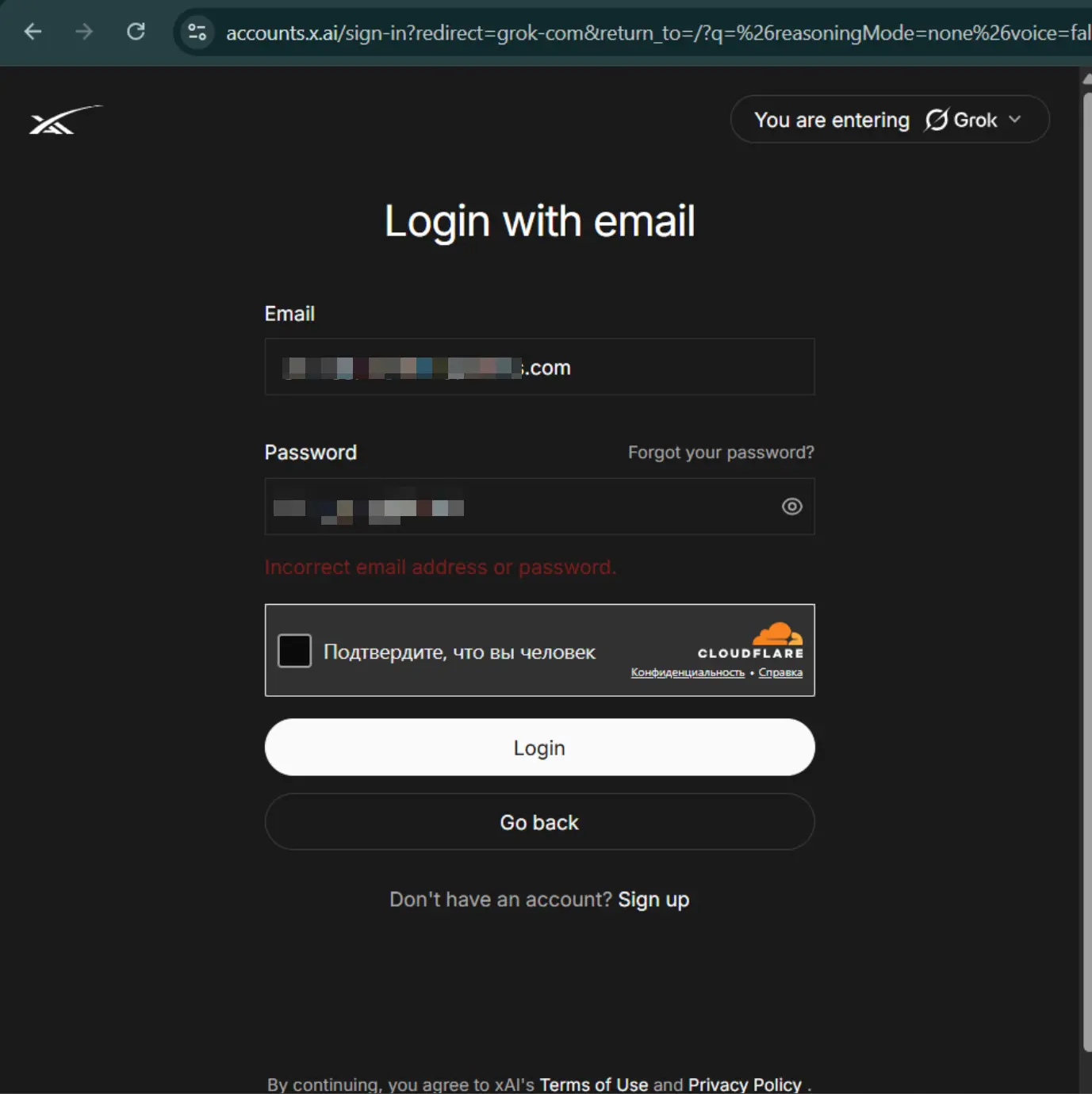
Grok says your password is wrong, but you're pretty sure you typed it correctly?
Don't reset your password just yet.
A "wrong password" message doesn't always mean that the password itself is the problem. You might be using the wrong email address, a different login method, an old browser session, or even the wrong Grok account.
In this guide, we'll walk through the most common reasons Grok may reject your password and show you how to figure out what's actually going on.
Quick answer: First check that you're using the correct email address and the same login method you used before. Then try entering your password manually, use a fresh browser session, and only reset your password if it still doesn't work.
Why Does Grok Say My Password Is Wrong?
Seeing a message like "wrong password" or "incorrect password" is frustrating, especially when you're certain you entered the right password.
But there are several possible reasons. For example:
- You entered the wrong email address.
- You're trying to use email and password when the account was created or accessed through Google.
- You copied an extra space with the password.
- You're using an old password.
- Your browser is keeping an old login session.
- You're signing in to a different account than you expected.
- The account can't be found.
- There is a broader login or account access problem.
So before assuming your password is definitely wrong, it's worth checking the whole login process.
The important question isn't just:
"Is my password correct?"
It's:
"Am I using the correct account, email address, and login method?"
Quick Diagnosis: Is Your Grok Password Actually Wrong?
Before changing anything, look at what you're seeing.
| What You're Seeing | What It May Mean | What to Check First |
|---|---|---|
| Grok immediately says the password is wrong | Email/password mismatch | Check both email and password |
| Google login works, but email login doesn't | Different login method or account | Confirm how you normally sign in |
| Your password worked before but suddenly doesn't | Password, account, or session may have changed | Try a fresh session and reset if needed |
| Reset email doesn't arrive | Wrong email or account issue | Confirm the email address |
| New password still doesn't work | Account/login method mismatch | Confirm the account and try another browser |
| One browser fails but another works | Browser/session problem | Try Incognito or Private mode |
| Grok can't find your account | Wrong account or email | Check which email you are using |
| Every login method fails | Broader account/access issue | Don't treat it as a password-only problem |
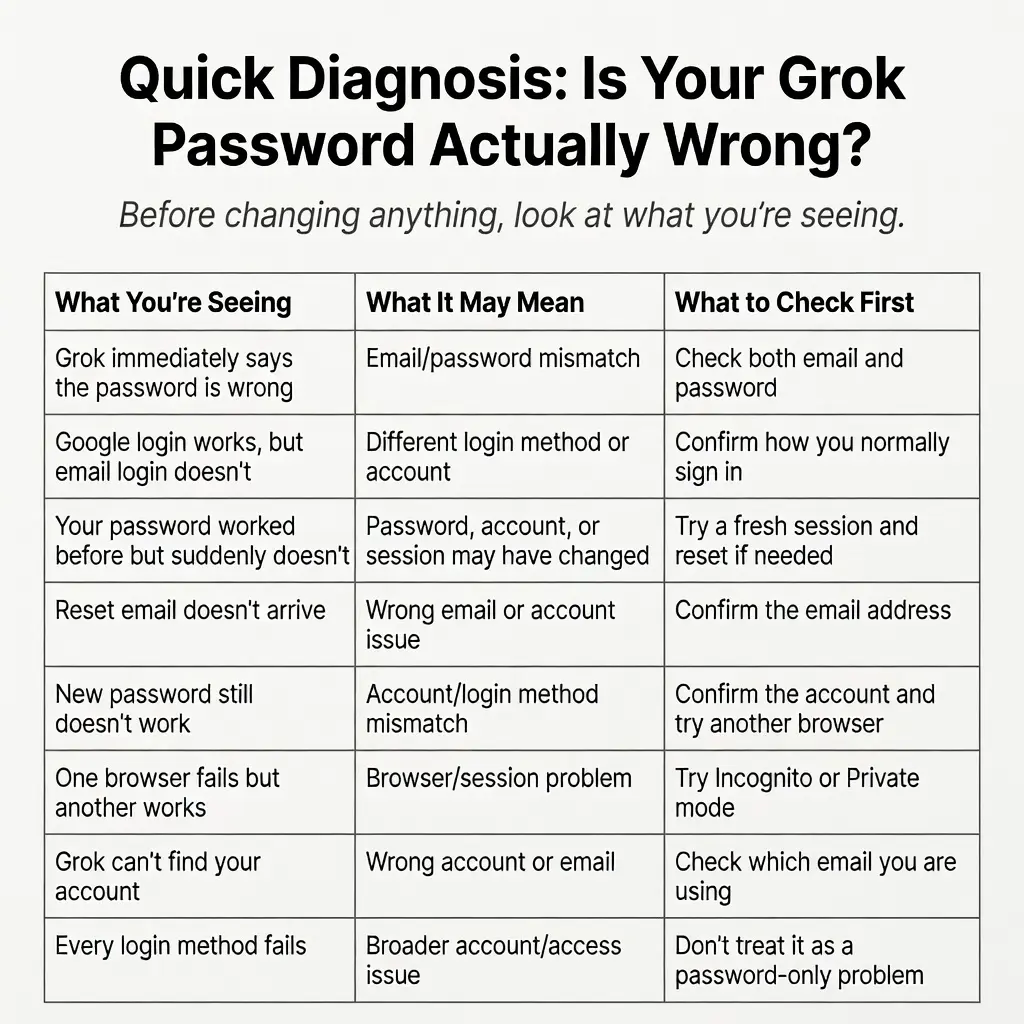
This distinction matters.
If Google login works but email/password login doesn't, for example, saying "your Grok account is broken" doesn't really explain what's happening. You've already learned something useful:
One login method works and another doesn't.
That gives you a much better starting point.
How to Fix the Grok Wrong Password Error
You don't need to try everything at once. Go through these steps in order and stop once you find the cause.
Step 1: Make Sure You're Using the Right Email
This sounds obvious, but it's one of the easiest things to overlook.
Before changing your password, check the email address you're entering. For example, make sure you're not accidentally switching between:
yourname@gmail.comyourname@outlook.comyourname@yahoo.com
Even if the passwords are similar, these can be completely different accounts.
If you copied the email from somewhere else, check it character by character. Look for:
- Missing characters
- Extra spaces
- Typos
- The wrong email provider
- An old email address
- A different account you rarely use
If Grok can't find the account you're expecting, repeatedly changing the password probably won't help.
The first question should be:
Am I actually trying to log in to the account I think I am?
Step 2: Check Which Login Method You Used
This is one of the most important things to check.
Grok may offer different ways to sign in, such as:
- Email and password
- Other available authentication options
Don't automatically assume that because an email address is associated with an account, every login method will behave exactly the same way.
For example:
Google Login  →  Works
Email + Password  →  Doesn't work
If that's what you're experiencing, the problem may not simply be "the password is wrong." You may be using a different authentication path from the one you normally use.
Try to remember how you originally accessed the account. Did you normally click "Continue with Google", or did you enter an email + password?
Those are important details when troubleshooting a login problem.
Step 3: Enter Your Password Manually
If you copied the password from somewhere, try typing it manually.
Why? Because copied passwords can sometimes contain things you don't notice, such as:
- A space before the password
- A space after the password
- A hidden line break
- A missing character
- A copied character from the wrong field
Also pay attention to characters that look similar. For example:
| Confusing Characters | |
|---|---|
O (letter) | 0 (zero) |
I (uppercase i) | l (lowercase L) |
1 (one) | l (lowercase L) |
And don't forget about uppercase and lowercase letters. For example, MyPassword123 is not the same as mypassword123.
If you're manually typing the password, take your time and enter it exactly as it was created.
Step 4: Check for Extra Spaces or Wrong Characters
This is especially important when you're copying login information.
Imagine you have:
- Email:
example@email.com - Password:
ExamplePassword123
You copy both fields and paste them into Grok. Everything looks correct at first glance. But the actual value might contain an extra space:
ExamplePassword123_where _ represents an invisible space. You won't necessarily notice it just by looking at the text.
If you're having trouble, try this instead:
- Delete the password completely.
- Type it manually.
- Make sure Caps Lock isn't causing a problem.
- Check special characters.
- Submit the login again.
If manual entry works, you've probably found a problem with the copied credentials rather than Grok itself.
Step 5: Try a Fresh Browser Session
Sometimes the password isn't the problem at all. Your browser may simply have an old or broken login session.
Before clearing all your browser data, try something simple: Open Grok in Incognito or Private mode.
For example, in Chrome:
- Open a new Incognito window.
- Open Grok.
- Enter your email.
- Enter your password manually.
- Try logging in again.
If it works in Incognito but doesn't work in your normal browser, that's a useful clue. It suggests that the problem may be related to:
- Cookies
- Cached session data
- Browser extensions
- An old authentication session
- Other local browser settings
In that case, you probably don't need to change your password immediately.
Step 6: Reset Your Grok Password
If you've confirmed all of the following:
- ✅ You're using the correct email.
- ✅ You're using the correct login method.
- ✅ You've entered the password correctly.
- ✅ A fresh browser session doesn't help.
- ✅ The password is still rejected.
Then resetting the password is a reasonable next step.
Use Grok's password recovery flow and follow the instructions shown on the page. After requesting the reset email, check:
- Your inbox
- Spam or junk folder
- Promotions or filtered folders
- Whether you entered the correct email address
If the reset email never arrives, don't assume the password reset itself failed. You may be resetting the wrong email account or using a login method that doesn't use a traditional password.
Step 7: Sign In Again After Resetting Your Password
Once you've successfully changed your password, don't keep using an old Grok login tab. Instead:
- Close the old Grok tabs.
- Open a new browser tab.
- Go to Grok.
- Enter the same email address.
- Use the new password.
- Sign in again.
If possible, you can also test the new password in a private browser window.
The idea is simple:
Reset password → Close old session → Open fresh session → Sign in againThis removes some of the confusion caused by an old browser session.
Step 8: Check Whether Grok Can Find Your Account
What if Grok doesn't just say your password is wrong? What if it says that it can't find your account?
That's a different situation. For example:
"We couldn't find your account."
At this point, don't keep changing your password over and over. Instead, check:
- Is the email address correct?
- Are you using the same account as before?
- Did you normally use Google login?
- Did you accidentally switch email addresses?
- Are you trying to log in with an account that isn't the one associated with your Grok access?
A password only helps if you're using the correct account in the first place.
Step 9: Test Google Login Separately
If you're not sure whether this is a password problem, try another available login method. For example:
- Google Login → Works
- Email + Password → Fails
This is a very useful test.
If Google login works, Grok isn't necessarily completely inaccessible. Instead, you've narrowed the problem down to the email/password login path or the account credentials you're using there.
Don't immediately assume "My password must be wrong." First confirm that the email/password login is actually the correct way to access that account.
Step 10: Check Whether the Problem Is Bigger Than Your Password
If you've already:
- Confirmed the email
- Confirmed the login method
- Typed the password manually
- Tried a fresh browser session
- Reset the password
- Tried another browser
…and you're still unable to sign in, stop treating this as a simple password problem.
At this point, you may be dealing with a broader account or access issue. A useful way to think about it is:
Grok says "wrong password"
        ↓
Is the email correct?
        ↓
Is the login method correct?
        ↓
Does manual password entry work?
        ↓
Does a fresh browser session work?
        ↓
Does password reset work?
        ↓
Can the account be found?
        ↓
Still can't log in?  →  Investigate the broader account/access problem
This is much more useful than resetting the password repeatedly.
What If Google Login Works but Email Login Doesn't?
This is one of the most confusing situations users can run into.
You might think:
"If Google lets me into Grok, then my account must be fine."
But that's not necessarily enough to explain why email/password login isn't working. Google login and email/password login are different authentication paths.
If you see:
- Google Login → Works
- Email + Password → Fails
then check the following:
- Are you using the same email address?
- Is the Google account actually the same account you're trying to access with email?
- Did you originally use Google to sign in?
- Are you using an old password?
- Does password reset work for that email?
- Does email/password login behave differently in a private browser window?
This is exactly why we recommend checking the login method before assuming that the password is wrong.
Real Grok Login Problems Reported by Users
Troubleshooting articles are much more useful when they reflect problems that real users actually report. The following examples come from real support tickets.
Note: These are real Grok-related login support cases. They are not official statements from Grok about the technical root cause of each problem. Where the original ticket does not establish a root cause, we don't claim one.
Real Case #1: Google Login Worked, But Email Login Didn't
One user reported that they could enter Grok using a Google account, but couldn't log in using their outlook email.
The user described the situation roughly like this:
"I can't log in to Grok. I can enter with my Google account, but I can't log in with my outlook email."
This is a really useful example because the user could access Grok through one login method. So this wasn't simply "Grok doesn't work." Instead:
- Google login → Works
- outlook email login → Doesn't work
The important takeaway is that a login-method difference can look like a password problem. If you're seeing the same pattern, check the email/password login path separately instead of assuming that your entire Grok account is inaccessible.
Real Case #2: Grok Couldn't Find the Google Account
Another user reported that Grok showed a message saying it couldn't find their Google account.
At first, this might look like a password problem. But think about what the message is actually telling you. If Grok can't find the account, the first thing to check isn't necessarily the password.
Check:
- Which Google account you're using
- Which email address you're entering
- Whether you're signed in to the expected Google account
- Whether you're using the same account as before
The lesson here is simple: An account identification problem and a password problem aren't necessarily the same thing.
Real Case #3: Login Information Was Copied and Pasted
Another user reported copying and pasting Grok email login information, but still encountered an unexpected error.
This is a good example of why copied credentials shouldn't automatically be treated as perfect. When troubleshooting, check the individual values:
- Email → Correct?
- Password → Correct?
- Spaces → Any extra characters?
- Login method → Correct?
If you copy and paste credentials, take a moment to verify them rather than assuming the entire string is correct.
Real Case #4: "I Can't Log In Again"
Another user reported:
"I can't log in to Grok again!"
The word "again" is important. If you previously logged in successfully and suddenly can't, don't only ask "Did I type the password correctly?" Also ask:
- Did the password change?
- Am I using the same email?
- Am I using the same login method?
- Is this the same account?
- Does it work in another browser?
- Does a fresh session behave differently?
A previously working password suddenly failing deserves a slightly broader diagnosis than a password that has never worked.
When Should You Reset Your Grok Password?
Resetting your password can be the right solution, but it shouldn't always be your first move.
Reset your password when:
- ✅ You're sure you're using the correct email.
- ✅ You're using the correct login method.
- ✅ You've entered the password manually.
- ✅ The password still doesn't work.
- ✅ A fresh browser session doesn't help.
Don't immediately reset it when:
| Situation | What to Do Instead |
|---|---|
| Google login works | If Google works but email/password doesn't, first confirm that you're using the correct login method and account. |
| Grok can't find your account | An account identification problem won't necessarily be fixed by changing a password. |
| Only one browser has the problem | Try Incognito mode or another browser first. |
| You may be using the wrong email | Confirm the account before changing its password. |
What If My New Grok Password Still Doesn't Work?
This is another frustrating situation. You reset the password. You know the new password is correct. But Grok still won't let you in.
Don't immediately reset it again.
Instead, go back through the basics:
Correct email?
      ↓
Correct login method?
      ↓
New password entered manually?
      ↓
Fresh browser session?
      ↓
Account can be found?
If all of those checks pass and the new password is still rejected, the issue may be broader than the password itself. At that point, collect the exact error message and a screenshot before making more changes.
That information will be much more useful if you need further assistance.
Grok Wrong Password FAQ
Why does Grok say my password is wrong when it is correct?
A password error doesn't always mean the password itself is wrong. Check your email address, login method, browser session, and account before resetting the password.
Why can I log in with Google but not with my password?
Google login and email/password login are different authentication paths. If Google works but email/password doesn't, confirm that you're using the correct email and the correct login method for the account.
Why is my Grok password not working?
Your password may actually be incorrect, but it could also be an email mismatch, login-method mismatch, old browser session, or account issue. Start by checking the email and login method before resetting your password.
How do I fix the Grok wrong password error?
Start by confirming the email address and login method. Then enter the password manually, try a fresh browser session, and reset the password if it continues to fail.
Should I reset my Grok password immediately?
Not necessarily. If you're unsure whether you're using the correct account or login method, check those first. If everything is correct and the password is still rejected, password reset is the next reasonable step.
Why can't Grok find my account?
You may be using a different email or login method from the one associated with the account. Check which account you normally use before trying to reset the password.
Why does my new Grok password still not work?
If a password reset succeeds but you still can't log in, check the email address, login method, and browser session. Try signing in from a fresh private browser window as well.
Why does Grok work in one browser but not another?
The problem may be related to cookies, cached session information, browser extensions, or another local browser issue. If another browser works, you've probably narrowed the problem down to your original browser environment.
Quick Grok Wrong Password Checklist
Before contacting support or repeatedly resetting your password, run through this checklist:
- [ ] Is the email address correct?
- [ ] Am I using the same login method as before?
- [ ] Did I enter the password manually?
- [ ] Did I check uppercase and lowercase characters?
- [ ] Did I check for extra spaces?
- [ ] Did I check similar-looking characters such as O/0 or I/l/1?
- [ ] Does Google login work?
- [ ] Did I try Incognito or Private mode?
- [ ] Did I try another browser?
- [ ] Did I try another device?
- [ ] Did I reset my password?
- [ ] Does the new password work?
- [ ] Can Grok find my account?
- [ ] Does the problem happen with every login method?
If you've checked most of these, you should have a much clearer idea of where the problem is.
What If Nothing Works?
If you've tried the steps above and still can't log in, don't keep changing the same password over and over. Instead, write down exactly what you've tested. For example:
| Test | Result |
|---|---|
| Grok itself | Works |
| Google login | Works |
| Email + password | Fails |
| Password | Recently reset |
| Chrome | Fails |
| Incognito | Fails |
| Edge | Fails |
| Account | Can be found |
That's much more useful than simply saying "My Grok password doesn't work."
If you need to report the issue, include:
- The exact error message
- A screenshot
- The email/login method you're using
- Whether Google login works
- Whether password reset works
- Whether another browser works
- Whether another device works
- When the problem started
The more specific the information, the easier it is to understand what you're actually dealing with.
Final Thoughts
A Grok "wrong password" message is pretty straightforward on the surface. But the password isn't always the real problem.
Before resetting it, take a minute to check:
- Are you using the right email?
- Are you using the right login method?
- Does Google login work?
- Does the password work in a fresh browser session?
- Can Grok actually find the account you're trying to access?
Those questions can quickly separate a real password problem from an account, login-method, or browser problem.
And if you discover that the problem is broader than your password — for example, Grok itself won't let you log in or the page is failing to load — check our guide to Grok login error.
The goal isn't to reset your password five times. The goal is to figure out why Grok is rejecting the login in the first place.
Note: Grok's interface, authentication options, and account features may change over time. The troubleshooting steps in this guide are intended to help identify common login problems. If the issue is caused by a temporary service-side or account-level problem, local troubleshooting may not resolve it.