
How to Add a Profile on Netflix: 2026 Guide with Email Setup
Quick answer: As of June 2026, every Netflix profile (except Kids profiles) needs its own email address. When you add a profile, you'll enter a name, pick an icon, then type an email and confirm a 6-digit code. Kids profiles skip the email step. You can have up to 5 profiles total—need more? skip to the cheaper option.
Last updated Covers the June 15 email requirement change
What changed in 2026: every profile now needs an email
Before June 15, 2026, adding a profile took three steps: pick a name, choose an icon, done. Netflix now asks for a unique email on every non-Kids profile. They say it's for security—and to make it easier to move a profile to its own account later without losing recommendations.
If you've followed older tutorials, the steps won't match what you see now. Most of those guides haven't been updated since before June 2026. This one has.
Here's the nutshell version of what's different:
- Non-Kids profiles: Need a unique email + 6-digit verification code during setup.
- Kids profiles: Still no email required—just name and age range.
- Existing profiles: Netflix is asking users to add emails to older profiles gradually; you might see a prompt next time you log in.
- One-time code login: Once a profile has an email, that person can log in with just the code sent to their inbox—no need to share the main account password.
How to add a profile on Netflix (all devices)
The email step shows up on every device, but the flow is mostly the same. I'll go through desktop first—the screen is biggest and easiest to see—then note what's different on mobile.
On desktop (browser)
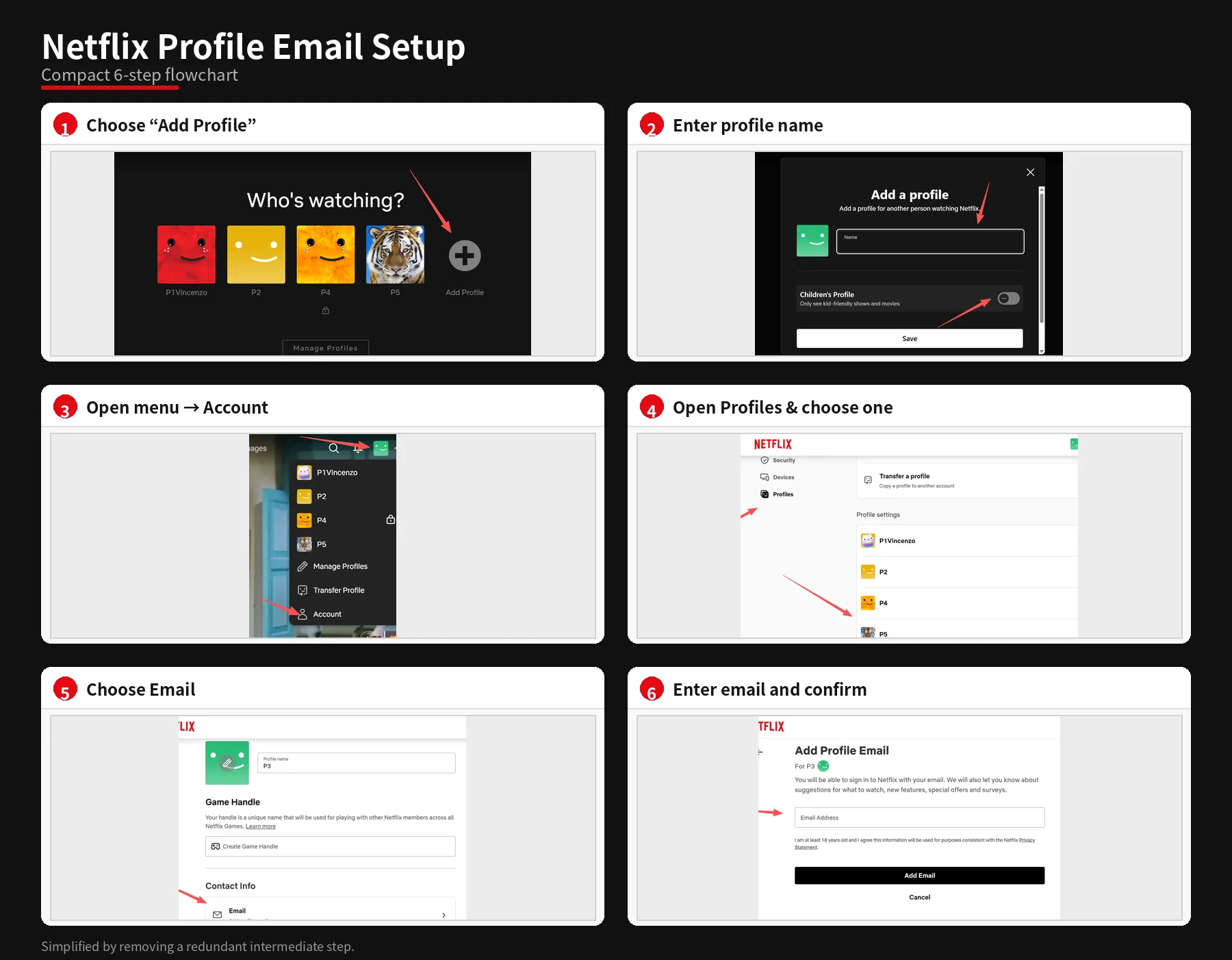
- Go to netflix.com and log in to the account.
- On the Netflix profile selection screen, click Add Profile or the + icon.
- Enter a profile name. Turn on Children’s Profile only if the profile is for a child, then click Save.
- Open the profile menu in the upper-right corner and select Account.
- In the Profiles section, choose the profile you just created.
- Under Contact Info, select Email.
- Enter the email address for that profile, then click Add Email to confirm.
On mobile (Netflix app)
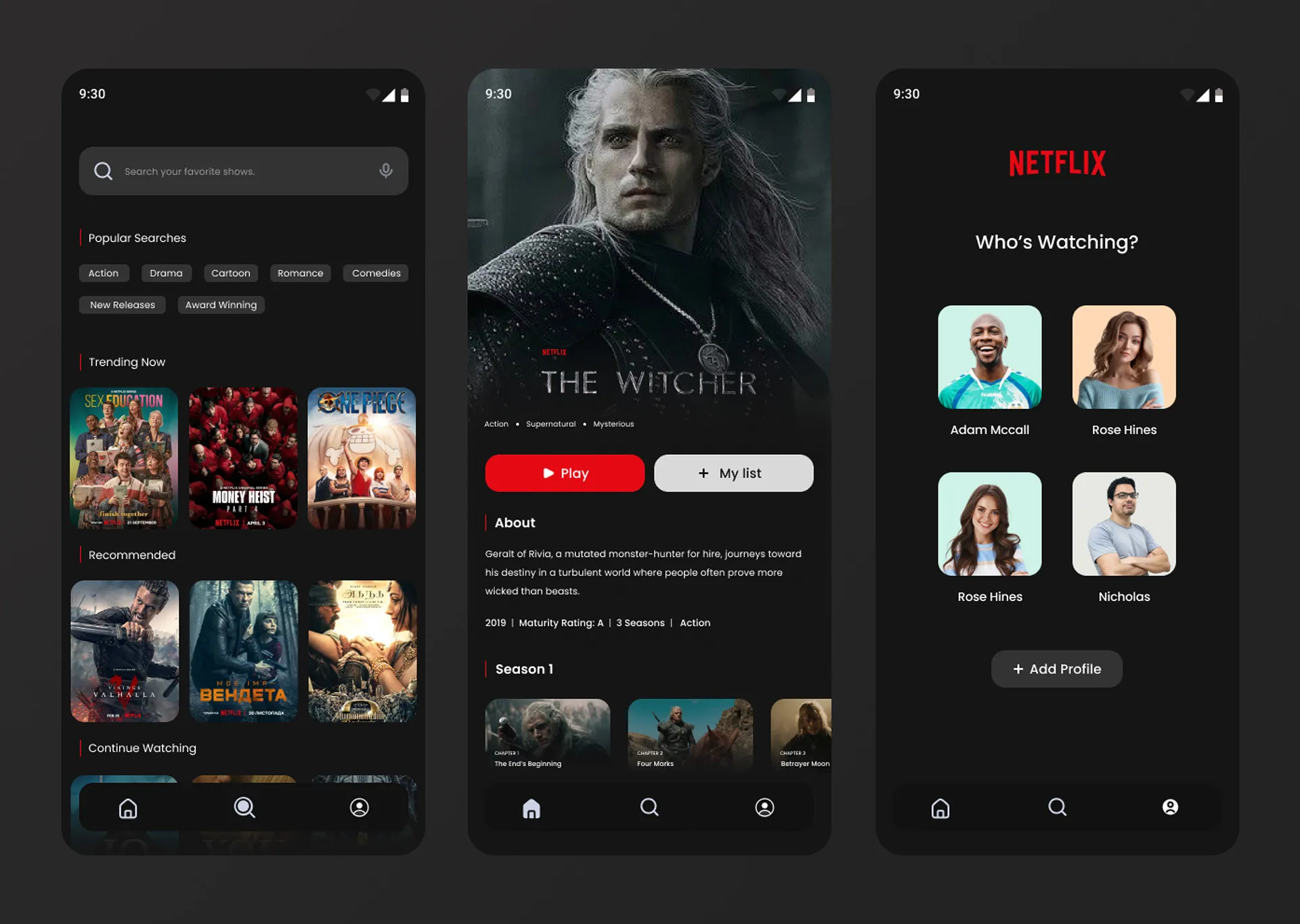
- Open the Netflix app. If you're already in a profile, tap the profile icon (bottom right or top right depending on version) → Manage Profiles.
- Tap + Add Profile.
- Enter name, pick icon, then enter the email when prompted.
- Switch to that email's inbox (on the same phone or another device) and grab the 6-digit code.
- Type the code into Netflix. Tap Done.
Note: The mobile app sometimes pushes you to the browser to verify the email. That's normal—finish the code entry in whatever screen Netflix opens.
Common hangup: The 6-digit code expires after about 15 minutes. If it runs out, click "Resend code" on the Netflix screen. Also double-check spam—the email comes from no-reply@netflix.com and can land in Promotions or Spam.
How to switch between profiles
This part hasn't changed in 2026. Switching is the same everywhere:
- Desktop: Click your profile icon (top right) → Manage Profiles to see the picker, or click the profile icon and select a different name from the dropdown.
- Mobile: Tap the profile icon → Switch Profiles. Pick the one you want.
If a profile is locked with a PIN, you'll need to enter that 4-digit code before it opens.
How to edit an existing profile
You'll eventually want to change a profile's name, icon, language, or maturity settings. Here's where everything lives.
Changing the name or icon
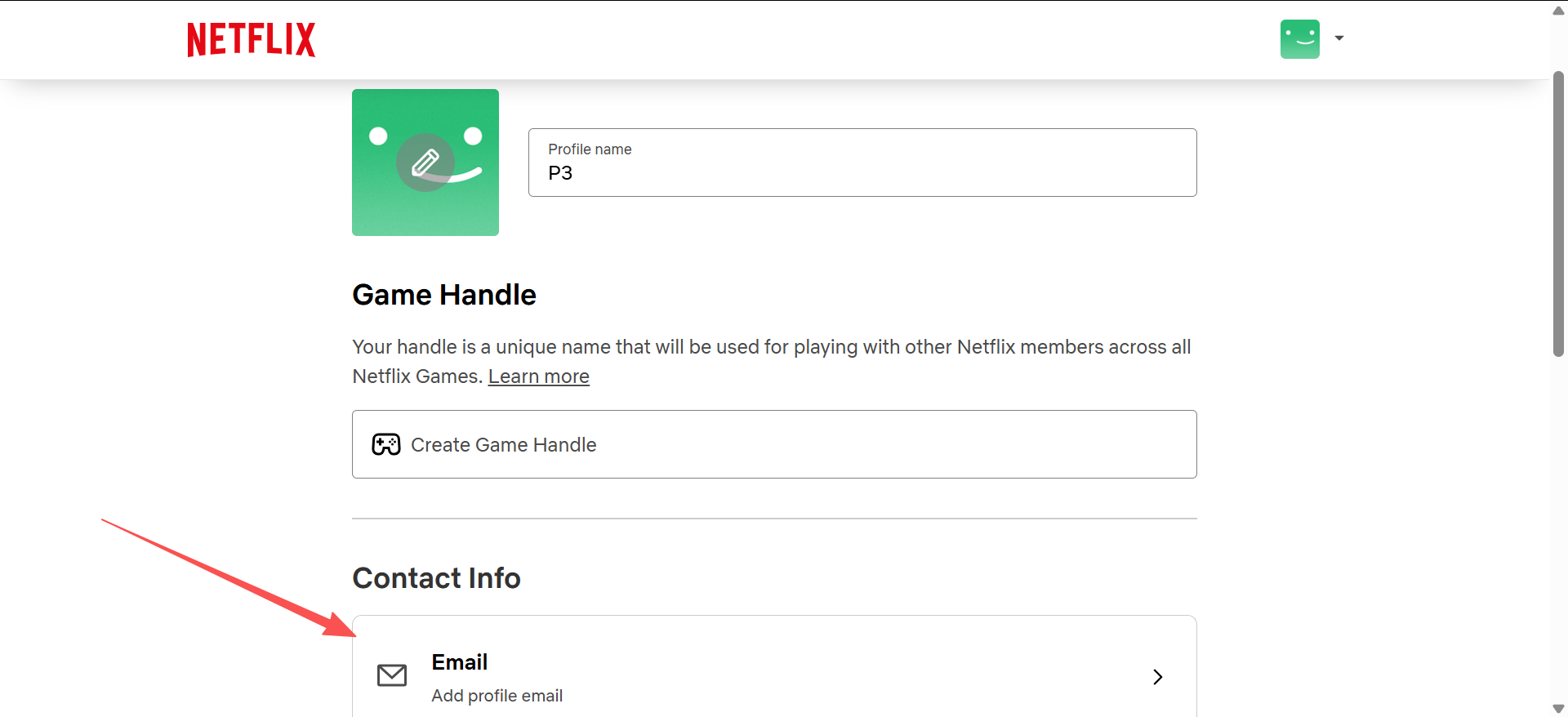
- Go to Manage Profiles (hover over profile icon → Manage Profiles on desktop).
- Click or tap the profile you want to edit.
- Change the name, pick a new icon, adjust the maturity rating if needed.
- Click Save.
Changing the language (audio & subtitles)
Netflix lets each profile have its own language preference for menus, audio, and subtitles. This is useful in multilingual households—one person watches in Spanish, another in English, and the UI doesn't get confusing.
In Manage Profiles, select the profile → click Edit.
Scroll down to Audio & Subtitles Languages (sometimes labeled "Playback Settings" depending on region).
Pick the preferred audio language and subtitle language from the dropdown.
Click Save. The profile now defaults to those languages when playing any show or movie.
Heads up: This sets defaults, but you can still change audio/subtitle language on the fly while watching—click the speech bubble icon (subtitle) or audio icon during playback to switch without leaving the player.
Changing the UI language (Netflix menu language)
This is separate from audio/subtitle language. The UI language is the language of the Netflix interface itself—buttons, categories, search.
- Log in to Netflix on a browser (this setting isn't in the mobile app).
- Click your profile icon → Account.
- Under Profile & Parental Controls, click the profile you want to change.
- Click Change next to Language.
- Pick the language and click Save. Netflix restarts in that language for this profile only.
How to set, change, or remove a profile PIN (Profile Lock)
Profile Lock is separate from the account password. It protects a specific profile so that even if someone has the account password and can log in, they can't open that profile without the 4-digit PIN.
When to use this: Lock your own profile if you share the account with roommates or family and want privacy. Lock a Kids profile to prevent kids from switching to an adult profile and watching restricted content.
Setting a profile PIN
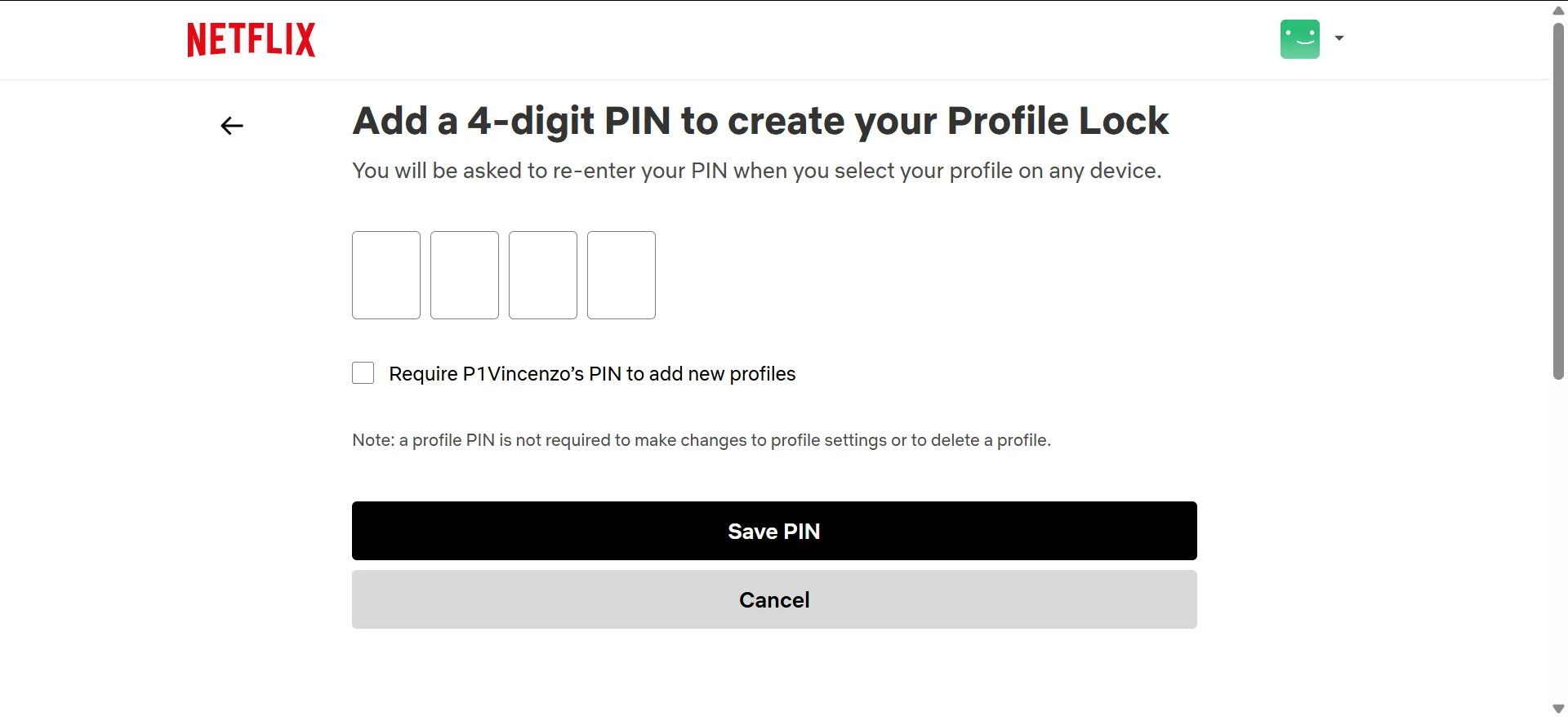
- On a browser, log in and go to Account (profile icon → Account).
- Scroll to Profile & Parental Controls. Click the profile name you want to lock.
- Find Profile Lock and click Change.
- Netflix asks for the account password (not the PIN—this confirms you're the account owner).
- Check the box: "Require a PIN to access this profile."
- Type a 4-digit PIN. Avoid 1234 or 0000—you'd be surprised how many people use those.
- Click Save. From now on, opening that profile asks for the PIN on every device.
Changing or removing the PIN
- Go back to the same Profile Lock → Change screen (Account → Profile & Parental Controls → profile name → Profile Lock).
- Enter the account password again.
- To change: type a new 4-digit PIN and click Save.
- To remove: uncheck "Require a PIN to access this profile" and click Save.
Lost the PIN? You don't need the old PIN to reset it. Just log in with the account password and go to the Profile Lock page—it lets you set a new one directly.
Setting parental controls and maturity ratings
Netflix has two separate controls that work together: maturity ratings (what content is allowed) and Profile Lock (whether the profile can be opened at all). For a proper kids setup, use both.
Setting a maturity rating
- Manage Profiles → select the Kids profile → Edit.
- Under Maturity Settings, pick the appropriate level:
- Little Kids: Ages 0–6 (Shows like Bluey, Puffin Rock)
- Older Kids: Ages 7–12 (Shows like Gravity Falls, Avatar)
- Teens: Ages 13–17 (PG-13 equivalent)
- All Maturity Levels: No restriction (adult profile)
- Click Save.
Blocking specific titles
Even with a maturity rating, you might want to block specific shows. In the same Profile & Parental Controls section (on the browser Account page), there's a "Viewing Restrictions" option. Type the title of any show or movie to block it on that profile. It won't show up in search or recommendations for that profile.
| Control | What It Does | Where to Set It |
|---|---|---|
| Maturity Rating | Limits content by age level | Manage Profiles → Edit Profile |
| Profile Lock PIN | Blocks profile from being opened | Account → Profile & Parental Controls |
| Title Restrictions | Blocks specific shows/movies | Account → Profile & Parental Controls → Viewing Restrictions |
| Kids Profile Toggle | Auto-filters to kids content only | Manage Profiles → Add Profile → "This is a Kids profile" |
How to delete a profile on Netflix
Before you delete: this can't be undone. The profile's watch history, recommendations, My List, and saved preferences all disappear. If you just want a fresh start, consider renaming the profile and clearing its list instead.
- Go to Manage Profiles (profile icon → Manage Profiles on desktop or app).
- Click or tap the profile you want to delete.
- Scroll to the bottom. Click Delete Profile.
- Netflix asks you to confirm. Click Delete again.
Only the account owner (the person whose billing info is on file) can delete profiles. If you're on a shared account and don't see the Delete option, you're probably in a sub-profile without owner permissions.
Troubleshooting: common issues
"I don't see the email field when adding a profile"
You might be on an older app version. Update the Netflix app on your phone. If that doesn't fix it, use a browser—netflix.com always has the latest version of the profile setup flow.
"The verification code isn't arriving"
- Check spam, promotions, and all inbox tabs.
- Make sure you typed the email correctly—one typo is all it takes.
- Click "Resend code" on the Netflix screen. Wait 2–3 minutes.
- If the email is from a school or work domain, their filters might block Netflix messages. Try a personal Gmail or Outlook address.
"I hit the 5-profile limit"
Netflix's Standard plan allows 2 profiles; Premium allows 5. If you're at the limit, you need to delete an unused profile before adding a new one—or consider the option in the next section.
"My profile disappeared after the email update"
This shouldn't happen, but if a profile seems missing, check whether someone else on the account renamed or deleted it. Go to Manage Profiles and look at the full list—profiles you haven't used in a while might have been moved to the bottom.
Five profiles not enough? Here's a cheaper way
Netflix's Premium plan gives you 5 profiles for about $22.99/month (US). If you need more than 5, or if you're currently paying full price and only using one profile, there's a smarter option.
Share a Netflix Account for 72% Less
FamilyPro connects you with other households to share a Netflix Premium plan safely. Everyone gets their own profile (with email and PIN), and you pay a fraction of the full price.
What you get: Your own dedicated profile on a Premium plan, HD/4K streaming depending on the plan, no password sharing with strangers, and a simple monthly payment that's up to 72% cheaper than subscribing on your own.
If you're outside the US, FamilyPro works in most regions where Netflix operates. The profile email requirement actually makes this safer—your profile is tied to your own email, so even the account holder can't access your watch history.
FAQ: adding and managing Netflix profiles
Do I really need to give an email for each profile?
As of June 2026, yes—for all non-Kids profiles. Netflix is rolling this out gradually, so some accounts might not see the prompt immediately, but it's becoming the standard. Kids profiles (ages 0–12) are exempt.
Can I use the same email for two profiles?
No. Each profile needs a unique email address. If you've got a household with four people and you're out of email addresses, you can use plus addressing (e.g., yourname+profile@) if your email provider supports it—Gmail does.
What happens if I delete a profile by mistake?
You'll need to recreate it. Netflix doesn't have an "undo" for profile deletion. The watch history and recommendations are gone. This is why locking a profile with a PIN is a good idea—it prevents accidental deletion if someone else has access to the account.
Can I move a profile to a different Netflix account?
Not directly. Netflix doesn't have a "transfer profile" feature for regular users (they had a tool during the password-sharing crackdown, but it was temporary). Your best bet: note down your My List titles, create the profile on the new account, and manually re-add them.
Why does Netflix suddenly need emails for profiles?
Two reasons. First, security—tying a profile to an email makes it harder for unauthorized people to access it. Second, it sets up "profile portability"—the ability to move your profile to your own account later without losing your recommendations. Netflix hasn't launched this broadly yet, but the email requirement is laying the groundwork.
How many profiles can I have?
It depends on your plan: Basic (1 profile), Standard (2 profiles), Premium (5 profiles). If you need more, you're looking at either upgrading your plan or sharing a Premium plan with others—which is where FamilyPro comes in.
Wrapping up
Adding a profile used to take 30 seconds. The email step adds a couple of minutes, but it also means your profile is actually yours—tied to your email, portable if you ever want your own account, and safer from anyone else on the shared plan poking around.
A few things to keep in mind:
- The email requirement is new as of June 2026. If a tutorial doesn't mention it, that tutorial is already out of date.
- Kids profiles skip the email step. If you're making a profile for a child, you won't see the prompt.
- Profile Lock with a PIN takes five minutes to set up and saves you from accidental deletions and privacy intrusions. Worth it.
- Netflix caps at 5 profiles on Premium. If that's not enough, you don't have to buy a second full-price subscription—FamilyPro lets you share a Premium plan and pay only for the profiles you use.
Still stuck? Netflix's help center (help.netflix.com) has live chat. They usually respond within a few minutes if something isn't working the way it should.
This guide was updated in July 2026 to reflect the June 15 email requirement change. If you spot something that's no longer accurate, let us know.