
How to Update Your Netflix Household or Fix a Household Error
To update your Netflix Household, use a supported TV connected to your main home internet, open Get Help or Settings, and select Manage Netflix Household. If you are only away temporarily, use the travel option instead. Updating the Household and requesting temporary access are different actions; choosing the wrong one can affect viewing on other devices.
Contents
- Choose the right option first
- Update the Household from your TV
- Traveling, or blocked on a phone or computer?
- FamilyPro customers: use the correct order support option
- Frequently asked questions
Choose the right option first
| Situation | Appropriate next step |
|---|---|
| You moved or your main home TV is incorrectly recognized | Update the Household using your home connection |
| You are traveling | Use I'm Traveling or Watch Temporarily when offered |
| A phone or computer is blocked at home | Connect to the same home Wi-Fi as the recognized TV |
| You use a managed or third-party account | Check the account owner's instructions before changing the Household |
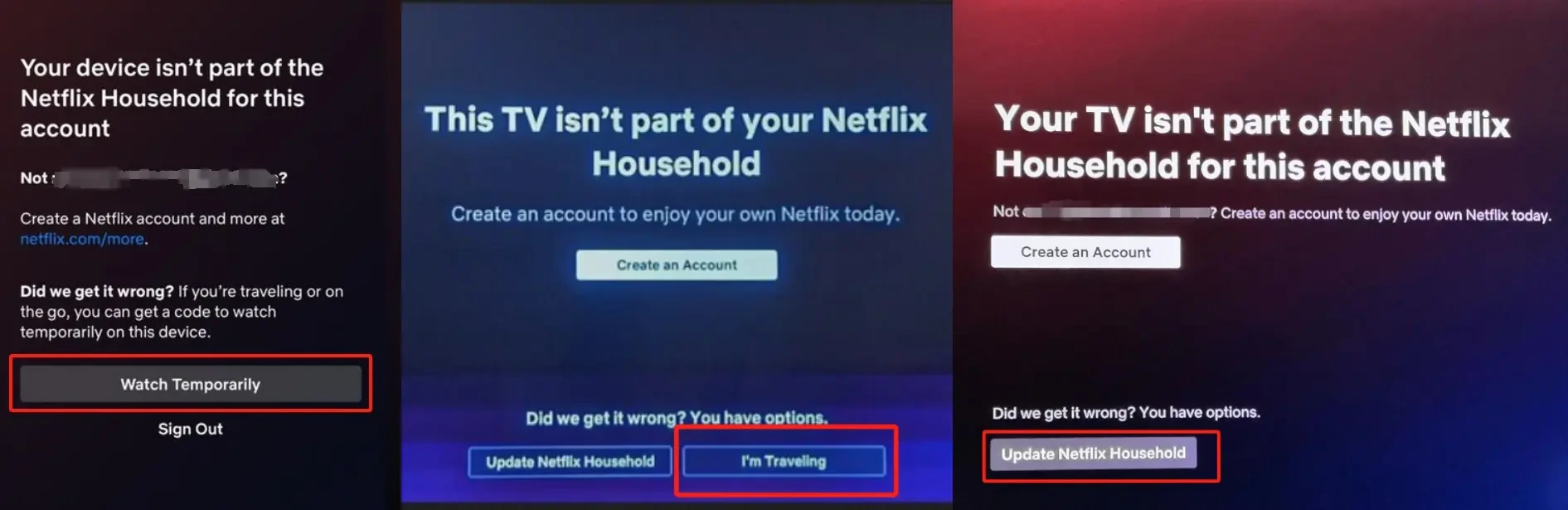
These retained screenshots illustrate different device interfaces. The buttons are alternatives for different situations, not interchangeable steps.
Update the Household from your TV
Use this route for your own account at the main place you watch. Have access to the account email or the account owner's help.
- Connect the TV to your usual home internet and open Netflix.
- Open the TV menu using Back, or Menu on Apple TV. Find Get Help or Settings, then Manage Netflix Household.
- Choose Update Netflix Household, then Send Email. If no email is registered, Netflix may offer a text to the account phone.
- Open the verification message, confirm the request was yours, and confirm the update. The link expires after 15 minutes.
- Check for confirmation and the TV refreshing; then try playing a title.
If the management option is absent, use another supported TV. Choose the home network you normally use if you have multiple internet connections. Source: Netflix Household update instructions.
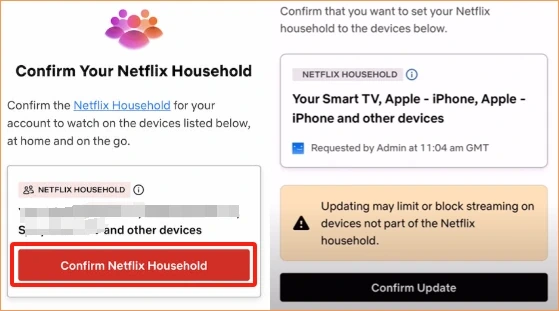
The confirmation changes the Household; it is not simply an unlimited viewing code.
Traveling, or blocked on a phone or computer?
At home, reconnect the phone or computer to the same Wi-Fi as the Household TV, then restart the app or refresh the website. If needed, update the Household from the TV first.
Away from home, select I'm Traveling on a TV or Watch Temporarily on a phone or computer when available, using a non-Kids profile. Request the message, obtain the temporary code from the account owner's email, and enter it on the blocked device. A temporary code expires after 15 minutes. A missing travel option can mean that device has reached its request limit. See Netflix's device-error guidance.
Do not reset the main Household to every hotel you visit. Temporary verification does not create permanent permission for unrelated households.
FamilyPro customers: use the correct order support option
For an existing order, sign in to FamilyPro and open your Netflix subscription or order details. Check the current account information and assigned profile before requesting help.
The earlier order interface shown below separates login assistance, a temporary code, and a Household verification link. If your order still offers these controls, select the one matching Netflix's prompt and follow the order instructions. Read the confirmation before opening a link. If the option is missing, delayed, or unclear, contact FamilyPro support instead of repeatedly changing the Household.
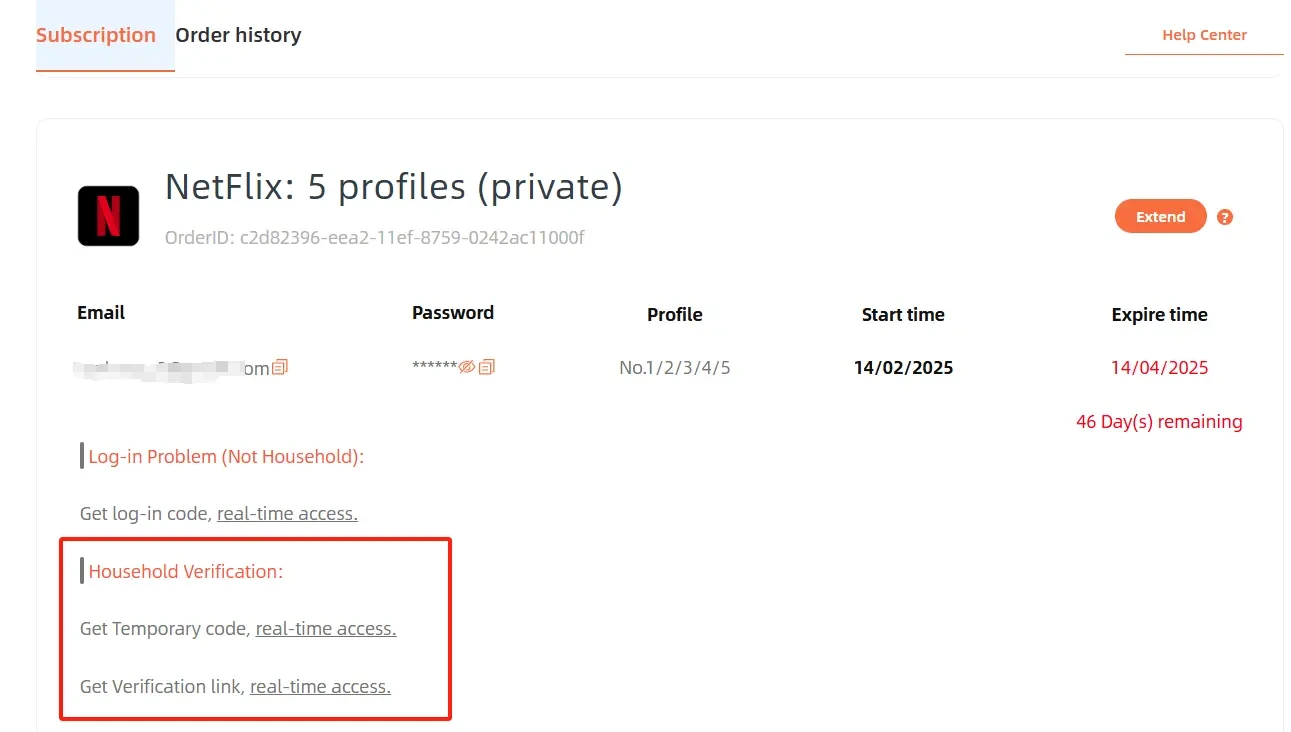
This is a historical interface example, not a guarantee that every order has the same controls or a fixed delivery time. Check the current product rules for your purchase. Do not alter another user's profile or assume a shared profile is an independent Netflix account.
Netflix's account-sharing policy requires people outside the Household to use their own account or an eligible extra-member option. A seller's verification tool does not change Netflix's Household rules.
Frequently asked questions
Do I need a TV to establish a Household?
Netflix says users who do not watch on a TV do not need to establish a Household. If you nevertheless see a device error, review unfamiliar signed-in devices and follow the applicable help instructions rather than buying a TV just for verification.
Why does the error keep returning?
Check whether you switched networks, used a different internet provider, or left an unfamiliar device signed in. For an account you own, review connected devices and retry the correct home-network procedure. For a managed account, contact its provider before signing everyone out.
Can I update without access to the account email?
You need an offered verification route controlled by the account owner. Do not use a stranger's code. If the email is invalid or inaccessible, resolve the account-access problem with the owner or Netflix support first.
Does updating fix every playback error?
No. A wrong password, payment problem, simultaneous-stream limit, or service outage needs its own troubleshooting. Record the exact error message before choosing a fix.