
SuperGrok Not Working? Here's How to Fix It
SuperGrok not working? Before paying again or repeatedly trying to log in, check the account you're using and your subscription status. If regular Grok works but SuperGrok doesn't, the problem is often related to account access, subscription recognition, or your current session.
If you've already paid for SuperGrok and still can't use it, you're probably wondering what went wrong.
That's understandable. A particularly confusing situation is when Grok itself works normally, but SuperGrok is unavailable or the page asks you to subscribe again.
We've seen users report exactly this kind of problem. Some had already paid and activated a subscription. Others could access Grok but were still shown an upgrade or payment message when trying to use SuperGrok. In another case, a user reported that their account appeared to be locked after purchasing access.
The good news is that you don't need to assume that your payment disappeared or immediately pay again.
This guide walks through the most common SuperGrok problems, how to identify what you're actually dealing with, and what to check before contacting support.
Quick Answer: Why Is SuperGrok Not Working?
If SuperGrok isn't working, start with these checks:
- Make sure you're signed into the correct account.
- Check whether the SuperGrok subscription is active on that account.
- Make sure you're using the same login method you used when accessing the subscription.
- Sign out and sign back in to refresh your session.
- Try an Incognito or Private window.
- Try another browser or device.
- Check whether the account shows a locked or suspended status.
- Don't purchase another subscription until you've confirmed what happened to the first one.
If you can use regular Grok but SuperGrok isn't available, focus on your account and subscription status rather than repeatedly troubleshooting your password.
Table of Contents
- Why Is SuperGrok Not Working?
- Quick Diagnosis: What Kind of SuperGrok Problem Do You Have?
- SuperGrok Not Working After Payment?
- SuperGrok Is Asking Me to Subscribe Again
- I Can Use Grok, But SuperGrok Doesn't Work
- SuperGrok Was Working Before, But Now It Doesn't
- What If Your SuperGrok Account Is Locked?
- Real SuperGrok Problems Reported by Users
- SuperGrok Not Working: Step-by-Step Troubleshooting
- SuperGrok Not Working FAQ
- SuperGrok Troubleshooting Checklist
- Final Thoughts
- Related Articles
Why Is SuperGrok Not Working?
"SuperGrok not working" can mean several different things.
For example, you might be dealing with:
- SuperGrok not appearing after payment
- A page asking you to subscribe again
- Regular Grok working while SuperGrok doesn't
- A subscription that doesn't appear to be active
- SuperGrok working previously but becoming unavailable later
- An account showing a locked or suspended message
- A problem that only happens in one browser or on one device
These situations look similar from the user's point of view, but they don't necessarily have the same cause.
The first thing to figure out is whether the problem is with Grok login, your account, or your SuperGrok subscription.
A Simple Way to Think About It
Can't log in to Grok
        ↓
Login / account access problem

Can log in to Grok
        ↓
Grok works normally
        ↓
SuperGrok doesn't work
        ↓
Check account + subscription + session
This distinction is important.
If you can't log in to Grok at all, you may have a login problem. In that case, see our guide on Grok Login Error: Why Can't I Log In to Grok?.
But if you can already use Grok and the problem only happens with SuperGrok, don't spend all your time resetting your password. Start by checking the account and subscription.
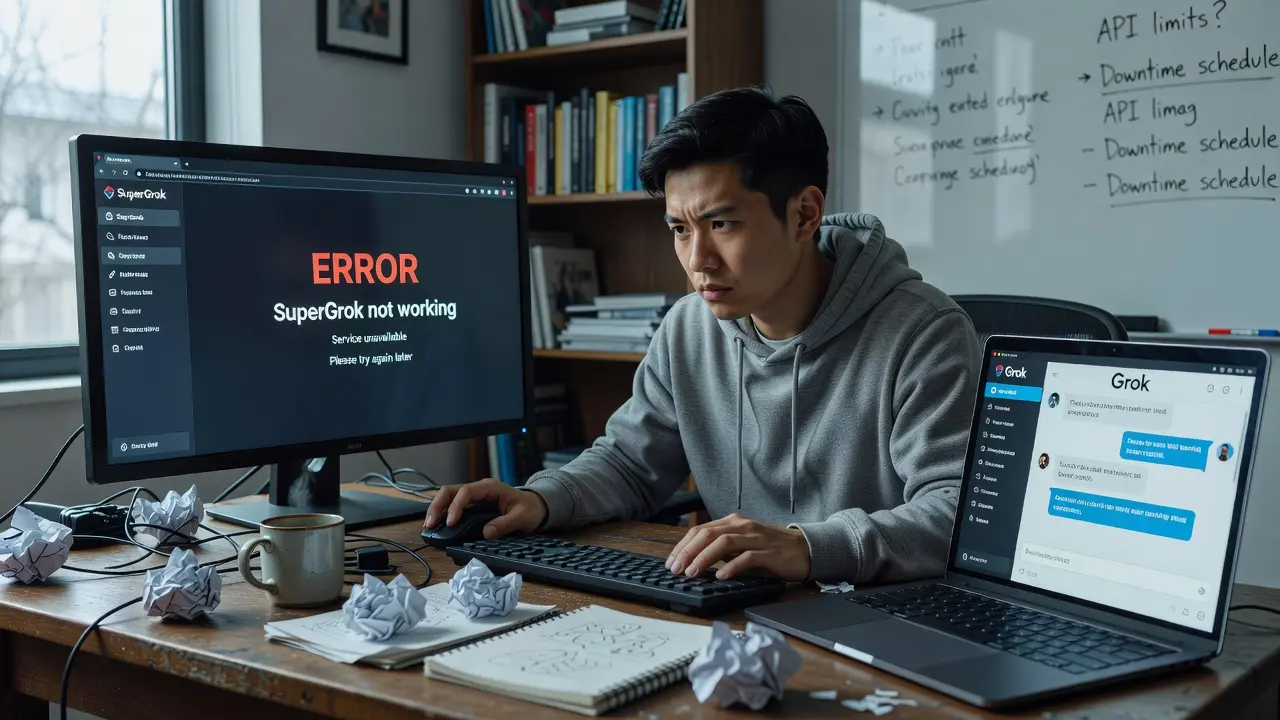
Quick Diagnosis: What Kind of SuperGrok Problem Do You Have?
Before changing anything, look at what you're actually seeing.
| What you're seeing | What to check first |
|---|---|
| You can't log in to Grok at all | Login and account access |
| Grok works, but SuperGrok doesn't | Account and subscription |
| You paid, but SuperGrok is still unavailable | Subscription and account |
| SuperGrok asks you to subscribe again | Account mismatch or subscription recognition |
| Google login works, but your subscription isn't visible | Whether you're using the correct account |
| SuperGrok worked before but stopped | Subscription and account status |
| You see "Account Locked" | Account status |
| The problem only happens in one browser | Browser session or cached data |
| The problem happens on multiple devices | Account or subscription issue |
This table gives you a starting point, but there's one rule worth remembering:
If regular Grok works but SuperGrok doesn't, check your subscription and account before assuming that your password or login is broken.
SuperGrok Not Working After Payment?
This is one of the most frustrating situations.
You paid for the subscription. You expected to open Grok and start using SuperGrok. Instead, the feature isn't available.
At that point, it's easy to think:
"I paid. Why am I being asked to pay again?"
Before doing anything else, don't purchase another subscription immediately.
Step 1: Check the Account You're Currently Using
This is the first thing to verify.
The account you're currently signed into may not be the account associated with the subscription.
This can happen when you have:
- More than one email address
- Multiple Google accounts
- Different login methods
- An old browser session
- Different accounts open on different devices
Make sure the account you're using is the same account associated with your SuperGrok access.
Step 2: Check Your Subscription Status
If the correct account is being used, check whether the subscription appears to be active.
You're looking for information that indicates:
- The subscription is active
- The subscription hasn't expired
- The account has access to the expected plan
- There isn't a pending subscription change
If your payment was successful but the subscription still isn't recognized, take a screenshot of the relevant status before contacting support.
Step 3: Sign Out and Sign Back In
Sometimes the browser session doesn't immediately reflect a change in account or subscription status.
Try:
- Sign out of Grok.
- Close the Grok tab.
- Open the site again.
- Sign in using the correct account.
- Check SuperGrok again.
This is especially useful if you recently changed accounts or completed a subscription purchase.
Step 4: Try a Private or Incognito Window
If SuperGrok still isn't available, open an Incognito or Private browsing window.
Then sign in again.
Why is this useful?
Because a private window starts with a cleaner browser session. It can help you determine whether the problem is related to the existing browser session rather than the account itself.
Step 5: Try Another Browser
If the problem continues, try another browser.
For example:
Current browser
      ↓
Private / Incognito window
      ↓
Another browser
      ↓
Another device
If SuperGrok works elsewhere, the problem may be related to the original browser session.
If it doesn't work anywhere, the account or subscription deserves more attention.
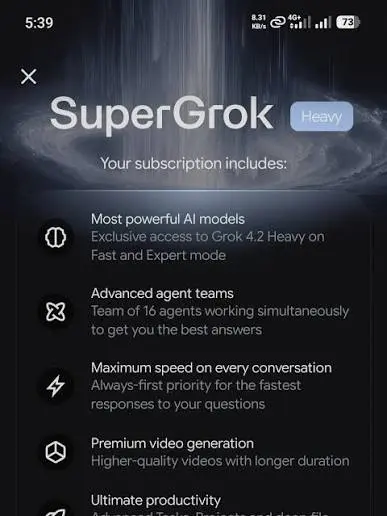
SuperGrok Is Asking Me to Subscribe Again
This is one of the most confusing SuperGrok problems.
Imagine this:
- You have already paid for SuperGrok.
- You sign in.
- Grok opens normally.
- Then you try to use SuperGrok and see an option asking you to subscribe or upgrade.
It can look like your payment didn't work.
But don't assume that immediately.
A Real User Reported This Exact Situation
One support user explained that they couldn't access "SuperGrok." Instead, the system only opened regular Grok and then asked them to pay for the SuperGrok plan again.
That's a very different problem from simply being unable to log in.
The user could reach Grok. The issue was that the expected SuperGrok access wasn't being recognized.
What Should You Do?
Check these things in order:
- Confirm the account you're signed into.
- Confirm the subscription belongs to that account.
- Check the subscription status.
- Sign out and sign back in.
- Try a private browser session.
- Try another browser.
- Check again before making another payment.
Don't Pay Twice Just Because You See a Payment Button
If you've already paid, a new subscription screen doesn't automatically mean you need to purchase again.
First find out why the existing subscription isn't being recognized.
This can save you from creating a second payment that you'll later have to sort out.
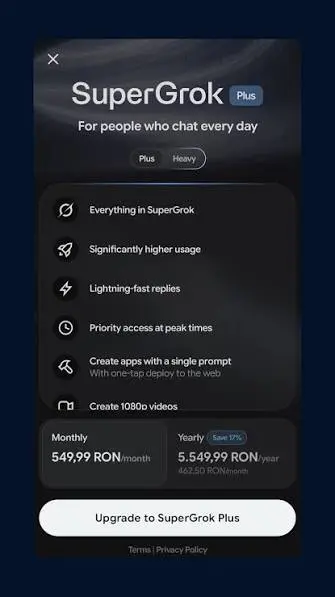
I Can Use Grok, But SuperGrok Doesn't Work
This is an important distinction.
Grok login problem and SuperGrok access problem are not necessarily the same thing.
For example:
Can you log in to Grok?
        YES
         ↓
Can you use regular Grok?
        YES
         ↓
Does SuperGrok work?
        NO
         ↓
Check subscription / account access
If regular Grok is working, there's usually little value in repeatedly resetting your password.
Instead, check:
- Which account you're using
- Which login method you're using
- Whether the subscription is attached to that account
- Whether the subscription is active
- Whether the browser session is stale
- Whether the account has been locked or restricted
What If Google Login Works?
This can be especially confusing when you have multiple Google accounts.
For example, you may have:
- Google Account A
- Google Account B
- Email Account
You might normally use Google Account A, but your subscription could be associated with a different account.
The result can look like this:
"I can log in, but my SuperGrok subscription isn't there."
Before assuming that your subscription has disappeared, verify which account you're actually using.
SuperGrok Was Working Before, But Now It Doesn't
A different situation is when SuperGrok worked normally before and suddenly stopped.
This can be more confusing than a first-time access problem because you know the account worked previously.
A user in one support case reported that they had paid for Grok access but later couldn't use it even though their paid period had not yet ended.
When this happens, check the following:
1. Did You Switch Accounts?
This is easy to overlook.
If you use different Google accounts or different email addresses, make sure you haven't accidentally switched accounts.
2. Did You Switch Devices?
One user reported being able to use Grok on a desktop but having trouble when trying to access it from a laptop.
If something works on one device but not another, compare:
- Account
- Browser
- Login method
- Session
- Cookies
- Extensions
3. Did You Switch Browsers?
Try the browser where you previously used SuperGrok.
If it works there, the problem may be related to the new browser session.
4. Is the Subscription Still Active?
If SuperGrok worked previously, don't assume that it will remain available indefinitely without checking the current subscription status.
5. Is the Account Showing a Warning?
Look for messages such as:
- Account locked
- Account suspended
- Access unavailable
- Subscription required
- Upgrade required
If you see a specific account-status message, save a screenshot.
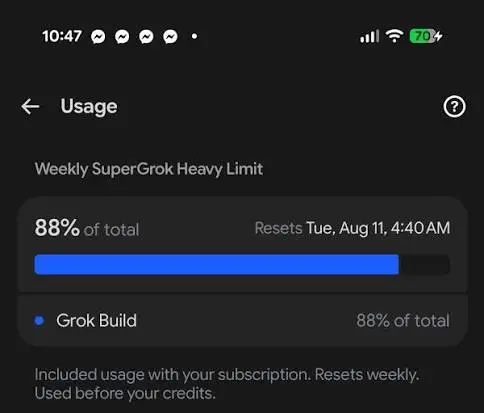
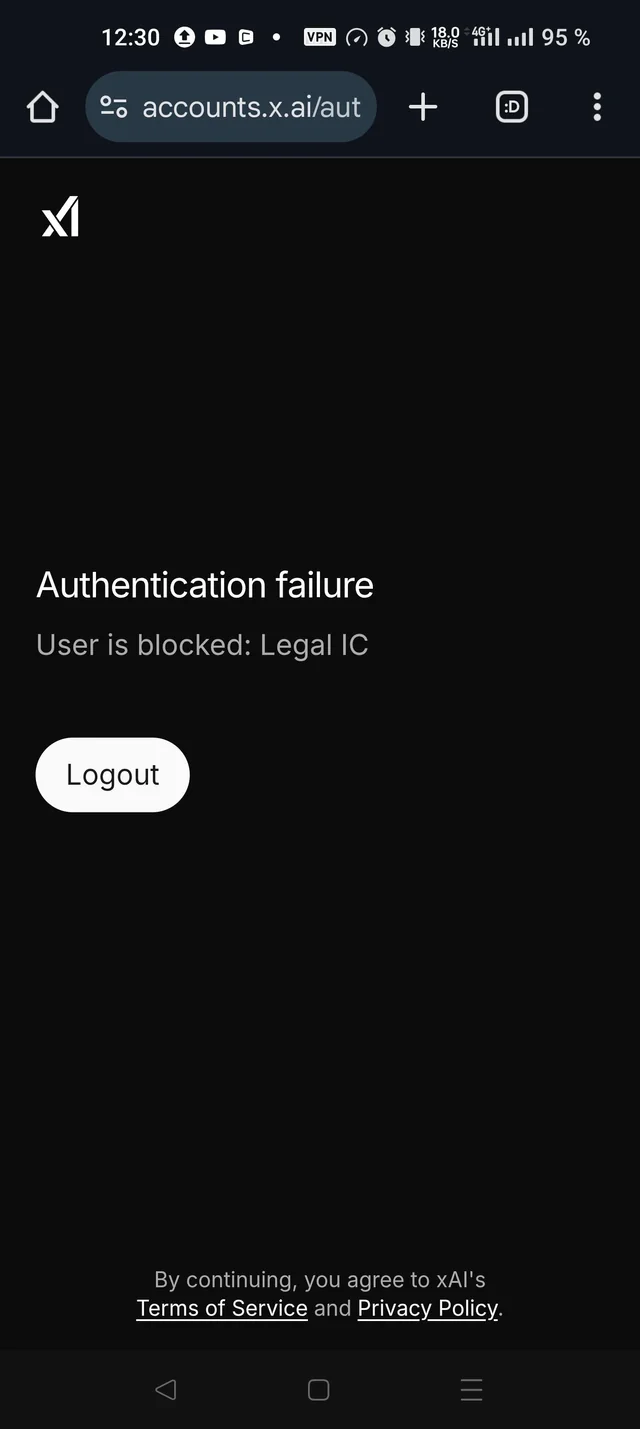
What If Your SuperGrok Account Is Locked?
An account lock is different from a normal SuperGrok subscription problem.
One real support case involved a user who had paid for SuperGrok and then found that the account showed a locked-user message when they tried to access it.
In this situation, repeatedly refreshing the page or buying another subscription isn't likely to solve the underlying issue.
If You See an Account Locked Message
Start by recording:
- The exact error message
- The account or email being used
- When the problem started
- Whether the account worked previously
- Whether the subscription had already been paid for
- The device and browser you're using
A screenshot is particularly useful.
Don't Create Another Account Just to Bypass the Problem
Creating another account may make things more confusing, especially if the original subscription is associated with the first account.
Deal with the account-status issue first.
Real SuperGrok Problems Reported by Users
Generic troubleshooting articles often say things like "clear your cache and restart your browser."
That's not always enough.
The real-world problems users report are often more specific.
Here are several examples from actual support cases.
Case 1: Paid and Activated, but SuperGrok Still Unavailable
A user reported:
"Although I paid and activated the subscription, I can't access SuperGrok."
This is a classic paid-but-not-working situation.
The important point is that the user wasn't asking how to buy SuperGrok. They had already completed the purchase.
The correct troubleshooting path is:
Payment completed
        ↓
Subscription activated?
        ↓
Correct account?
        ↓
Subscription recognized?
        ↓
SuperGrok available?
Case 2: SuperGrok Redirects to Regular Grok and Asks for Payment
Another user reported that they couldn't access SuperGrok. The system only took them into regular Grok and then asked them to pay for the "Super" plan.
This is exactly the kind of situation where paying again immediately can make things worse.
The first question should be:
"Am I currently using the account that has the SuperGrok subscription?"
Case 3: SuperGrok Showed an Account-Locked Message
Another user reported that after paying for SuperGrok, they tried to access the account and received a locked-user message.
That's an account-status problem, not simply a subscription problem.
If the account is locked, the troubleshooting process should focus on the account status rather than repeatedly trying different passwords.
Case 4: A Purchased Grok Product Still Showed a Payment or Update Prompt
One user reported that they couldn't access the Grok product they had purchased because the page displayed an "update" prompt asking them to pay.
Again, the important detail is that the user had already paid.
If you encounter the same situation, verify the existing subscription before making another purchase.
Case 5: Paid Access Stopped Working
Another user reported that they had paid for Grok AI access through a specific date but could no longer use it.
This is a good example of why "SuperGrok not working" isn't always a login problem.
If you can still sign in but paid access has disappeared, investigate:
- Subscription status
- Account
- Access level
- Account restrictions
- Current session
...rather than starting with password recovery.
SuperGrok Not Working: Step-by-Step Troubleshooting
If you want to go through everything in order, use this checklist.
Step 1: Confirm That Grok Itself Works
Can you successfully sign in and use regular Grok?
- No: Start with a Grok login troubleshooting guide.
- Yes: Continue with SuperGrok troubleshooting.
Step 2: Check the Current Account
Look at the account you're currently signed into.
Make sure it is the account you expect to have SuperGrok access.
If you have multiple accounts, this is especially important.
Step 3: Check Your Subscription
Verify whether the relevant subscription is active.
Don't rely only on the fact that you remember making a payment.
Look for the current subscription or account status.
Step 4: Check Your Login Method
If you normally use Google login, make sure you're using the correct Google account.
If you normally use email login, make sure you're using the correct email account.
Different login methods can sometimes lead users to different accounts.
Step 5: Sign Out and Sign In Again
Log out completely.
Then sign back in using the account you just verified.
Check SuperGrok again.
Step 6: Try a Private or Incognito Window
Open a new private browsing session.
Sign in again and test SuperGrok.
This helps rule out problems with your existing browser session.
Step 7: Try Another Browser
If the problem continues, test another browser.
If possible, compare:
Original browser
        ↓
Private window
        ↓
Another browser
        ↓
Another device
The result can help identify whether the problem is browser-specific.
Step 8: Check for Account Restrictions
Look for messages indicating that your account is:
- Locked
- Suspended
- Restricted
- Disabled
- Otherwise unavailable
If you see one, take a screenshot.
Step 9: Don't Pay Again Yet
If you've already paid for SuperGrok and the system is asking you to subscribe again, stop before making another payment.
First determine whether the existing subscription is associated with the current account.
Step 10: Contact Support with Useful Information
If none of the steps work, don't just send:
"SuperGrok doesn't work."
Give support enough information to understand the problem.
Include:
- The account you're using
- The login method
- Whether regular Grok works
- Whether SuperGrok worked previously
- When you purchased the subscription
- The subscription status you see
- The exact error message
- Your browser
- Your device
- A screenshot of the problem
This usually makes troubleshooting much easier.
SuperGrok Not Working FAQ
Why is SuperGrok not working?
There are several possible reasons. Start by checking the account you're signed into and whether the SuperGrok subscription is active. If regular Grok works but SuperGrok doesn't, focus on account and subscription access rather than repeatedly resetting your password.
Why is SuperGrok not working after payment?
If you've already paid, verify that the payment is associated with the account you're currently using and check the subscription status. Then sign out and back in before trying again.
Why is SuperGrok asking me to subscribe again?
One possibility is that you're signed into a different account from the one associated with the subscription. Check your account and subscription before making another payment.
I can use Grok, but why can't I use SuperGrok?
Being able to access regular Grok doesn't necessarily mean that the current account has the expected SuperGrok access. Check the subscription and account first.
Why did SuperGrok suddenly stop working?
If SuperGrok worked previously, check whether you changed accounts, devices, browsers, or login methods. Also verify the current subscription and account status.
Should I pay for SuperGrok again?
Not immediately. If you've already paid and SuperGrok is asking you to subscribe again, first confirm the account and subscription status. Paying again may create a second transaction without solving the original problem.
What if my SuperGrok account is locked?
If the account shows a locked or suspended message, treat it as an account-status problem. Save the exact message and contact the appropriate support channel rather than repeatedly attempting to purchase or create another subscription.
How do I check whether my SuperGrok subscription is active?
Check the account or subscription area associated with the account you're currently signed into. Make sure you're checking the same account that was used for the original purchase.
SuperGrok Troubleshooting Checklist
Before contacting support, go through this list:
- [ ] I can log in to Grok
- [ ] I confirmed the account I'm using
- [ ] I checked my SuperGrok subscription
- [ ] I confirmed the subscription is associated with this account
- [ ] I checked my login method
- [ ] I signed out and signed back in
- [ ] I tried an Incognito or Private window
- [ ] I tried another browser
- [ ] I tried another device if possible
- [ ] I checked for account-lock or suspension messages
- [ ] I saved a screenshot of the error
- [ ] I did not immediately purchase another subscription
If you've completed all of these steps and SuperGrok still isn't working, you have much more useful information to provide to support.
Final Thoughts
When SuperGrok is not working, the first instinct is often to refresh the page, try another password, or pay for the subscription again.
But those aren't always the right first steps.
The most useful question is:
Can you use regular Grok, but not SuperGrok?
If the answer is yes, move away from basic login troubleshooting and start checking:
- Your current account
- Your login method
- Your subscription
- Your browser session
- Your account status
And if you've already paid for SuperGrok, don't pay again simply because you see a subscription prompt. First find out why the existing subscription isn't being recognized.
Real users have reported paid subscriptions that weren't immediately accessible, SuperGrok being replaced by regular Grok, repeated subscription prompts, and locked accounts. These problems can look very similar at first, but the right troubleshooting path depends on what you're actually seeing.
If you can identify that difference early, you can usually save yourself a lot of unnecessary trial and error.
Need Help With Your AI Subscriptions?
Managing multiple AI tools can get confusing, especially when subscriptions, accounts, and access levels are involved.
Explore FamilyPro to discover AI subscription options and tools in one place.