
ChatGPT Memory Full? How to Fix, Clear & Prevent It (2026)
You opened ChatGPT and got the message that memory is full. Here is the short version. Open Settings, go to Personalization, open Memory, and choose "Clear all" or delete individual items. That frees the space right away. The ChatGPT memory full message is more common than people expect, especially on accounts that have been used for months, because ChatGPT memory can save useful details from your conversations. When ChatGPT memory full keeps coming back, the usual reason is a busy or shared account hitting the cap long before a casual one does. 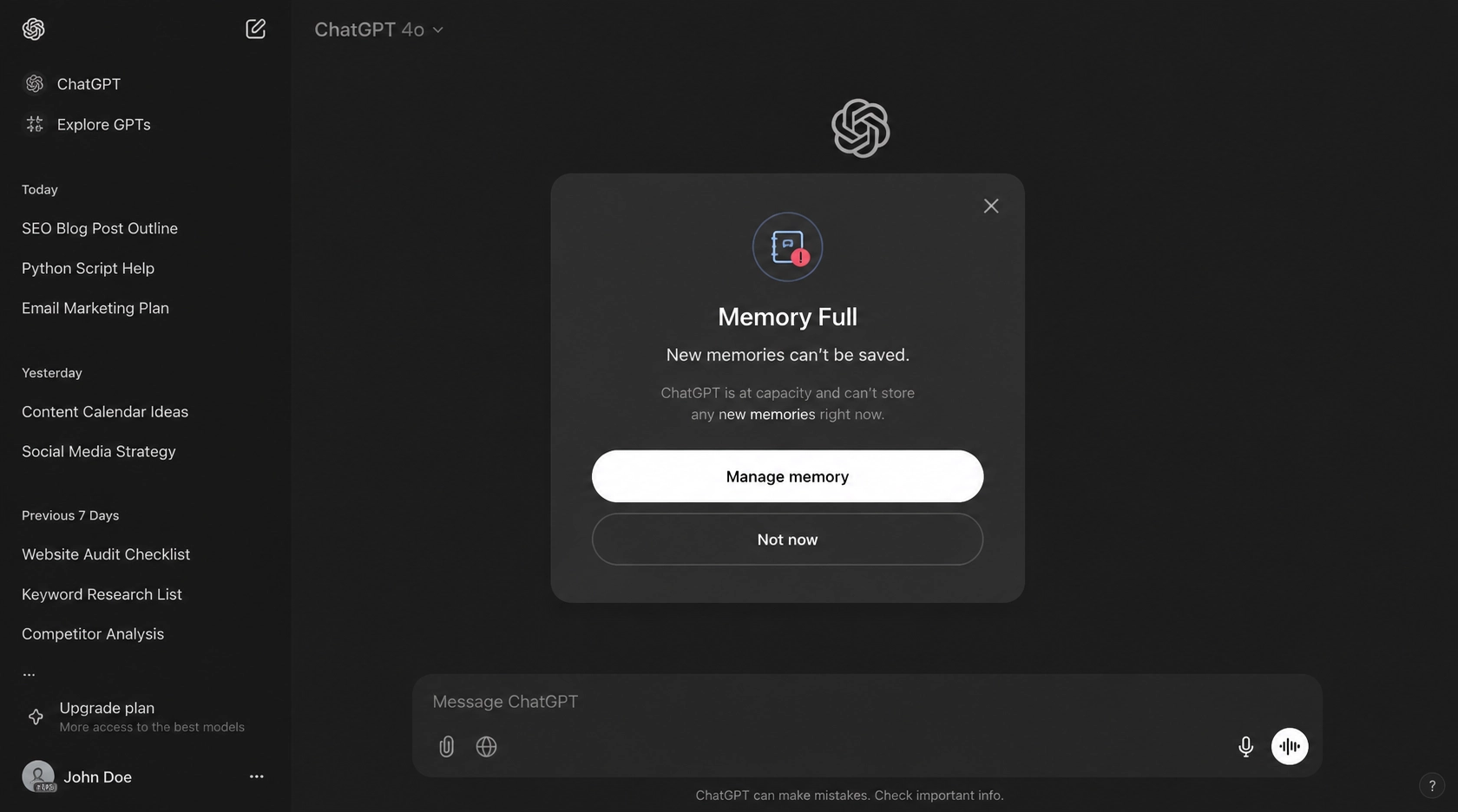
I walked through every step below on my own account, in a desktop browser and in the iPhone app, so the menus you see match what is live in August 2026. A couple of paths are still rolling out on mobile, and I point out where that matters. If you want the full click path with screenshots, our guide on how to clear ChatGPT memory covers it end to end.
Why does ChatGPT say memory is full?
ChatGPT shows the chatgpt memory full message when the space it keeps for what it knows about you reaches its limit. Memory is not your chat history. It is a separate set of saved facts, like your role, your preferences, and details you repeat often. Once that saved set hits the cap, ChatGPT asks you to manage it before it can keep learning new things.
Most of the time the cap is reached by normal use, not by a bug. Busy accounts, shared logins, and chats that repeat the same background fill it fastest. The steps below clear the space, and the prevention section shows how to keep it from filling again.
How to fix ChatGPT memory full: 4 proven methods step-by-step
Most ChatGPT memory full complaints come from one of four causes, and each has a different fix. Delete one memory when only a single fact is wrong. Clear everything when the summary is a mess. Move standing preferences into Custom Instructions so they stop eating memory. Or trim through the memory summary. Here is each one, with the web, mobile, and in-chat paths.
Method 1: delete a single memory
This is the scalpel. Use it when ChatGPT remembers one thing incorrectly, like the wrong job title or a project that ended.
- Web: Settings, Personalization, Memory, then open the memory summary. Hover a line and pick the three-dot menu, then Delete.
- Mobile: tap your profile, Settings, Personalization, Memory. Tap a memory and choose delete from the menu.
- In chat: just say "forget that I work at Acme" and ChatGPT removes the matching memory. I tried this and it worked, though it asked me to confirm once.
When ChatGPT memory full is caused by a handful of stale facts, this is the cleanest fix and you keep the rest of your context. The first time I checked my own summary, I found an old client name from a project I closed six months earlier. One tap and it was gone.
Method 2: clear all memories
This is the reset button. Use it when the summary is contradictory or you simply want a blank slate.
- Web: Settings, Personalization, Memory, three-dot menu, Delete and turn off memory. You can turn it back on later.
- Mobile: same menu path, though when I tested it the delete option was still showing only on web for some accounts.
- In chat: "delete all your memories" triggers the clear action after a confirm.
One thing the OpenAI help docs make clear: memories are stored separately from your chat history. Deleting a chat does not delete a memory. If ChatGPT memory full came back right after you cleared chats, that is why. You have to clear the memory itself, not the conversation.
Method 3: move standing preferences to Custom Instructions
Custom Instructions do not count against the memory cap. If you keep telling ChatGPT the same things, your role, your tone, your tools, move them to Custom Instructions and delete the duplicate memories. This is the fix I use most for ChatGPT memory full, because it stops the refill at the source instead of cleaning up after it.
- Web or mobile: Settings, Personalization, Custom Instructions, and write the standing facts there.
Method 4: trim through the memory summary
The summary is a synthesized view, not a full list of everything ChatGPT knows. You can type a correction at the bottom of the summary and ChatGPT updates it. Highlight any line to fix just that point. This is lighter than a full clear and good for routine upkeep between bigger cleanups. I refresh mine every few weeks, and it keeps the ChatGPT memory full warning away without a hard reset.
ChatGPT memory full fix: decision table (which method to choose)
Pick by what is actually wrong, not by which sounds easiest. The table below maps the common situations to the method that fits. If ChatGPT memory full persists even after a clear, the cause is usually refill from new chats, not a stuck cap, so the decision table also tells you which fix actually lasts.
| Situation | Best method | Speed | Risk of losing useful context |
|---|---|---|---|
| One wrong fact | Delete a single memory | Fast | None |
| Summary is a mess | Clear all | Fast | Loses everything, ChatGPT relearns over time |
| Same preferences repeated | Custom Instructions | Medium | None, and prevents refill |
| Minor drift | Trim summary | Medium | Low |
If you are not sure which to pick, start with a single delete. Clearing all should be the last resort, because ChatGPT memory full will just refill as you keep chatting, and you lose the good context along with the bad. Most other guides stop at a list of methods, which is a miss. A table tells you what to do, not why your account filled up in the first place, so read the prevention section before you declare victory.
ChatGPT memory full on a shared account: privacy risks and solutions
A shared ChatGPT account is the fastest way to fill memory, and the risk is not only space. On a shared login, every user's facts land in the same memory. One person's client names sit next to another's medical details. Worse, when one user clears memory, they wipe everyone's. The ChatGPT memory full warning shows up fastest on shared logins for exactly this reason.
Two ways to handle it, depending on what you actually need.
Option 1: stay on a shared account for the price
A shared ChatGPT Plus seat from FamilyPro runs about $5.5 a month, far less than a personal subscription. If the account is only for casual use and you accept that memory is mixed, keep using it, but build the habit of clearing your own memories after each session so you are not the one filling the cap for everyone. Our writeup on how to get a shared ChatGPT account walks through the setup and the tradeoffs.
Option 2: get your own isolated memory
If you care about privacy, or you are tired of memory filling up from other people's chats, move to a personal account. FamilyPro also offers ChatGPT Plus top-up for people who cannot pay OpenAI directly because of regional or card limits. The top-up gives you a personal login with memory that is yours alone, no mixing, no accidental wipes. That is the fix I recommend for anyone handling work or personal data on a shared seat. If a shared login ever gets banned, our guide on a banned GPT account explains what to do next.
ChatGPT memory full on a shared seat is really two problems at once: not enough room and too many cooks. Pick the option that matches which problem bothers you more.
Prevent ChatGPT memory full: custom instructions, auto management and 2026 updates
The 2026 memory system is different from the old one. It updates itself and combines facts instead of piling up duplicates, which helps, but it still hits a ceiling. OpenAI stores memory as a synthesis of what it learns about you, and that synthesis has a limit. When it fills, you get the full message. Preventing ChatGPT memory full is mostly about where facts live, not how often you chat.
The 2026 changes make ChatGPT memory full less frequent, but not impossible. A few habits keep it from filling.
You are not the only one who hits ChatGPT memory full sooner than expected. On the OpenAI Community forum, real users have shared the same surprise for months (see the OpenAI Community thread on memory filling up, Jan-Feb 2025). One user wrote that they signed up only 24 hours earlier and the memory was already full, calling it useless without memory. Another said their memory filled up after just three conversations and was surprised by the limit. A third described losing saved memory when a chat window closed. These are everyday accounts, not edge cases, and they show why the habits below matter. Treat the community quotes as real user experience, not official guidance. For the exact mechanics, trust the OpenAI help docs linked later in this section.
Put standing facts in Custom Instructions. As noted in method 3, these do not touch the memory cap, so your role and preferences stop competing for space. The official Custom Instructions help article explains exactly what goes there versus what ChatGPT should remember on its own.
Use Temporary Chat for one-off sensitive talks. Temporary Chat neither uses nor creates memory, so a confidential conversation never adds to the pile.
Refresh the summary monthly. Settings, Personalization, Memory Summary, Manage, then refresh. Old or low-value facts drop out.
Watch Auto Memory Management. The 2026 update lets ChatGPT manage saved memories on its own, merging or removing them when you ask. It is not perfect, so do not assume everything you said was kept, and do not assume everything kept is still true. The newer Memory FAQ from OpenAI covers how the summary, sources, and saved memories fit together if you want the deeper mechanics. The 2026 update's biggest win is fewer duplicate memories, which is the main reason chatgpt memory full appears less often now than it did a year ago.
If you are deciding whether a paid plan is worth it for the memory features, our ChatGPT Plus free trial breakdown compares what each tier actually gives you. And if memory errors ever show up as a security flag, our unusual activity detected on ChatGPT guide sorts out the difference between a memory glitch and a real lockout.
FAQ: ChatGPT memory full questions answered
Q1: Why does ChatGPT say memory is full after I deleted my chats? A: Deleting a chat does not delete a memory. Memory is stored separately from chat history. Clear the memory itself in Settings, Personalization, Memory.
Q2: Does clearing memory delete my chat history? A: No. Clearing or turning off memory leaves your past chats in place. It only removes what ChatGPT remembers about you across conversations.
Q3: Is there a limit to ChatGPT memory? A: Yes. ChatGPT memory has a limit. When saved memories reach capacity, ChatGPT asks you to manage or delete them before it can keep learning new details.
Q4: Do Custom Instructions count toward the memory limit? A: No. Custom Instructions are separate and do not use memory space. Move repeated preferences there to keep memory from refilling.
Q5: Will ChatGPT memory full come back after I clear it? A: Yes, if you keep chatting, memory refills over time as ChatGPT learns new details. Use Custom Instructions and Temporary Chat to slow it down.
Q6: How do I fix memory full on a shared account without losing others' context? A: Delete only your own memories, never the shared clear. Or move to a personal account so your memory is separate from everyone else's.
Conclusion: ChatGPT memory full is fixable, here's what to do next
ChatGPT memory full is annoying but simple to fix. Delete the wrong fact, clear all if it is a mess, or move standing preferences to Custom Instructions so it stops refilling. On a shared account, decide if the low price is worth mixed memory, or step up to a personal login with memory that is yours alone.
If you want the cheap shared seat, a shared ChatGPT Plus plan from FamilyPro runs about $5.5 a month. If you want your own isolated memory and cannot pay OpenAI directly, the ChatGPT Plus top-up handles the payment for you. Either way, the fix takes a minute, and you are back to a ChatGPT that remembers the right things and forgets the rest.