
GPT Not Responding? 9 Fixes That Work in 2026
GPT going quiet mid-conversation is one of the most common complaints in 2026, and the cause is almost never the same twice. Sometimes the whole service is down. Sometimes it's a stuck browser tab. Sometimes it's a rate limit you didn't notice. The good news is that most of these are fixable in under a minute, once you know which of the four causes you're dealing with. Whatever the trigger, GPT not responding usually clears with one of the fixes below. 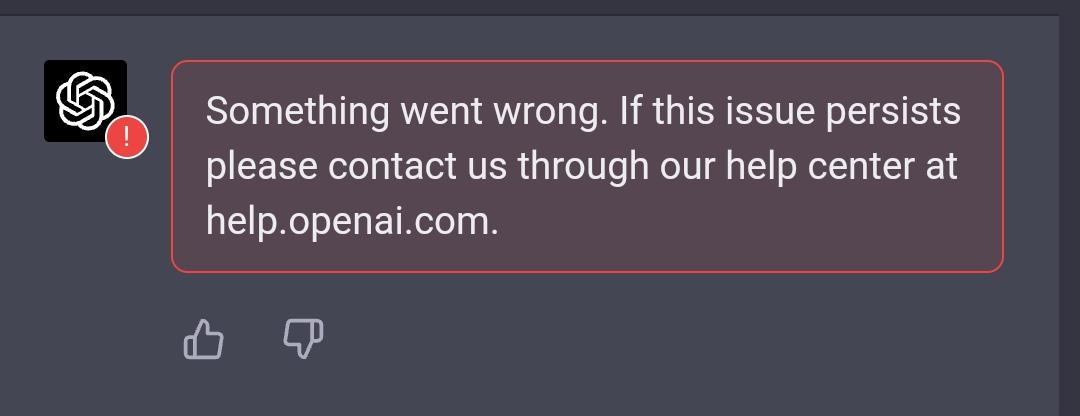 GPT not responding usually comes down to one of four things: an OpenAI outage, a browser or app problem, a network issue, or an account restriction like a rate limit. Try these three things first:
- Check OpenAI status at status.openai.com.
- Refresh the page or start a new chat.
- Try another browser, network, or model.
Most of the time, one of those three gets you unstuck. If not, work through the fixes below in order, from the cheapest to the most invasive.
Why Is GPT Not Responding? (Quick Diagnosis)
Before you change anything, figure out which of the four categories your problem falls into. This table gets you there fast:
| Cause | What it looks like |
|---|---|
| OpenAI outage | Lots of users hit the same problem at the same time |
| Browser or app issue | Only this device is affected; the same account works elsewhere |
| Network or VPN issue | Pages hang, requests stall, loading never finishes |
| Account or usage issue | Certain models or features are unavailable, or you hit a limit |
Two practical tells worth remembering. If GPT not responding shows up on one device only, it's a device problem, not an outage. If it fails everywhere at once and other people are complaining online, it's an outage. Everything else in this guide assumes you're in the second or third row.
If the same symptom keeps showing up on other GPT-related pages, our explainer on why your GPT isn't working covers the wider family of issues.
Is GPT Down? Check the OpenAI Status Page First
The first question anyone asks when GPT goes silent is "is it me, or is it everyone?" The official status page answers that in about ten seconds.
Step 1: Check OpenAI status. Open status.openai.com. If it shows an outage or degraded performance, it's not your device. Wait for OpenAI to restore service. Nothing you do locally will fix a server-side problem, and that's not you being bad at this.
Step 2: Check independent reports. Status pages are official, but they can lag behind real-world failures. DownDetector shows user-reported spikes in near real time and is a good second opinion.
Step 3: Check recent announcements. OpenAI posts updates on X and its community forum during incidents. If the newest post mentions an issue and it's recent, that's your answer.
If all three check out clean, move on to the local fixes below. And if your specific problem is that the site loads but hangs, our GPT not loading guide is built for exactly that symptom.
How to Fix GPT Not Responding
This is where most articles write "clear your cache" and call it a day. The problem is that cache clearing does nothing if your real issue is a frozen chat. So instead of a one-size-fits-all list, match what you're seeing to the fix that actually targets it. There are nine fixes below, listed from least to most invasive:
| What you see | What to try | Expected result |
|---|---|---|
| GPT is frozen | Hard refresh (Ctrl/Cmd + Shift + R) | Page reloads and starts responding |
| Messages keep spinning after you hit send | Start a new chat | The new chat works; the stuck one stays stuck |
| Only one model won't answer | Switch to another model | The other model responds normally |
| Works in incognito, not in a normal window | Disable browser extensions | Conflicts with extensions disappear |
| Works on mobile data, not on Wi-Fi | Restart the router; disable VPN for a minute | Connection stabilizes |
| The app freezes on your phone | Force close and reopen it | App starts clean |
| Web version fails but the app works | Try another browser, or use the app | One path gets you through |
| Nothing helps after several attempts | Log out, clear cache and cookies, log back in | Fresh session without corrupted data |
| Still broken after all of the above | Restart the device or reinstall the app | Clean slate |
Work down the table in order. If GPT not responding survives a row, move to the next; each step is more invasive than the last, so stop as soon as one fixes it. A hard refresh costs you nothing. Reinstalling the app is a last resort.
Two details people get wrong. A hard refresh isn't the same as pressing F5 on a laptop, because F5 can serve a cached page; Ctrl/Cmd + Shift + R forces a full reload. And when you clear cache and cookies, sign out of GPT first, or the fix wipes the login state and you'll spend the next ten minutes resetting your password. If you're dealing with message-level errors instead of a dead page, this guide on GPT something went wrong errors covers those cases.
GPT Not Responding on iPhone or Android? Try These Fixes
The nine fixes above apply on mobile too. What changes is the app itself, which adds a few platform-specific failure points. On both iPhone and Android, these four checks resolve most cases:
- Force close the app and reopen it. Most app-level freezes clear this way.
- Check for an app update. Old builds break when OpenAI ships new features.
- Toggle airplane mode on and off. This resets the mobile connection without a full restart.
- Reinstall the app if it still hangs. Your chats are generally associated with your account, so reinstalling should not normally remove cloud-synced conversations.
iPhone-only checks: make sure Background App Refresh isn't disabled for GPT, and free up storage if the phone is nearly full. Android-only checks: see if battery optimization is killing the app in the background, and try clearing the app cache in settings before reinstalling.
People searching for "gpt not responding on iphone" or "gpt app not working" often skip the simplest step: restarting the phone. Do that before anything else. It clears the background state that most app freezes leave behind. Most GPT not responding cases on mobile are app-level, and a restart clears them.
GPT Not Responding or Is It a Rate Limit?
Plenty of people mistake a rate limit for a broken service. A rate limit can sometimes look like GPT has stopped responding, especially when you're trying to use a model or feature that has reached its usage cap. This table helps you tell the difference:
| If you see this | Likely issue |
|---|---|
| Everything is frozen, including old chats | Temporary technical issue |
| "You've reached the limit" or similar | Rate limit |
| Can't sign in or access your account | Login or account issue |
| Payment or subscription options are unavailable | Subscription issue |
| Only one model won't respond | Model-specific issue |
| Account access is restricted | Account restriction |
If GPT not responding follows a burst of heavy usage, a limit is the most likely culprit. Many rate limits reset automatically after the relevant usage window, but the timing can vary by plan, model, and feature. Account restrictions don't reset on their own. If the problem is your account rather than GPT itself, you may need to check your account setup or how you subscribe, which usually means a visit to your billing page.
If you've confirmed that GPT itself is working normally and your problem comes down to your account's usage cap, one cause worth checking is account sharing: shared logins hit rate limits more often, because every member's usage counts toward the same cap. Our guide on GPT too many requests explains how the limit actually works. If that's your situation, FamilyPro offers two setups depending on what you prioritize: a shared account if cost matters most, or a GPT Plus top-up if you want your own account with an independent limit.
FAQ: GPT Not Responding: 5 Questions Answered
Why is GPT not responding even though my internet works? Because the problem usually isn't your internet. GPT not responding with stable internet usually comes down to an OpenAI outage, a browser or app issue, or a rate limit. Check the status page first, then try a hard refresh and a new chat.
Why does GPT keep loading without replying? That "loading forever" state is usually one of three things: a stuck request inside a specific chat, a browser extension interfering, or server load. Start a new chat, disable extensions, and if neither helps, check the status page.
Why is GPT not responding on my phone? Mobile issues usually come down to app cache, an outdated app, or background restrictions. Force close the app, update it, and toggle airplane mode. Reinstall only if nothing else works.
Is GPT down right now? Check status.openai.com for the official answer and DownDetector for user reports. If GPT not responding is affecting many users, the status page will show it. If it shows normal operation, the problem is likely on your end.
What should I do if GPT still isn't responding? Work through the checklist below one more time, in order. If you've genuinely tried everything and GPT still won't respond, report the issue to OpenAI support and wait out any outage. Sometimes the honest answer is that the server is down on their side.
GPT Not Responding? Use This Final Checklist
When GPT not responding hits, run through this in order and stop at the first step that works:
- Check OpenAI status.
- Refresh the page or start a new chat.
- Switch models.
- Disable browser extensions.
- Clear cache and cookies.
- Check VPN and network.
- Try the mobile app or another browser.
- Check account and rate limits.
If all of these steps fail, check OpenAI's status page again and consider contacting OpenAI Support. The issue may be service-side, account-related, or specific to your network or device.
One honest note before you go: if rate limits keep stopping GPT for you, FamilyPro offers two ways to set up your account: a cheaper shared account if budget comes first, or a GPT Plus top-up if you want your own limit and can't subscribe directly because of card or region restrictions. Either way, the fixes above work on any account.