
Why Is My GPT Not Working? 2026 Fixes & Causes
A GPT not working report almost always fits a small set of causes. You open GPT, type a prompt, and nothing comes back. The spinner runs forever, the page goes blank, or you see a red error you have never met before. If your GPT is not working right now, you are in good company, and in many cases you can identify the cause within a minute and start with the right fix. 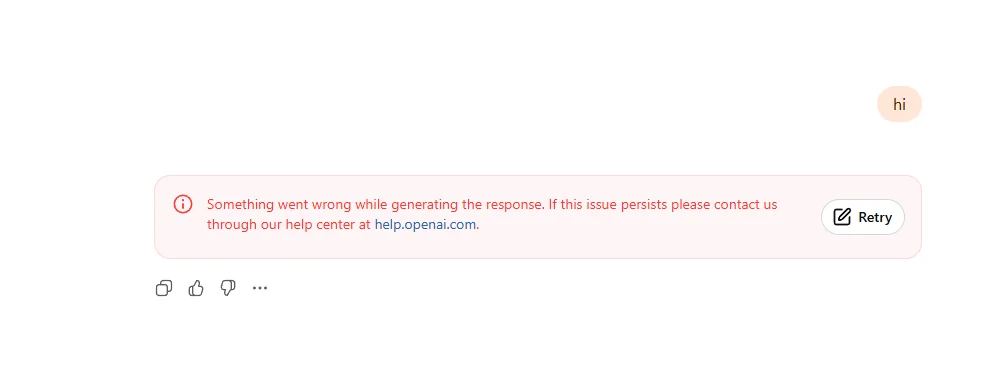 The fastest way to stop the panic is to check status.openai.com. For any GPT not working situation, that page is the first stop. If the OpenAI status page shows a major outage, the problem sits on their side, not yours, and the only real move is to wait. If the page is green, your GPT not working problem is local. Start with a hard refresh, open an incognito window, clear site data for chatgpt.com, turn off your VPN, and switch networks. When the app still fails only at sign in, the cause is probably your session or account rather than the service.
That is the full diagnosis in one breath. The rest of this guide walks each step, explains why GPT stops working, and shows how to tell a simple browser glitch from a real account block.
Why is my GPT not working? Is it down or just you? (60-second check)
Most GPT not working moments are one of two things: a service outage that hits everyone, or a local problem that only affects your browser, network, or account. The table below maps what you see to what it probably means, so you can skip the steps that do not apply.
| What you see | What it probably means | What to do first |
|---|---|---|
| GPT fails for everyone you ask | OpenAI outage | Check the status page, then wait |
| Only your browser fails | Cached site data or an extension | Clear site data for chatgpt.com |
| Only one network fails | Network or VPN issue | Switch to mobile data or another Wi-Fi |
| Login fails but the site loads | Session or account issue | Sign out and sign back in |
| Only one chat fails | A corrupted conversation | Start a new chat |
| Only one account fails | Account or subscription issue | Check account status in settings |
Users commonly report the "only my browser" case after a routine update, when an old extension suddenly starts blocking chat.openai.com. This 60-second check works for any GPT not working report, so run it before deeper fixes. If you want a deeper pass on the loading side, our guide on GPT not loading covers the spinner and blank screen in detail, and GPT something went wrong breaks down that specific error.
The 5 most common reasons behind GPT not working
Before the fixes, it helps to know why GPT is not working in the first place. Many GPT not working cases can be traced to one of these five causes. This section explains the mechanism only, so the next two sections can stay focused on steps.
- Cached site data. GPT stores tokens, session state, and feature flags in your browser. When that data goes stale after an update, the app can hang even though your connection is fine.
- Browser extensions. Privacy, script-blocking, and AI-detection extensions often flag chat.openai.com and silently break the request pipeline.
- VPN or proxy routes. OpenAI watches sign-in location. A VPN that hops regions mid-session can trip a security check and drop your connection.
- Unstable network. A flaky Wi-Fi or a strict corporate firewall can drop the long-lived connection GPT uses to stream replies.
- Device or app version. An out-of-date app, an unsupported browser, or a corrupted local install can stop the interface from rendering at all.
None of these mean your account is gone. They are local, and they are fixable. A GPT not working case that survives these checks is rare, but if GPT is still not working after them, jump to the account section below.
Browser, cache and extension fixes for GPT not working (step by step)
When the cause is local, these steps resolve the large majority of cases. Most GPT not working complaints end at this section. Work top to bottom and test after each one.
- Clear site data, not just the cache. In your browser settings, find chatgpt.com (and openai.com), then choose "clear site data" or "cookies and site data." A plain cache clear often misses the session tokens that actually matter.
- Disable extensions. Turn off all extensions, or open a clean profile, then reload GPT. If it works, re-enable extensions one at a time to find the culprit.
- Try another browser. Load GPT in a different browser you rarely use. If it works there, your main browser is the problem.
- Update the browser. An old browser can miss a required API. Update, restart, and retry.
- Sign out and back in. This forces a fresh session and clears a stuck login state.
A common pattern: people clear the general cache, see no change, and assume GPT is broken. Clearing site data for the domain is the step that actually fixes it. It is one of the first fixes worth trying when GPT keeps failing in one browser. For the "something went wrong" variant specifically, our GPT something went wrong walkthrough lines up the error with the right fix.
VPN, network and login session fixes when GPT won't load
If the browser steps did not help, the issue is likely your connection or your login session. GPT not working at the network layer usually shows up as endless loading or repeated sign-outs. A GPT not working report that starts at sign-in usually means the session expired.
- Turn off your VPN. Disable it, reload, and sign in again on a stable connection.
- Switch networks. Move from Wi-Fi to mobile data, or try a different Wi-Fi. This isolates a firewall or DNS problem fast.
- Flush DNS. On desktop, reset your network or flush the DNS cache, then restart the browser.
- Sign out completely. Close all tabs, sign out everywhere from your account settings, then sign back in once.
- Clear the login state. If you still loop at login, a stale token is the likely cause. Our guides on can't log in to GPT, GPT 403 error, and access denied cover the exact messages and what each one means.
When GPT is not working only at the login step, a session expiry is the usual reason. A GPT not working report limited to login almost always means the token expired. The session expired guide explains why tokens time out and how to stay signed in without weakening your security.
When "GPT not working" is really your account: 401, ban, or subscription
Sometimes the real story is not the browser at all. A GPT not working report that survives every local fix points to the account. If you have tried the steps above and GPT is still not working, the cause may sit in your account. Use this table to match the symptom to the likely issue.
| Symptom | Likely issue |
|---|---|
| 401 error on requests | Authentication or session failure |
| Account suddenly inaccessible | Account status or hold |
| Subscription features disappeared | Billing or plan change |
| Unusual activity warning | Security verification required |
| Only one account fails | Account-specific issue |
| Every account fails | Browser, network, or service issue |
A 401 usually points to an authentication or session problem, such as an expired or invalid login state. Signing out and back in fixes most cases. If you see an "unusual activity" notice, OpenAI is asking for verification before it trusts the login, and you should complete it rather than keep retrying. For the full picture on that warning, see unusual activity detected on GPT. If the account was taken down, our GPT account deactivated and account banned guides explain what typically triggers it and what recovery looks like.
OpenAI's own help center is the most reliable source for account and billing states, and you can review your plan and verification status there: OpenAI Help Center. Community threads on OpenAI Community also describe these errors, though specific posts are not verified here and should be read as user experience, not official policy.
Does GPT break more on shared accounts? (stay safe and fix memory full)
A question we hear a lot: does GPT fail more on a shared or pooled account? The app does not break more often, but shared accounts create two practical problems that feel like failures. On a shared plan, a GPT not working feeling often comes from memory limits, not the service itself.
First, memory fills faster. Several people share one account, so the saved memory and chat history mix and hit the limit sooner. When memory is full, GPT can stop saving context or behave oddly. Our GPT memory full guide shows how to clear saved memories and free space, and OpenAI's own instructions for managing memory live here: Manage memory in GPT.
Second, multiple users on one login can trigger security checks, since OpenAI sees logins from different locations and devices. That is not a bug, it is the account model. If you run a shared plan, keep logins on a small set of trusted devices and avoid hopping regions with a VPN.
On cost, a shared plan is usually far cheaper than a direct subscription, which is why many users pick one. You can read how shared access is set up in our how to get a shared GPT account guide, and compare the current plan on our GPT product page.
If you need your own memory, your own history, and cleaner isolation, a personal account is the safer pick. When paying OpenAI directly is hard in your region (no international card, currency friction, or local restrictions), a personal top-up can set up an independent account for you, so you keep your own memory and chat history without fighting the payment wall. Our GPT top-up explains how that works.
FAQ: why is my GPT not working
Q1. Why is GPT not working right now? Check status.openai.com first. If OpenAI shows an outage, the service is down for everyone and you should wait. If the status is green, the problem is local: clear site data for chatgpt.com, disable extensions, turn off your VPN, and switch networks.
Q2. Why is GPT not working but other websites are? That points to a GPT-specific issue rather than your internet. Stale site data, a blocking extension, or a VPN route are the usual causes. Clear site data for chatgpt.com and try an incognito window without extensions.
Q3. Why is GPT not working after an update? Updates can leave old cached data or extensions incompatible with the new interface. Clear site data for the domain, update your browser, and disable extensions, then reload. A hard refresh alone often is not enough.
Q4. Why is GPT not working with a VPN? OpenAI monitors sign-in location, and a VPN that changes regions mid-session can trigger a security check that drops the connection. Turn the VPN off, sign out, and sign back in on a stable connection.
Q5. Why does GPT keep stopping or not loading? Endless loading usually means a network, VPN, or session problem. Switch networks, flush DNS, and sign out completely, then sign back in once. If only one chat fails, start a new conversation.
Q6. How do I know if GPT is down? Open status.openai.com. A green status means the service is up and your issue is local. Community posts can hint at an outage, but the status page is the only authoritative source.
Q7. Why does GPT work on one account but not another? That is an account-specific problem, not a service problem. Check for a 401, a subscription or billing change, or an unusual activity verification on the failing account. The working account confirms the app itself is fine.
Conclusion: diagnose fast, fix safe, pick the right GPT account
When GPT is not working, the fix almost always follows the same path: confirm it is not a global outage, then clear site data, disable extensions, drop the VPN, and switch networks. For most troubleshooting cases, this order helps you narrow down the problem without wasting time on fixes that do not apply. If those fail, look at your session and account before assuming the worst.
For most local cases, the steps above get you back in minutes. If you share an account and keep hitting memory or security limits, weigh a personal plan for cleaner isolation, or review our GPT product page and GPT top-up to choose the setup that fits how you actually use GPT.