
How to Clear ChatGPT Memory: Delete Saved Details and Start Fresh
To clear ChatGPT memory, open Settings → Personalization, enter the memory management screen, and choose the deletion option shown for your account. Deleting a conversation and disabling memory are separate actions. For a sensitive detail, also review the chats, instructions, and files that still contain it.
Contents
- Choose what you want to remove
- Clear memory on desktop or mobile
- Remove one detail and check its other sources
- Why does ChatGPT still mention it?
- Shared accounts need a different privacy decision
- Frequently asked questions
Choose what you want to remove
| Your goal | Action | What to check separately |
|---|---|---|
| Correct one remembered fact | Remove or update that memory | Original chats and instructions containing the old fact |
| Reset saved personalization | Delete all saved memories, or use the combined delete-and-disable control shown | Whether memory remains enabled afterward |
| Stop future memory use | Disable the available memory controls | Disabling alone is not proof that stored information was deleted |
| Remove a conversation | Delete that chat | Separately saved memories and files |
| Clear local Codex memories | Use the local Codex memory controls | ChatGPT web memory is a separate store |
OpenAI's memory documentation distinguishes ChatGPT web memory from local Codex memory. Follow the controls for the product and account you actually use.
Clear memory on desktop or mobile
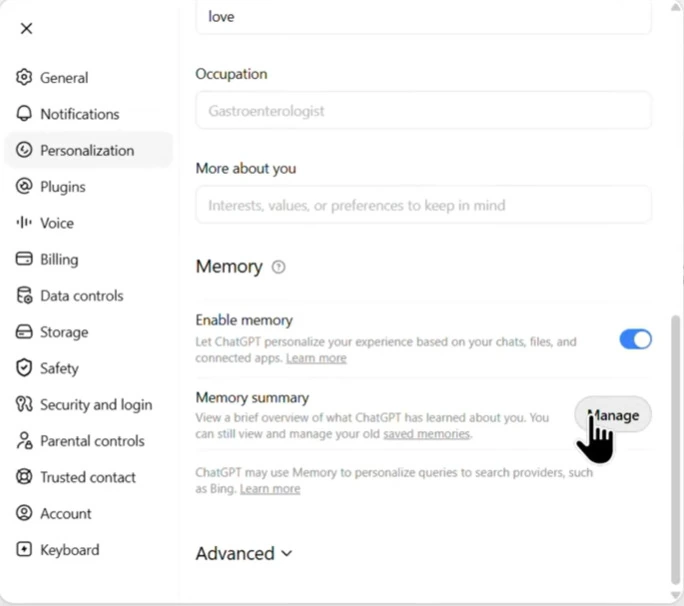
On the web, open your profile or account menu, then Settings → Personalization. Open Manage, Manage memories, or the equivalent memory entry visible in your interface. Do not depend on the profile button being in one particular corner.
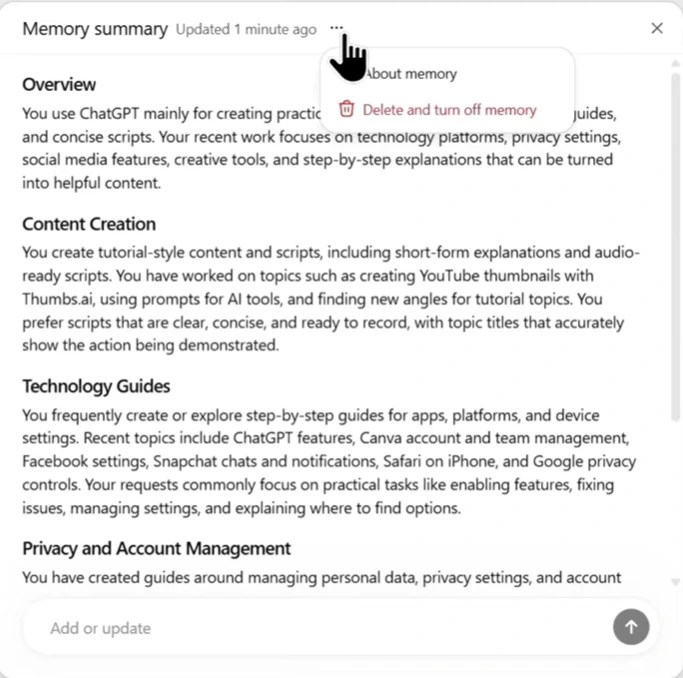
In the summary interface illustrated below, the three-dot menu offers Delete and turn off memory. Read the confirmation: this is a combined action, not simply an empty list with memory still enabled.
On iPhone or Android, open the account menu and Settings, then find Personalization and memory management. The saved-memory interface in these earlier mobile screenshots supports removing an entry or choosing Delete all. Controls can differ by app version and account; these images document the original article's interfaces, not a guarantee that every account displays the same screen.
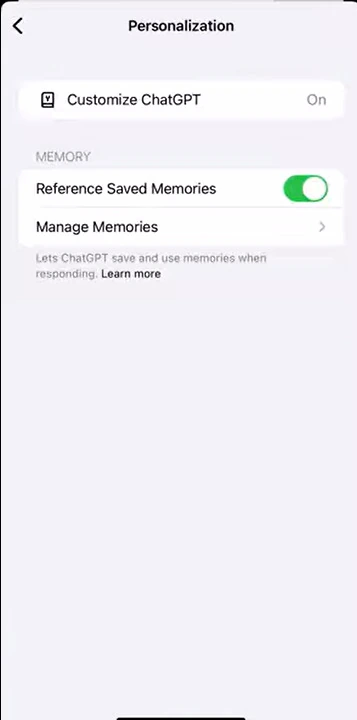
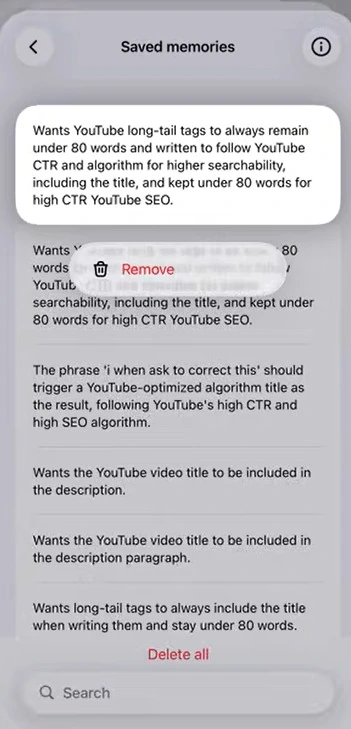
After confirming, reopen the memory screen and check the result and enabled/disabled state. If controls are missing, check that you are in the intended account and workspace, update the app, and compare with the web interface. On a managed workspace, ask the administrator about available controls.
Remove one detail and check its other sources
For a single correction, use the available memory editor or ask, for example, “Forget that I work at Acme Corp.” Then inspect the memory controls; a conversational confirmation alone does not establish that every stored copy is gone.
Review the original conversation and other chats repeating the detail. Check custom instructions, project instructions, and relevant uploaded or saved files. Delete or edit the copies you intend to remove, preserving anything you still need first. Archiving a conversation is not the same action as deleting it.
OpenAI's data-retention overview explains that conversations, Library files, project files, memories, and connected-app data have different deletion rules. Disconnecting an app does not erase the source service's records or every copy already saved elsewhere.
Why does ChatGPT still mention it?
Start a new ordinary chat outside the old project, without attaching the same file or repeating the detail in your question. This helps separate the current conversation's context from saved personalization. It is a diagnostic check, not proof of backend erasure.
Check whether the information remains in instructions, a file, a project, or another accessible source. If your interface exposes separate controls for referencing chat history and saved memories, review both. Avoid assuming that all accounts have identical switches.
OpenAI documents retention of a deleted-memory log for up to 30 days for safety and debugging in its memory deletion guidance. A retention period does not establish that deleted data will keep being used in answers for that period. Do not wait an arbitrary week before investigating an unexpected reference. Record the deletion time, relevant setting, and a redacted example for support if the problem persists.
Shared accounts need a different privacy decision
If several people use the same login, clearing memory does not give each person a private workspace. Other conversations or files may remain accessible, and deleting account-level data may affect another user. Do not upload confidential material to a shared login or delete other users' content.
Before choosing a FamilyPro ChatGPT option, check whether it provides shared credentials or access on your own account. Our shared-account guide explains the distinction. Memory cleanup is not a substitute for separate account access, and it cannot retract information someone has already viewed or copied.
Frequently asked questions
Does deleting a chat clear saved memory?
Not necessarily. Review and delete the saved memory separately, then remove the relevant conversation if that is also your goal.
Does turning memory off erase everything?
No. Distinguish a standalone toggle from an explicit combined deletion control, and check the confirmation. Chats, files, and other storage locations require separate review.
Can clearing memory fix a full-memory warning?
Removing obsolete saved entries can free capacity where your interface uses a saved-memory limit. A full-memory warning is different from a message quota or an overloaded conversation; see ChatGPT memory full for that distinction.