
GPT File Upload Not Working? Fixes & Solutions for 2026
When GPT file upload not working is the message you keep seeing, the cause is almost always simple. The file is too big, the browser is blocking the request, your plan hit its upload quota, or OpenAI is having a brief outage. The steps below reflect how GPT handles uploads in 2026, and we keep them current as OpenAI updates its limits. 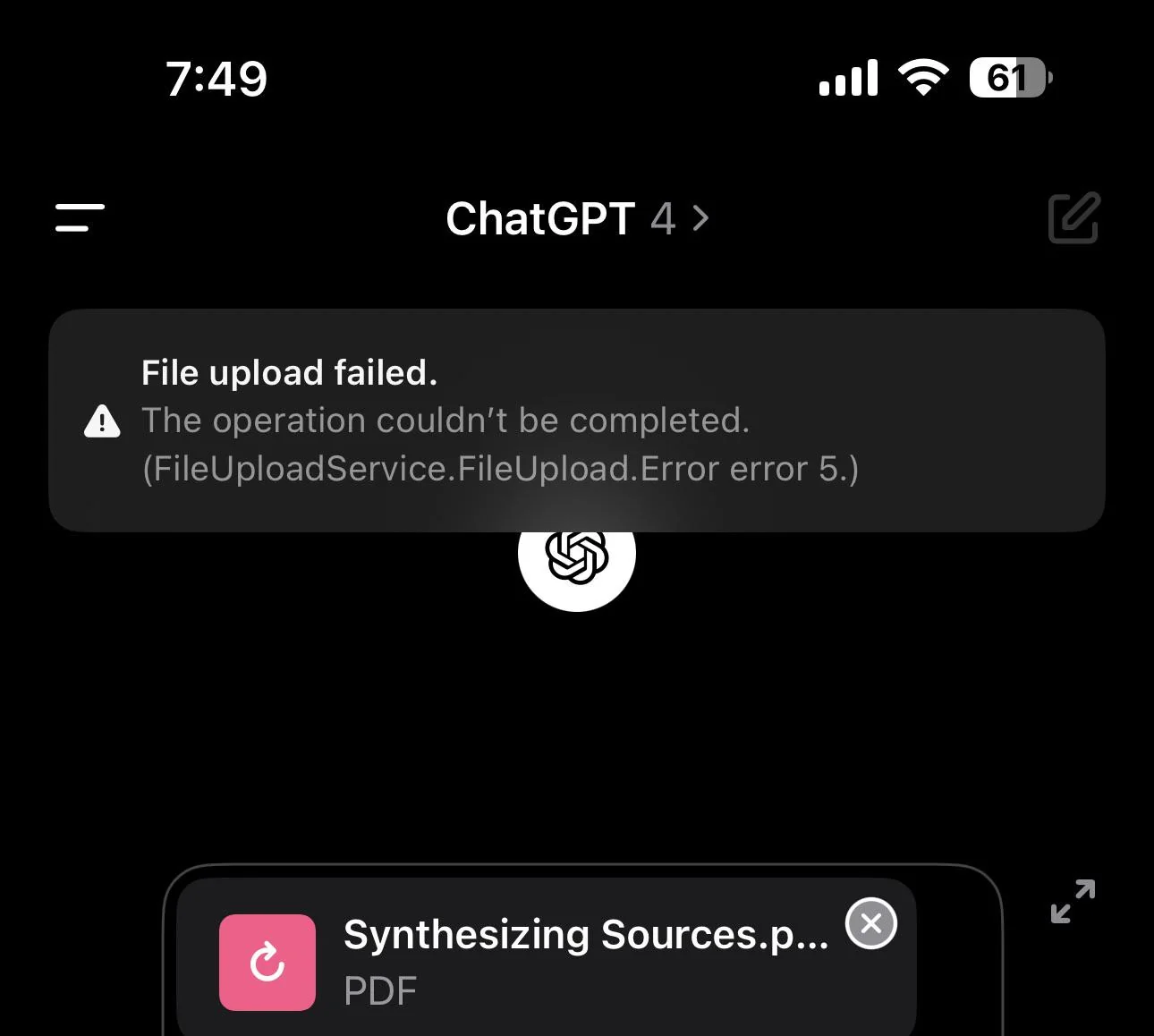 Last month I froze when a PDF would not attach. I had a deadline and the error looked permanent. Then I renamed the file from "Q3_report_final_v2_FINAL.pdf" to "report.pdf" and it uploaded in two seconds. The original name had characters the uploader would not accept. Small things like that cause most failures, and the checklist below catches them fast.
If you came here in a panic, take a breath. GPT file upload not working is rarely a broken account. When the error appears out of nowhere, the file or the browser is the usual culprit, and both are quick to check. Work the list in order and you will find the cause in a few minutes.
Why is GPT file upload not working?
GPT file upload not working can trace back to five places. Picking the right one first saves you a lot of clicking.
- Your file: wrong format, too large, or a scanned image with no text layer.
- Your browser: an extension blocks the upload, or the cache is stale.
- Your account or plan: the rolling upload quota is used up.
- A shared seat: other people on the same account spent the quota before you.
- OpenAI's side: a service outage or a workspace admin policy blocks uploads.
The quick checklist is the fastest way to fix GPT file upload not working without digging into settings. The sections after it walk through each remaining cause with a fix you can actually run.
Quick fix checklist: try these first
Run through these in order. They solve the majority of cases where GPT file upload not working shows up.
- Refresh GPT and sign out, then sign back in.
- Open status.openai.com to rule out an outage.
- Rename the file to a short name with no spaces or symbols.
- Compress or split the file if it is near the size limit.
- Turn off browser extensions, especially ad and script blockers.
- Switch to an incognito window or a different browser.
- Check your upload quota in the account settings.
Here is the fastest diagnostic I know. Upload a tiny plain text file, something a few bytes long. If that also fails, the problem is on OpenAI's side, not your file. That test took me ten seconds and told me to stop blaming my PDF. If the text file goes through, your original file is the issue.
Is it your file? Format, size, and scan limits
GPT file upload not working most often means the file itself is the blocker. OpenAI publishes size caps that change over time, so confirm the current numbers in the OpenAI help center before you treat any figure as final. A corrupt download or a half saved file also triggers GPT file upload not working, so re download the source if you suspect damage. The commonly documented limits look like this.
| File type | Common max size | Notes |
|---|---|---|
| Documents (PDF, DOCX, TXT, code) | Up to about 512 MB | Larger files may need splitting |
| Images (PNG, JPG, WEBP) | Up to about 20 MB | Each image has its own cap |
| Spreadsheets (CSV, XLSX) | Tens of MB | Very wide sheets can fail to parse |
| Files per message | Up to 10 on paid plans | Free plans allow fewer |
A scanned PDF with no text layer is a frequent trap. I once uploaded a scan that looked perfect but GPT said the file was empty. Running it through an OCR tool first fixed it, because the scan had pixels but no selectable words. If your document is a scan, make sure it has a real text layer before uploading.
The file name matters more than people expect. Spaces, accents, and symbols like #, %, or & can trip the uploader. Keep names short and plain.
Fix it:
- Rename the file with a short, plain name.
- Convert uncommon formats to PDF or DOCX.
- Compress images or split large documents into parts.
- For scans, run OCR so the text is selectable.
- Remove passwords and editing restrictions from PDFs.
If the file passes all of that and GPT file upload not working still appears, the browser is the next suspect.
Is it your browser or an extension?
The second most common cause is the browser itself. An extension that blocks scripts or trackers can also block the upload request, because the upload runs through a script the blocker treats as suspicious. A stale cache can break the attach button entirely.
I keep a script blocker on by default, and it silently stopped GPT from uploading for a week before I noticed. Turning it off for chat.openai.com solved the problem immediately. The blocker was doing its job, just a little too well.
Fix it:
- Open GPT in an incognito window. If uploads work there, an extension is the cause.
- Disable extensions one at a time, starting with ad and script blockers.
- Clear the browser cache and cookies for chat.openai.com.
- Try a different browser to confirm the issue is local.
- Update the browser to the latest version.
A blocked script is the top browser cause of GPT file upload not working, and it is easy to miss because the blocker runs quietly in the background.
When the browser is clean and GPT file upload not working persists, the issue is likely your account or plan.
Is it your account, plan, or a shared seat?
Your plan has a rolling upload quota. Free accounts get a small daily cap. Plus and Pro get much larger allowances, but they are not unlimited, and a quota that runs out shows up as an upload error. If you share a seat with other people, the quota drains faster because everyone pulls from the same pool.
OpenAI states these limits in its help center, and they change, so treat the table below as a guide rather than a fixed rule.
| Plan | Typical upload allowance |
|---|---|
| Free | A small number of files per day |
| Plus | A large rolling allowance per few hours |
| Pro | The highest allowance, close to unlimited for normal use |
A shared seat is the quiet reason many people hit the wall. On a shared FamilyPro account the quota is one pool for everyone, so if a teammate uploaded a batch of large files, your upload fails even though you did nothing wrong. On Free plans, GPT file upload not working often means the daily cap is spent, and a shared seat makes GPT file upload not working feel random because the quota is shared. See our guide on shared GPT accounts for how the seating works.
You have two practical paths here.
- Share a managed GPT seat if keeping costs low is your priority. This is the budget option, and it works well if you and the other users coordinate and clear old files. The tradeoff is real: memory and quota are shared, and multiple users mix into one account, so you should clean up regularly to keep uploads smooth.
- Use a personal account topped up through FamilyPro. If paying OpenAI directly is awkward in your region (no international card, currency friction, or regional restrictions), FamilyPro can top up a personal account on your behalf. You get an isolated seat with your own memory and your own quota, which removes the shared-pool problem completely.
When GPT file upload not working lines up with a quota message, the fix is to wait for the window to reset or move to a seat with spare capacity. If you want the details on how quotas reset, our rate limit guide breaks it down, and our memory guide covers what counts against your storage.
Is GPT down, or is your workspace blocking it?
Sometimes the problem is not you at all. OpenAI has outages, and during those, uploads fail for everyone on the platform. Workspace and education accounts add another layer: an admin can disable file uploads at the organization level, and individual users cannot turn that back on.
Check status.openai.com first. If the file upload component shows a disruption, wait it out. There is no fix on your side during an outage, and retrying every few seconds only adds load.
For workspace or school accounts, ask the admin whether file uploads are enabled. I have seen enterprise accounts where the attach button simply never appears because a policy turned it off. That is not a bug you can clear in the browser. If a session feels stuck rather than blocked, our guide on GPT errors covers how to reset a stuck session, and our account deactivation guide explains the flags that can lock features.
Fix it:
- Confirm the outage on the status page before changing anything.
- Ask your admin to enable file uploads if the button is missing.
- On a personal account, sign out and back in to reset a stuck session.
- Wait for the quota window to reset if you hit a limit.
During an outage, GPT file upload not working affects every user at once, so a quick status check tells you whether to wait or keep troubleshooting. If none of these apply and GPT file upload not working still shows, the FAQ below answers the specific cases people ask about most.
FAQ: GPT file upload not working
Q1: Why can't GPT upload my PDF?
PDFs fail most often because they are too large, scanned without a text layer, or password protected. Rename the file, run OCR on scans, and remove passwords. If the PDF is over the size cap, split it into smaller parts. A plain name with no symbols also helps the uploader parse it. When GPT file upload not working points at a PDF, the file is almost always the cause, so fix the file before changing settings.
Q2: Why does GPT say "failed to get upload status"?
That message usually means the upload request timed out or OpenAI's file service was briefly unavailable. Try the file again after a minute, check the status page, and switch to incognito mode. If it repeats, the file may be corrupt or over the limit, so test with a tiny text file to isolate the cause. GPT file upload not working with a status error usually means a timeout on OpenAI's side rather than a problem on your end.
Q3: Does GPT Free allow file uploads?
Yes, Free accounts can upload files, but the daily count and size caps are much smaller than on Plus or Pro. If uploads fail on Free, you have likely hit the daily cap and need to wait or move to a paid plan. The small quota is the usual reason Free users see the error first. GPT file upload not working on Free is usually the small daily cap rather than a file problem, so waiting a day often clears it.
Q4: How many files can GPT upload at once?
Paid plans allow up to about 10 files per message. Free plans allow fewer. Very large individual files can fail even when the count is within the limit, so check the size cap as well as the count. Split big documents if a single file will not go through. GPT file upload not working because of count limits is easy to miss when each file looks small on its own.
Q5: Why did my upload fail after upgrading to Plus?
Upgrading does not always raise the cap instantly, and the rolling quota can still be exhausted by recent uploads. Wait for the window to reset, clear old files, or check whether a shared seat used the quota. See our rate limit guide for how quotas reset and why a fresh plan can still hit a wall. GPT file upload not working right after upgrade points at the rolling quota, not the plan tier.
Q6: Why can't I upload files to GPT Plus?
Plus includes file uploads, but the allowance is large rather than unlimited. When uploads fail on Plus, the rolling quota is usually spent from recent activity, or a shared seat used the pool first. Wait for the window to reset, clear old files, or check our rate limit guide for how the quota behaves. Most Plus upload failures come down to quota timing, not a missing feature.
Q7: Why is the GPT attach button missing?
The attach button can disappear for three reasons: an admin turned off file uploads for your workspace or school account, a browser extension blocked the upload control, or a stuck session hid it. Ask your admin whether uploads are enabled, open GPT in incognito to rule out an extension, and sign out then back in to reset a stuck session. If the button is gone only at work or school, the policy is the cause, not your file.
Conclusion and next steps
GPT file upload not working is rarely permanent. Work through the checklist, check the file, the browser, the quota, and the status page, and you will find the cause in a few minutes. Most failures are a renamed file, a blocked extension, or a used-up quota. None of those means your account is broken.
If you share a seat and keep hitting the quota, two options stand out. A managed shared GPT seat keeps costs low if your group coordinates and cleans up. A personal account topped up through FamilyPro gives you an isolated seat with your own memory and quota, which is the easier path when paying OpenAI directly is hard in your region. Either way, the upload wall is a quota or a setting, not a fault in your account. When GPT file upload not working shows up again, repeat the checklist before assuming the worst.
My habit now is simple. Before I upload anything important, I rename it, and on a shared seat I clear old files at the end of the day. That small routine has kept the upload errors away, and it will likely do the same for you.