GPT Image 2.5: What's New, How to Use & Free Access in 2026
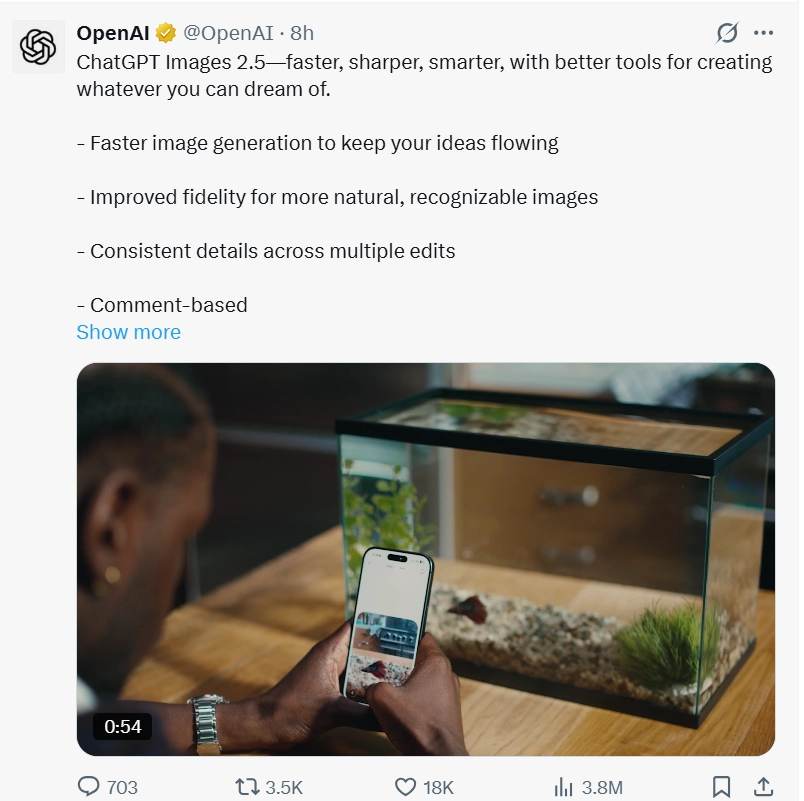 GPT Image 2.5 is OpenAI's latest image generation model, released on September 8, 2026. It is faster and sharper than the previous version, with cleaner edits and new tools for building and sharing images. This guide covers what changed, how to use it inside ChatGPT, and how to get access this year.
One scope note: this guide covers image generation only. OpenAI also shipped the GPT-6 Astra flagship model around the same time, aimed at coding, agents, and computer use, which is a separate topic. If that is what you are after, see our GPT-6 Astra overview.
Quick answer
- What is it? It is OpenAI's newest image model. It is rolling out to ChatGPT, ChatGPT Work, and Codex users across all tiers on desktop, mobile, and web.
- Is GPT Image 2.5 free? Yes. The free tier includes access with usage limits. Paid plans raise those limits.
- How do I use it? Open ChatGPT, select image generation, write a prompt, and generate. New tools include Sketch, Templates, and image comments.
What Is GPT Image 2.5?
GPT Image 2.5 is the newest version of OpenAI's image model for ChatGPT. OpenAI released it on September 8, 2026, and described it as sharper, faster, and better at precise edits than GPT Image 2.0.
According to the official OpenAI announcement, image generation latency is up to 50 percent lower than Images 2.0, and outputs show more natural lighting and richer textures. It is available across all tiers to ChatGPT, ChatGPT Work, and Codex users on desktop, mobile, and web.
The four headline upgrades are:
- Sharper details and more precise editing.
- Up to 50 percent lower generation latency.
- A new Sketch tool for drawing directly in ChatGPT.
- Templates, image comments, and prompt sharing.
These changes matter most for practical work such as product shots, social posts, and repeated revisions, where small edits used to mean regenerating the whole image. In practice, the model works well for product photography, social content, and concept art that needs a specific look across several rounds of changes.
GPT Image 2.5 Flare vs Sunburst: Which Should You Use?
The release ships two API models. Flare is the default and gives higher quality images than GPT Image 2 at 50 percent lower latency, which fits most applications. GPT Image 2.5 Sunburst targets premium visual workflows that need tighter control across edits, such as production campaign creative or polished product imagery.
| Model | Best for | Notes |
|---|---|---|
| Flare | Most apps, high-volume generation | Default choice; higher quality at lower latency |
| Sunburst | Production creative, tight edit control | Built for premium workflows |
For most ChatGPT users, the model choice is handled automatically; these names mainly matter if you build with the OpenAI API. My own habit is to draft with Flare first and switch to Sunburst only when something has to reach production quality. Eight times out of ten, Flare is enough.
GPT Image 2.5 vs GPT Image 2: What Actually Changed
The jump from GPT Image 2.0 to GPT Image 2.5 is not only about sharper pictures. The bigger change is how it handles edits.
| Area | GPT Image 2.0 | GPT Image 2.5 |
|---|---|---|
| Image quality | Strong | Sharper, richer textures |
| Text rendering | Good | Cleaner, more reliable |
| Editing | Basic | More precise, local edits |
| Speed | Baseline | Up to 50 percent faster |
| Best for | General use | Iterative creative work |
My own take: the clearest difference from 2.0 is not that images look cleaner. It is that you no longer regenerate the whole picture to fix a small part. With the older version, changing the background of a product poster usually meant a fresh generation, and sometimes the result drifted. Now I can select a small area, adjust it, and lock it in after a few tries. For anyone generating images daily and revising them often, this saves more time than raw quality gains. If you want the full story on the earlier generation, see our GPT Image 2 breakdown.
How to Use GPT Image 2.5 in ChatGPT (Step by Step)
Follow these steps to create your first image.
- Open ChatGPT on desktop, mobile, or web.
- Start a new chat and select the image generation option.
- Write a specific prompt that names the subject, style, and format.
- Generate the image, then use comments to mark areas to adjust.
- Refine with follow-up prompts until the result fits.
New tools make this easier. Sketch lets you draw a guide right in the chat. Templates cover popular formats such as posters and merch, so you can start from a proven layout instead of a blank prompt. Comments let you annotate the image for focused edits, and prompt sharing lets others reuse your prompt with their own photos.
Prompt examples:
- Bad prompt: "Make a product poster."
- Better prompt: "Create a minimalist SaaS product poster, soft blue palette, one laptop and a coffee cup, flat vector style, 1080x1080."
The better prompt names the style, colors, objects, and size, which gives the model a clear target.
Editing an existing image follows the same flow. Upload the picture, describe the exact change, and ask for the edit to stay local so the rest of the image is untouched. For example:
- Edit prompt: "Keep the product, background, lighting, and composition unchanged. Replace only the coffee cup with a glass of water."
This kind of targeted edit is where GPT Image 2.5 pulls ahead of the older version, since a small change no longer means regenerating the full image.
Can I use GPT Image 2.5 on mobile? Yes. It is available on desktop, mobile, and web inside the ChatGPT app, so you can generate and edit from a phone. If generation fails, check our GPT image generator not working guide. If uploads are rejected, see the GPT Plus image upload limit explainer.
GPT Image 2.5 vs Gemini & MAI: How It Compares
GPT Image 2.5 competes with Google's Gemini image tools and Microsoft's MAI image models. None of the three clearly beats the others on output quality; the difference is mostly workflow and ecosystem. My rough impression:
| Model | Strength | Best suited for |
|---|---|---|
| GPT Image 2.5 | Comment-based edits, local editing, prompt sharing | ChatGPT users who revise one image often and share prompts with teammates |
| Gemini | Solid quality, close integration with Google Docs, Search, and the rest of the Google stack | Users who live inside the Google ecosystem |
| MAI | Solid quality, embedded in Microsoft Office and Windows tools | Users who live inside the Microsoft ecosystem |
To be clear, I have not run a side-by-side benchmark of all three, so treat the table as impressions rather than test results. From my own use, if you keep iterating on the same image and hand prompts to teammates, the 2.5 loop of comments plus prompt sharing feels smoother than Gemini or MAI. Image quality itself is close across the three, so what usually decides it is the ecosystem you already work in. Switching tools just for novelty tends to add friction, not value.
How to Get GPT Image 2.5
Official access
GPT Image 2.5 is built into the ChatGPT app for free and paid users, and both Flare and Sunburst are available through the OpenAI API. No separate install is required. Developers can call Flare or Sunburst from the API and build image workflows into their own products.
Is GPT Image 2.5 free?
Yes, the free tier includes access with usage limits. Paid plans such as Plus, Pro, Business, and Enterprise raise those limits. It is not unlimited on any tier, so heavy users will hit caps.
Cheaper ways to use GPT Image 2.5
If you generate images heavily and want to keep the cost down, look at the official options first. Light or occasional use fits the free tier. If your usage comes in bursts, calling Flare or Sunburst through the OpenAI API on a pay-as-you-go basis is often more controllable than keeping a subscription running during idle weeks. If you want the full ChatGPT experience, paid plans such as Plus and Pro give higher limits.
If you can pay OpenAI directly, the official options above are enough, and you can stop reading here. The two routes below serve two different groups: one wants to lower the membership cost, the other is stuck at the payment step. Neither is an official OpenAI subscription; they are services we offer:
- Want to spend less? See our shared GPT access. This suits budget-first users. Several people share one account, the monthly fee is split, and the per-person cost is the lowest option, which makes sense if you want to try GPT Image 2.5 for the least money. The tradeoff is a shared account: memory fills faster, and privacy is weaker.
- Want your own account but cannot pay OpenAI directly? See our GPT top-up. Some regions or currencies make it hard to pay OpenAI directly. A top-up adds credit to your own account, so the account stays personal with independent memory; only the payment goes through us. This fits people who want a private account but lack a local payment card.
GPT Image 2.5 FAQ
Q1. What is GPT Image 2.5?
GPT Image 2.5 is OpenAI's newest image generation model, released September 8, 2026. It produces sharper images than GPT Image 2.0, generates up to 50 percent faster, and adds tools for sketching, templates, comments, and prompt sharing inside ChatGPT.
Q2. Is GPT Image 2.5 free?
Yes. The free ChatGPT tier includes access with usage limits, and paid plans raise those limits. It is available across all tiers to ChatGPT, ChatGPT Work, and Codex users, but no tier offers unlimited generation.
Q3. How do I use GPT Image 2.5?
Open ChatGPT, select image generation, and write a specific prompt that names the subject, style, and size. Generate, then use comments to mark areas to change and refine with follow-up prompts. Tools like Sketch and Templates speed this up.
Q4. Can I use GPT Image 2.5 in ChatGPT?
Yes. It is built into the ChatGPT app on desktop, mobile, and web for free and paid users. You do not need a separate tool. Just start a chat, choose image generation, and enter your prompt.
Q5. Is GPT Image 2.5 better than GPT Image 2?
For most users, yes. It is sharper, up to 50 percent faster, and much stronger at precise edits. The biggest gain is local editing: you can change one part of an image without ruining the rest, which helps product and creative work.
Q6. Can I use GPT Image 2.5 on mobile?
Yes. The ChatGPT app works on desktop, mobile, and web, and generating or editing images from a phone is no different from doing it on a computer. No extra tool is needed, and both free and paid users get access, with the free tier capped by usage limits.
Conclusion
Let's close by answering the three questions in the title: what is new, how to use GPT Image 2.5, and how to get free access.
- What is new: images are sharper than GPT Image 2.0, generation is up to 50 percent faster, and the biggest practical gain is local editing: you can change a small area without touching the rest.
- How to use it: open ChatGPT, choose image generation, write a prompt that names subject, style, and size, then point out fixes with comments and refine. Sketch, templates, and prompt sharing speed up the loop.
- Free access: the free tier works with usage caps, and heavy use will hit them. For cheaper access or when direct payment is not an option, the two routes below fit different situations.
My own take: the real value of 2.5 is not a sharper first attempt. It is being able to iterate on the same image without it falling apart. Before comparing access options, ask how often you actually generate images. Light or occasional use fits inside the free tier, so you do not need to spend anything. If you generate and revise images every day, the free caps will be the bottleneck, and only then does a paid plan make sense, and only then is it worth shopping for a cheaper membership.
Once you do need a paid plan, there are really two ways to lower the cost, and they fit different situations. Shared GPT access splits the monthly fee among several people for the lowest per-person price; it suits people who can accept sharing and want the minimum cost. GPT top-up is for people who want their own account but cannot pay OpenAI directly: it adds credit to your own account and clears the payment hurdle. One saves money, the other removes the payment problem, so pick based on which situation you are in.