
GPT Plus Image Upload Limit 2026: Verified Caps & Fixes
You open a chat, drag in a handful of screenshots, and GPT tells you the upload limit is reached. You count the files: maybe ten. Not eighty. So why are you blocked? That is the GPT Plus image upload limit at work, not a glitch. 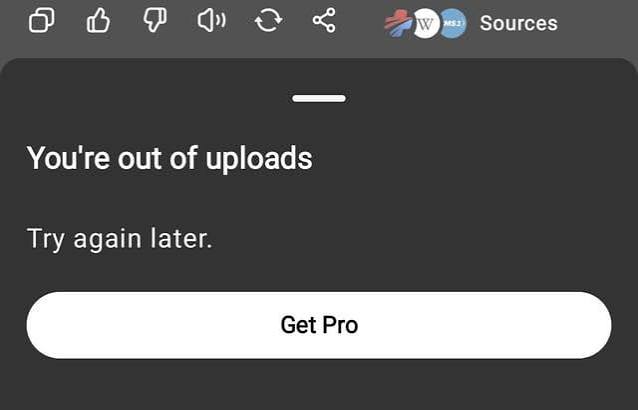 Here is the short answer. GPT Plus does not have a separately published image-per-day limit. Images are files, and files share one rolling bucket. The number of pictures you can send depends on file size, how many other files you have sent, and temporary peak-time limits. When the GPT Plus image upload limit feels smaller than expected, it is usually the rolling file window, not a hard image count.
The GPT Plus image upload limit looks small mainly because images and other files share one bucket. If you want the file-side details, our guide on the GPT file upload limit and the GPT message limit covers the other caps that stack with this one.
GPT Plus image upload limit: the verified numbers (2026)
The numbers below come from OpenAI's own file upload help article, last checked August 2026. Treat them as the official baseline, not a guess.
| Limit type | What OpenAI states |
|---|---|
| Max image size | 20 MB per image |
| Rolling file cap (paid) | Up to 80 files every 3 hours |
| Rolling file cap (Free) | 3 files per day |
| Files per message | Varies by interface; OpenAI publishes no fixed count |
| Peak times | Limits may tighten temporarily |
Important: the 80-files-every-3-hours rule is a file cap, not an image cap. If you send 80 images in three hours you will hit it, but so will 80 PDFs, or any mix. OpenAI has not said "you can upload X images per day" because images are just one kind of file.
That distinction is the whole point of this article. The GPT Plus image upload limit is not one number you can memorize. It is four different mechanisms that often get blamed on each other:
- A size ceiling: 20 MB per single image.
- A rolling window: 80 files per 3 hours on paid plans.
- A per-message attachment limit: the max attachments per message can vary by interface and context.
- Peak-time throttling: OpenAI may lower caps when demand is high.
Knowing the GPT Plus image upload limit by type prevents the most common mistake, which is assuming you were blocked for sending too many pictures when you actually sent too many files. For the file-side mechanics, see our breakdown of the file upload cap, and for how many messages you can send, the message cap explains the separate counter.
Source: OpenAI Help Center, "File Uploads FAQ," https://help.openai.com/en/articles/8555545-file-uploads-faq
How the GPT Plus image upload limit compares across plans
People who search for the GPT Plus image upload limit often really want to know: is Free enough, or should I pay? Here is the plan view. Image size stays at 20 MB everywhere. The difference is the rolling file budget.
| Plan | Image size | Upload budget (published) | Typical use |
|---|---|---|---|
| Free | 20 MB | 3 files per day | Occasional uploads |
| Go | 20 MB | Extended access (OpenAI publishes no specific count) | Light daily use |
| Plus | 20 MB | 80 files per 3 hours (paid) | Daily work and study |
| Pro | 20 MB | 80 files per 3 hours (paid) | Heavy, frequent use |
OpenAI states paid plans get the 80-files-per-3-hours rolling cap. Free is the outlier at 3 files per day. OpenAI does not publish a separate count for Go, so we treat the paid cap as the documented baseline. The main reason to upgrade from Free is the rolling budget, not the per-image size. The Typical use column reflects common use cases, not an OpenAI statement.
If you are deciding whether the upgrade is worth it, our piece on is GPT Plus worth it walks through the tradeoffs. If you want a shared GPT Plus plan for lighter shared use, or you would rather run your own plan, Familypro can top up your Plus membership. Topping up means you upgrade to a personal, independent Plus account. Your own login and memory, not a shared seat. Heavier users can also look at GPT Pro.
Why you keep hitting the GPT Plus upload limit (diagnosis)
Most "why am I blocked" questions are not actually about images. They are about which of the four mechanisms above you tripped. The GPT Plus image upload limit gets blamed for blocks that are really rate limits or stale sessions. Here is how to tell them apart.
| What you see | Likely cause | What to do |
|---|---|---|
| "Upload limit reached" | You hit the 80-file / 3-hour window | Wait for the window to reset |
| Upload button missing or greyed out | UI, app, or account issue | Check app, browser, and login state |
| "File too large" on one image | That image exceeds 20 MB | Shrink or split the image |
| "Too many requests" | Rate limiting, not file cap | Slow down and retry later |
| "Access denied" | Account or access problem | Check login and access status |
A common scenario we hear: someone sends 30 screenshots in one afternoon and hits the wall, then assumes image uploads are capped at a tiny number. Usually it is the rolling file window. If you see "too many requests," that is a rate limit, covered in our GPT rate limit guide and the too many requests fix. If you see "access denied," it is an account problem, not a file problem, and our access denied guide explains the usual causes. When readers ask about the GPT Plus image upload limit after a block like this, the rolling window is almost always the answer.
What to do when you hit the GPT Plus image upload limit
When GPT says the upload limit is reached, or it simply will not let you upload images, work through these steps in order. The goal is to find which limit you actually hit before you change anything.
- Check the file sizes. If an image exceeds 20 MB, remove or compress that image before retrying; an oversized file can stop that upload from going through.
- Count files in the last three hours. If you are near 80 across all file types, you have hit the rolling cap. Wait for the window to clear.
- Reduce attachments per message. The per-message limit varies by interface, so send fewer if an upload will not go through.
- If you see "too many requests," pause for a few minutes. Rate limits are separate from the upload cap and clear on their own.
- If the button is missing, reload the page or switch from app to browser. A missing control is usually a UI issue, not a limit.
- Confirm you are logged in. "Access denied" looks like a limit but is an account state.
The GPT Plus image upload limit rarely needs a support ticket. The key habit is to diagnose before you act: size first, then the rolling count, then rate limits and login state. Most fixes are a short wait or a page reload, not an upgrade.
Do shared accounts change your GPT Plus image upload limit?
Short answer: a shared account does not get a different official upload cap. The same rolling file rule applies. In practice, several people sharing one seat can reach that budget sooner, so a shared seat may feel tighter even though the stated cap is the same.
If you are considering a shared setup, weigh the trade honestly. Several people using one account can also make account-level memory harder to manage. Our how to get a shared GPT account guide covers the tradeoffs, and the GPT memory full and clear GPT memory guides cover cleanup. A shared GPT account is one option for lighter, shared use.
The alternative is a personal, independent Plus membership. If direct payment to OpenAI is restricted where you are, Familypro can top up your Plus account so you run your own account with its own login and memory, not a shared seat.
FAQ: GPT Plus image upload limit questions answered
Q1: What is the maximum image size on GPT Plus? Each image can be up to 20 MB. The GPT Plus image upload limit starts with this size rule, not a daily count. Size applies per file, so one large image can block a small batch.
Q2: How many images can I upload to GPT Plus? OpenAI has not published a fixed daily image count. Images count toward the 80-files-per-3-hours rolling cap on paid plans, so the practical number depends on how many other files you send in the same window.
Q3: Does the GPT Plus image upload limit reset? The rolling file cap resets on a 3-hour window, not a calendar day. Free resets on a daily file count instead. Waiting a few hours usually clears a paid-plan block. For the GPT Plus image upload limit, the reset clock starts from your last batch, not from midnight.
Q4: Does deleting a chat increase my upload limit? No. Deleting chats does not raise the file cap. The limit is about files sent in the rolling window, not stored history, so clearing chats will not help you upload more.
Q5: Do shared GPT accounts have a different upload limit? No. The official cap is the same across account types. Shared accounts only feel tighter because several people share the same rolling budget in one seat.
Q6: Why can't I upload images to GPT Plus? Usually it is one of four things: an image over 20 MB, too many files in 3 hours, a rate limit, or a login or access issue. Check size and count first, then rule out rate limits and sessions.
Q7: Can I upload more images after waiting 3 hours? Yes. The paid rolling file cap resets on a 3-hour window, so once it clears you can upload again, subject to the same 20 MB size rule and any per-message limits.
Conclusion: the GPT Plus image upload limit in 2026
The GPT Plus image upload limit is not a single number. It is a mix of image size (20 MB per file), a rolling file window on paid plans, per-message attachment limits that vary by interface, and possible peak-time throttling.
When you get blocked, check size first, then count files in the last three hours, then rule out rate limits and login state. For the GPT Plus image upload limit, that order beats memorizing any single number. Most fixes are a wait or a reload, not an upgrade.