GPT Images 2.6: GIFs, Editing and How to Use It in 2026
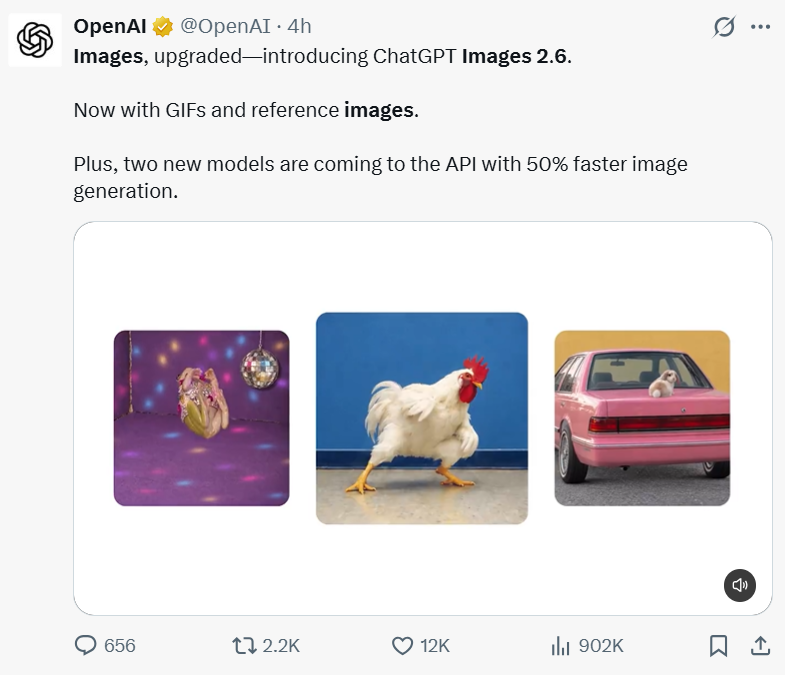
GPT Images 2.6 is here. Alongside generating and editing still images, it can now create animated GIFs: describe a scene and ask a character to blink, wave, or bring a product image to life.
Making an image is only the first step, though. If you change the background, will the shape of the mug change too? If a GIF looks good at first glance, will it jump when it loops? Those details can matter more than whether the model can generate an image at all.
Using practical examples and third-party tests, this guide looks at what has changed, how to generate and edit images, how to make a GIF, and how developers can start choosing between the Sunburst and Flare API models.
What Is GPT Images 2.6?
OpenAI calls the experience Images 2.6 in ChatGPT and Codex. The API model names are gpt-image-2.6-sunburst and gpt-image-2.6-flare. That distinction matters: a developer can request an API model by name, but a ChatGPT screen may not tell you which image model produced a particular result. Do not assume a model name visible in an API guide is a button in your account.
OpenAI's release announcement says the update is available in ChatGPT and Codex across subscription tiers, with API access offered separately. Availability, usage limits, interface labels and prices can change, so check the choices displayed in your own account before making a production plan.
What's New in GPT Images 2.6?
The headline change is GIF output. Instead of creating a still and sending it to another tool just to add a small movement, you can ask for a loop directly. The update also emphasizes edit consistency and detail preservation. The API image guide documents markup-guided editing, SVG output, GIF generation and a complexity control for the 2.6 API models.
Here is how those features translate into an actual task:
| Feature | What It Helps You Do | Where to Look |
|---|---|---|
| GIF generation | Make a short animated loop from a prompt or reference | ChatGPT; Image API generation endpoint |
| Targeted editing | Request a change while preserving other details | ChatGPT and supported API editing workflows |
| Image markup | Indicate where an edit should happen | ChatGPT and supported API edits |
| SVG output | Create a vector-format asset | Image API generation endpoint |
| Complexity control | Adjust how much planning the model does before rendering | Image API |
The boundary is easy to miss: SVG and complexity are API features in this guide, not promises about buttons in every ChatGPT interface. Image markup was already available in ChatGPT and has been extended to the API. In the API, GIF output belongs to the image generation endpoint; the edit endpoint does not output GIFs.
OpenAI says Images 2.6 generates images 50% faster than before. Treat that as the company's release claim, not a stopwatch result for every prompt. In a Kingy hands-on comparison of Images 2.6 and 2.5, three matched still requests took longer in total with 2.6 Sunburst than with 2.5 Sunburst. Each request was run once, and the 2.6 complexity setting used its default, so the comparison cannot establish a typical speed difference. It does make a practical point: test your own tasks before promising a delivery time.
If you already have a workflow that works, start by repeating one representative job rather than rebuilding everything around the new version. Our GPT Image 2.5 guide provides background on the earlier release, although its description of the latest model predates 2.6.
How to Generate and Edit Images With GPT Images 2.6
A polished prompt does not need to be long. It needs to say what matters and what must survive the edit.
- Open ChatGPT and start a new conversation. Use the image creation option if your interface offers one, or ask for an image directly.
- Describe the subject, setting, composition and intended use. If editing, attach the image you have permission to use.
- Name the change and the details to preserve. Submit the request, then inspect the result at full size.
- Make one focused follow-up request. Compare the new image with your original before accepting it.
For example, a seller could start with:
Create a square product photo of a ceramic coffee mug on a pale wood table, with soft window light from the left. Leave clean space above the mug for a headline. No text or logos.
If the result is close, the next instruction should be narrower: "Replace the table with light gray stone. Keep the mug shape, handle, camera angle and lighting unchanged." Those preservation instructions are a request, not a guarantee. Check the handle, lettering and shadows after each revision.
We tried a background replacement with a cream ceramic mug bearing a blue leaf pattern on a pale wooden table. The edit requested light gray marble in place of the wood while preserving the mug, plant, composition and lighting. 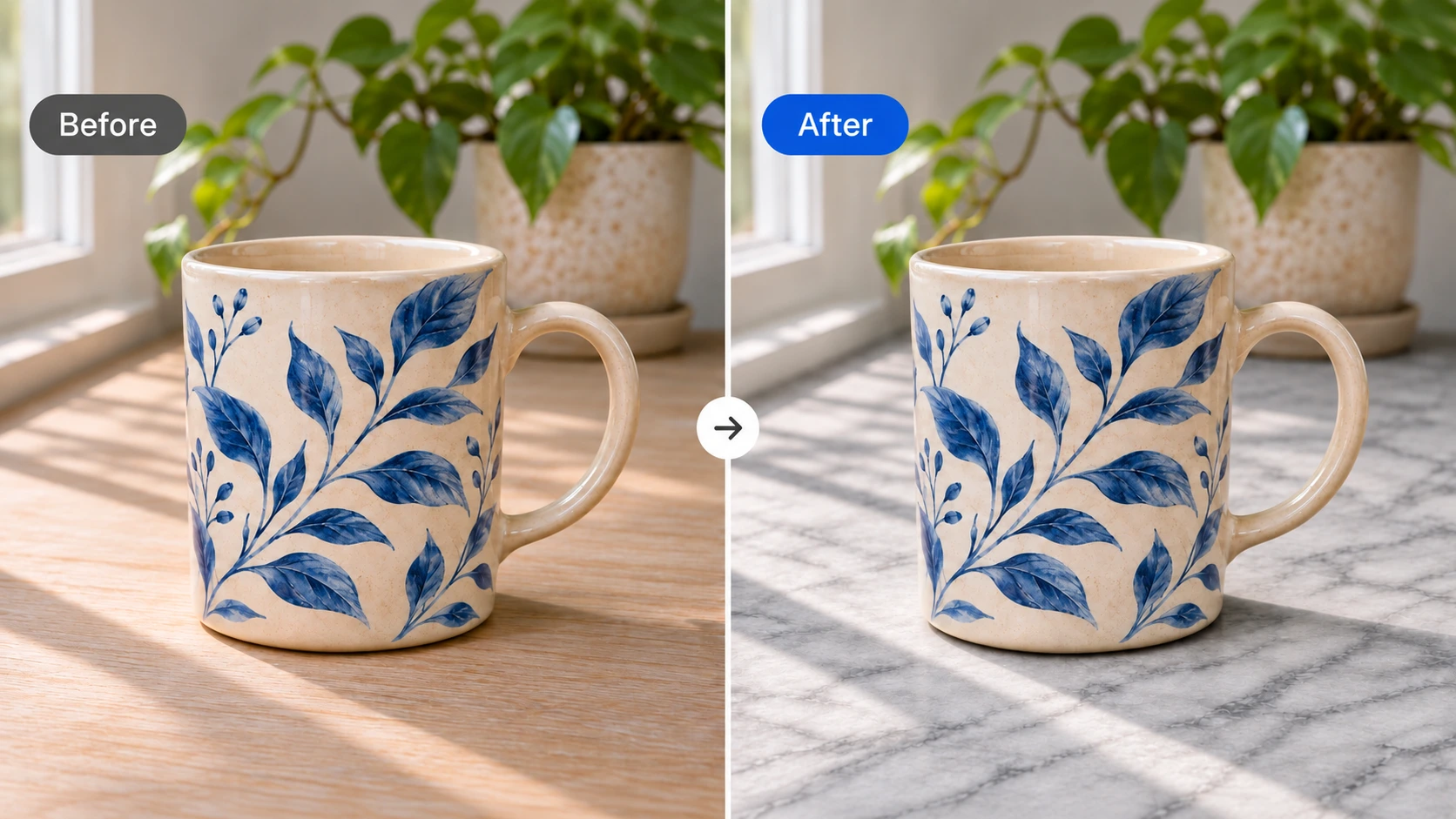 The table became gray stone, while the mug's outline, handle and leaf layout stayed broadly similar. The surface texture and lighting changed slightly. One result also cannot establish how consistently future edits will preserve details.
For a real product label, compare every word and number against the source before publishing. A convincing picture can still contain the wrong ingredient, price or logo. If an edit drifts, return to the original file and make the change in smaller steps. The GPT Image 2.5 prompt examples offer useful starting structures for product photos and local edits; adjust them for 2.6 and check the result rather than assuming identical behavior.
If you cannot generate an image at all, check the OpenAI status page and your account's displayed limits first. Our image generator troubleshooting guide covers additional checks. Its older interface and model references may have changed, so follow the options shown in your current app.
GPT Image 2.6 Sunburst vs Flare: Which API Model Should You Choose?
This is an initial selection guide based on OpenAI's model descriptions, not a head-to-head test. Neither model has been independently tested for this article.
For API work, start with Flare when you need quick iterations and can discard imperfect drafts. Start with Sunburst when the useful result depends on fine text, layout or preserving details through edits. That is a starting point, not a quality ranking for every image: OpenAI's prompting guide recommends comparing the models on your own prompts.
| Decision | Flare | Sunburst |
|---|---|---|
| Good first test | Drafts and rapid iteration | Detailed compositions and precision edits |
| What to measure | Time, cost and acceptable output rate | Detail retention, time, cost and revision count |
| What not to assume | That every draft will be good enough | That the more detailed model wins every prompt |
Run the same prompt, size and quality setting on both. Record the model ID, complexity, elapsed time, usage and the number of usable outputs. Repeat the test: one attractive result says little about consistency. The Sunburst model page and Flare model page provide pricing information, but the cost of a finished job also depends on usage and the revisions it takes.
How to Create GIFs With ChatGPT Images 2.6
Start a new ChatGPT conversation and ask explicitly for an animated GIF. You can describe a scene or attach an image you have permission to use. Pick a small motion, specify where the loop ends, and keep the camera and background simple. Interface controls and availability may vary by account.
When the result is ready, use the available download or save control. Open the saved file in an application that plays animated GIFs and check both the file type and whether it actually moves; a still preview or a filename alone does not establish that it is animated. If you receive a still, ask for an animated GIF and a downloadable file, then check again. If no download or animation is available, check your account's available features rather than assuming a particular button exists.
Try this prompt:
Make a looping GIF of a small orange cat sitting beside a steaming mug. The cat blinks, lifts one paw slowly, and returns to its starting pose. Keep the camera still and the background unchanged.
Once it returns, play the file through the join several times. Look for a paw that changes shape, a background that moves, or a visible jump between the last and first frames. If the result feels busy, remove one action and ask again. For a product loop, keep labels simple and check that packaging does not change from frame to frame.
Here is an actual result from a cat GIF test. The cat closes its eyes, lifts a paw and returns to a pose close to its starting position; the mug and room remain broadly consistent in the inspected frames. The file contains 23 frames, plays for about four seconds and is set to loop. The model version and exact prompt still need to be checked against the generation record. 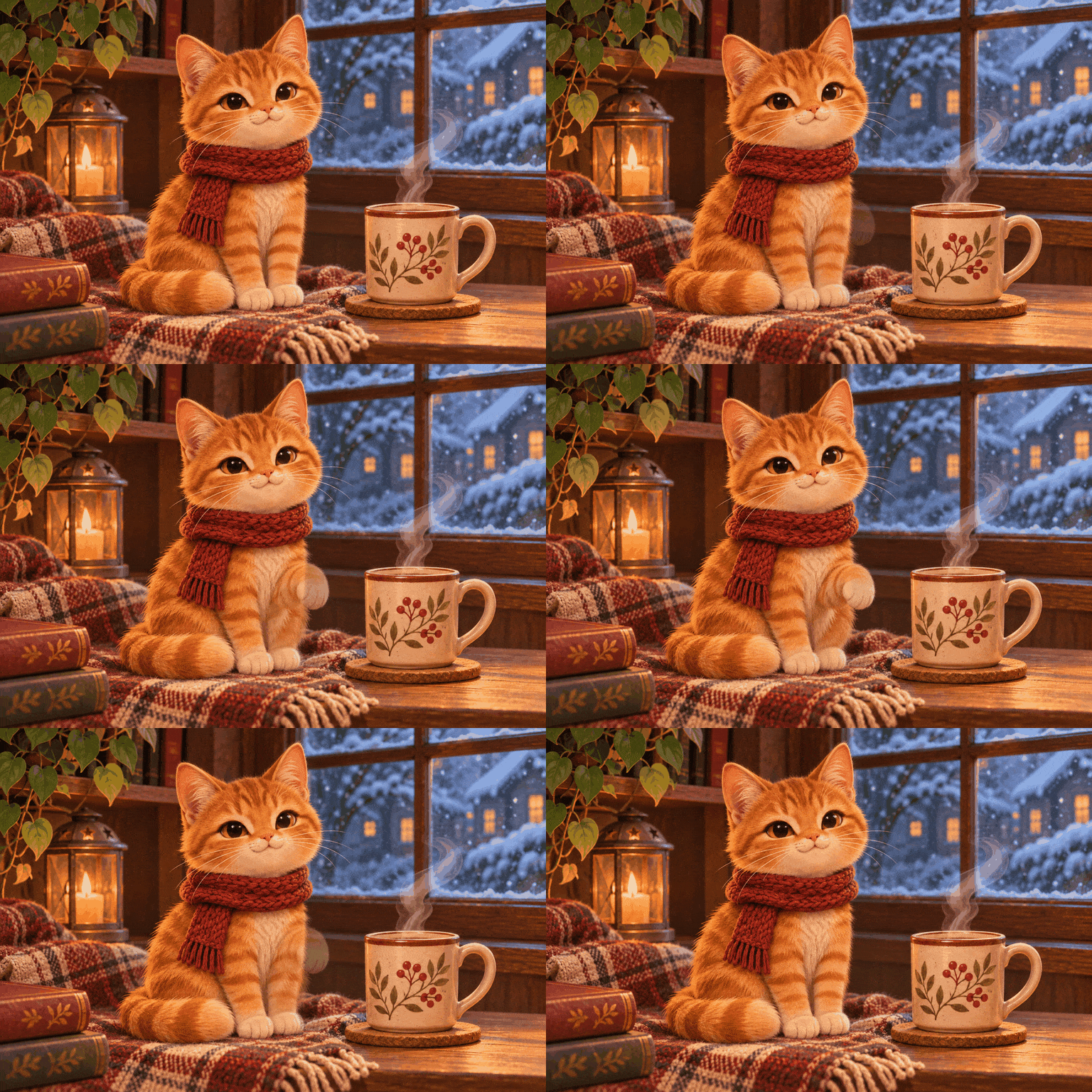 Play it several times and look for an abrupt blink, changes in the paw or a jump at the loop.
There is useful context in the small Kingy test: its separate ChatGPT web request returned a downloadable looping GIF, but the interface did not disclose the image model used. Its API request returned a different GIF with a named model. Those are two separate observations, not proof that all accounts get the same interface or result. A Hacker News discussion of the Images 2.6 launch also includes early user examples and criticism of animation artifacts; those comments are individual experiences, not controlled benchmarks.
Developers using GPT Images 2.6 can request output_format: "gif" on the API generation endpoint. The API guide lists frame-count and timing controls and notes that GIF output has request limits. Those parameters are for API requests, not instructions to type into the ChatGPT interface.
GPT Images 2.6 FAQ
How Can I Access GPT Images 2.6?
In ChatGPT, start a conversation and request an image or GIF; the available image controls depend on your account and interface. OpenAI also lists Images 2.6 in Codex. Developers can use the separately billed Image API and select a supported 2.6 model by its API ID. Check the current product and API documentation for access and limits.
Is GPT Images 2.6 Free?
OpenAI says Images 2.6 is available across ChatGPT subscription tiers. Free access does not mean unlimited generations. Check the limit and available features displayed in your account; API usage is billed separately under the applicable API pricing.
If the free allowance is not enough, a shared subscription from FamilyPro is another budget-friendly option, though you will share the account with other people.
Is GPT Images 2.6 Better Than 2.5?
It adds GIF generation and offers updated editing capabilities, but whether it is better for your job depends on the result, cost and time. Run the same representative prompt on each available version and compare the details you actually need. Do not treat a single output as a benchmark.
Can GPT Images 2.6 Generate SVG Files?
The 2.6 API models support SVG output through the image generation API. The edit endpoint does not output SVG, and the API does not accept an SVG as a raster image-edit input. Check the current image generation documentation for constraints.
Can I Choose Sunburst or Flare in ChatGPT?
The two named models are documented as API choices. A particular ChatGPT interface may not identify the image model behind an output, so check your actual model picker and account rather than assuming that API model IDs appear there.
Conclusion: Start Small With GPT Images 2.6
GPT Images 2.6 is most useful when it removes a specific round of work: changing a background without rebuilding a product image, or making a short loop without leaving the conversation. Begin with an image you can easily check, preserve the original, and inspect the details that matter to your audience. Developers should compare API models against their own quality, speed and cost requirements before switching an established workflow.