
Selected Model Is at Capacity: What to Try in GPT & Codex
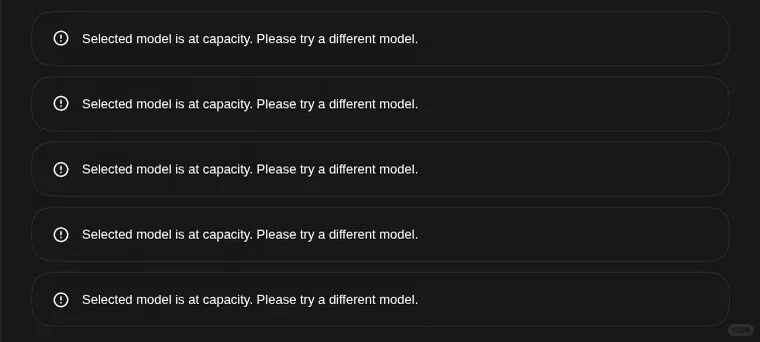
If GPT or Codex says "Selected model is at capacity," the model you chose may be temporarily unavailable. Check OpenAI Status, wait a little, or try another model available in your account. The message does not, on its own, say that you used up your allowance or that your account was flagged.
When work stops halfway through, I would first preserve the input and check the current state. In GPT, keep the conversation and your unsent prompt. In Codex, note the task state and review any file changes before retrying; do not assume the interrupted task completed or roll changes back blindly.
What Does "Selected Model Is at Capacity" Mean in GPT and Codex?
The phrase "selected model is at capacity" points to the model being temporarily unable to take your request. It does not tell you exactly why your particular request failed. OpenAI's model access guide recommends trying later or selecting another available model, and notes that a model can be unavailable even when the status page does not list an incident.
I find that detail easy to miss: a green status page does not prove every model works for every account. The error alone is not evidence of an account ban.
There is a difference between a conversation that will not open and one that opens but cannot use a particular model. If the page itself stays blank, the checks in our GPT not loading guide are more relevant than repeatedly switching models.
Model Capacity vs Usage and Rate Limits
When the selected model is at capacity, the most useful question is not "How much have I paid?" It is "What does the actual message say?" Similar interruptions can require different responses.
| What You See | What to Check | A Sensible Next Step |
|---|---|---|
| Selected model is at capacity | Service status and whether another available model works | Wait and retry, or choose an available alternative |
| A usage limit or reset time | The limit notice and account usage information | Follow the displayed reset time or available options |
| A rate-limit message | The request frequency and the wording of the notice | Pause and follow the instructions provided |
| A model unavailable in a managed workspace | Whether you are in the right workspace and have access | Ask the workspace owner to check permissions |
These categories can coexist. An account can have remaining usage and still see "selected model is at capacity"; a separate usage warning deserves its own check. For a closer look at the latter, see FamilyPro's GPT rate limit guide. I would not buy a higher plan solely because of a capacity warning: the message does not establish that an upgrade will restore access.
How to Diagnose the Selected Model Is at Capacity Error
Before changing settings, preserve the work in front of you. Then use the result you observe to decide what to check next. Waiting, checking the status page, and choosing another available model follow OpenAI's model access guidance; the comparisons below help narrow a report and do not prove a cause.
| What You Observe | Next Step | What You Still Cannot Conclude |
|---|---|---|
| One model reports "selected model is at capacity" | Wait a few minutes and try another model your account can use | Why that particular request failed |
| Several models fail | Check relevant incidents and components on OpenAI Status | A normal status page does not rule out an individual issue |
| A usage or reset notice appears | Review the usage screen for the product and account you are using | That a separate capacity warning was caused by your allowance |
| Only a managed workspace is affected | Confirm the workspace and ask its owner to check model access | That your personal account is banned |
| GPT fails in one conversation | Preserve the input and compare a short request in a new chat | That a new chat fixes a capacity problem |
| A Codex task stops | Keep the task state and inspect changes before resuming; note the selected model and usage shown in Codex | That the task finished, or that repeating it is harmless |
I would not reinstall an app or buy an upgrade just because the warning appeared. If another model works, continue with care: its output and available features can differ. For a failed Codex task, inspect the current files and any pending changes first so a retry does not repeat work or overwrite an intended result.
The general GPT error guide discusses new chats and browser checks for other problems. These are useful comparisons, not a guaranteed repair for "selected model is at capacity." A status page without an incident is useful evidence too, but OpenAI notes that individual model unavailability can still occur.
Can a Shared GPT Account Show the Same Message?
Yes. Shared and individual accounts both need access to a GPT model, so either can show "selected model is at capacity" when that model is temporarily unavailable. A shared account may also involve usage or access issues when several people use it; check those separately based on the actual notice. The capacity message alone does not establish that sharing caused the problem.
If you are comparing access arrangements, FamilyPro's GPT shared-access page describes a third-party shared product and its pricing and rules. With your own individual account, you retain direct control over the account and its conversations. Consider your budget, privacy, account control, and the applicable service terms when choosing an arrangement.
What If Every GPT or Codex Model Says It Is at Capacity?
At this point I would stop treating repeated clicks as a strategy. Write down the exact message, the time and time zone, the model, whether a new chat behaves differently, and whether you are in a personal or managed workspace. Those details make a support request more useful than a screenshot of the warning alone.
If the problem appears across conversations, compare another browser or device when convenient. A difference can help narrow what you report, but it does not prove that the browser caused the error. For a managed workspace, ask its owner to check model access; permissions and capacity are separate questions.
One OpenAI Community discussion about a Pro account with a persistent capacity message shows why the distinction matters: a paid user described continuing to see the warning. That is one user's report, not a diagnosis of every account or evidence that a particular plan is affected most.
If "selected model is at capacity" continues to appear, use the OpenAI Help Center to contact support with the details you collected. Avoid sending passwords, authentication codes, or full payment card numbers. If GPT is also failing to load, the separate GPT not loading guide covers that symptom.
Where to Check Codex Usage
In Codex, inspect the usage information available in your current account and interface before assuming a limit is exhausted. The Codex Pro usage limits guide explains the distinction; its older plan details should be checked against current official information. In GPT, use the notice and account information shown for that product instead.
FAQ: Selected Model Is at Capacity in GPT and Codex
Does This Mean I Have Run Out of Usage?
Not necessarily. "Selected model is at capacity" does not by itself say your usage allowance is exhausted. Check for a separate usage notice or reset time before deciding what to do.
How Long Should I Wait Before Trying Again?
When "selected model is at capacity" appears, OpenAI suggests waiting a few minutes and retrying. There is no published universal recovery time for every capacity error, so check the status page and try another available model if you need to continue sooner.
Will Upgrading My GPT Plan Fix It?
"Selected model is at capacity" alone does not establish that upgrading will help. First check whether you have a separate usage limit or access notice; a capacity issue may persist even for paying users.
Can I Keep Working If the Status Page Looks Normal?
Possibly. Try another model available to your account, or wait and retry. OpenAI says a model can be temporarily unavailable even without a listed incident. If the error persists across models and chats, gather the details and contact support.
Conclusion: Handling a GPT or Codex Capacity Error
Start by preserving your prompt or task state, then choose the next check based on what failed. If every available model keeps failing, record the exact message and what you tried, then contact support.