
How to Translate PDF Online Without Losing Formatting
PDF translation sounds simple until you actually need to do it.
A lot of people search for a PDF translator because they need quick access to content in another language. But the real challenge is not just translating the text. It is keeping the document usable. Once formatting breaks, tables shift, headings get messy, or lines move out of place, the translated file becomes harder to read and harder to use.
That is why many users are not really looking for “just translation.” They are looking for a smoother workflow: upload a PDF, translate it online, and keep as much structure and readability as possible.
This guide explains how to translate PDF files online with fewer formatting problems, what affects the quality of the result, and how to get better output from a browser-based tool.
If you want a broader overview of our full workflow, you can also read our main guide on Free DeepL Translator Online for Text, Files, and Writing AI. If your goal is polishing the translated result after file translation, see How to Improve Writing with a DeepL-Based Tool. If you often work with editable office files, see Translate Word and PowerPoint Files Online for Free.
Why PDF Translation Is Harder Than Plain Text Translation
Text translation is usually straightforward. You paste words into a box, choose a language, and get a result.
PDF translation is different because a PDF is not just text. It often includes:
- page structure
- headings
- paragraphs
- tables
- footnotes
- charts
- captions
- multi-column layouts
- scanned pages
- embedded fonts
When people search for translate PDF online or PDF translator free, they usually care about three things:
- Can I understand the content quickly?
- Can I keep the document readable?
- Can I avoid manually copying everything?
A good PDF workflow should help with all three.
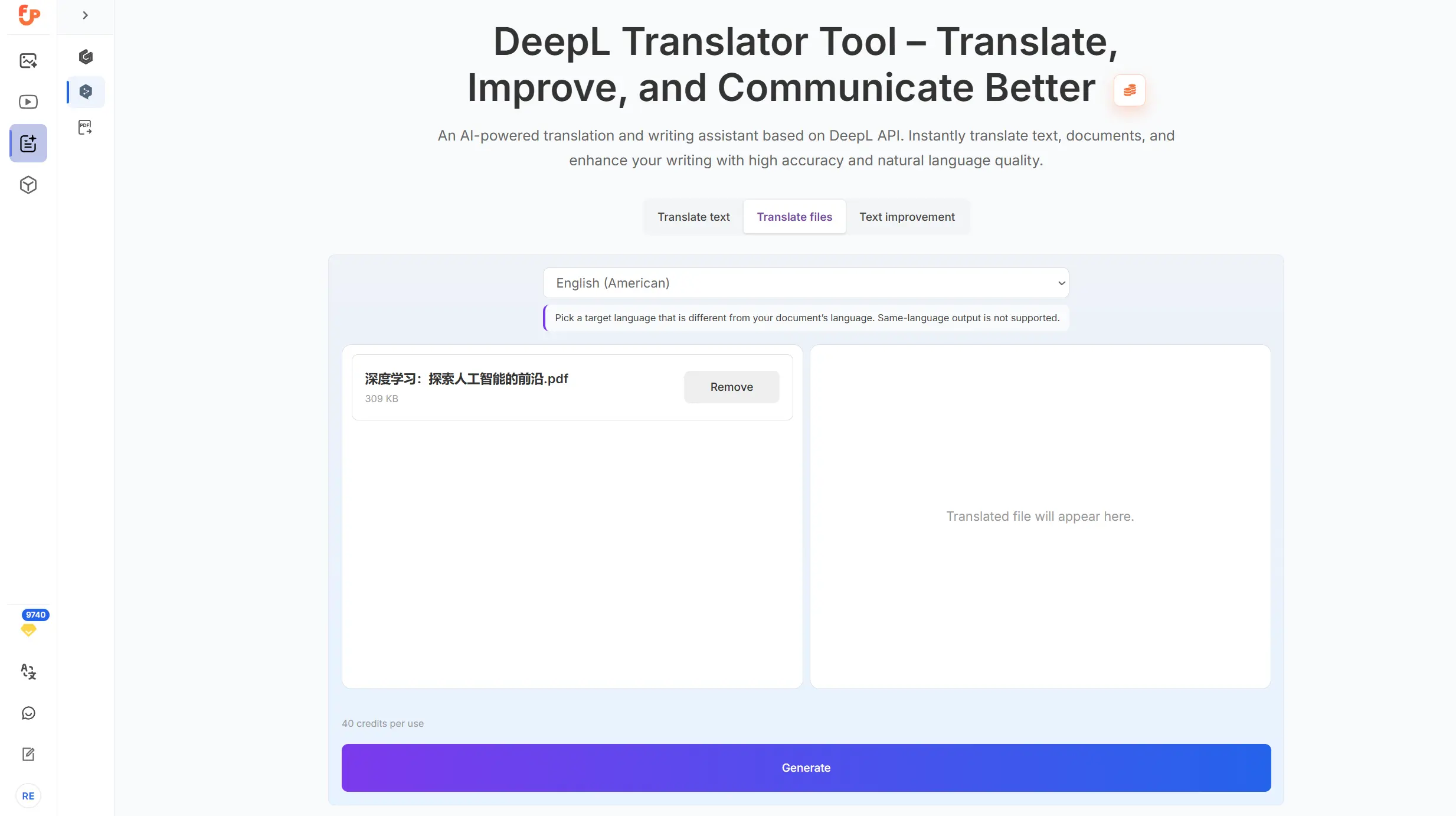
PDF translation page overview
When You Should Use an Online PDF Translator
An online PDF translator is especially useful when you need to:
- read reports in another language
- translate study materials
- review business documents
- understand manuals or guides
- extract the meaning of a file quickly
- create a translated draft before editing it further
It is often the fastest option when your source content already exists as a PDF and you do not want to manually copy every section into a text translator.
For many users, speed matters more than perfection on the first pass. They need a working result, then they can review and refine it.
What Affects Formatting in PDF Translation
Not all PDFs behave the same way. Some translate very cleanly. Others are much harder to preserve.
1. Whether the PDF is text-based or scanned
A text-based PDF usually contains selectable text. That gives the translation process a better chance of preserving document structure.
A scanned PDF is often closer to an image. If the source file is essentially a picture of text, the workflow becomes more complex.
2. Layout complexity
A simple one-column PDF is easier to process than a document with:
- sidebars
- tables
- multiple columns
- charts
- mixed languages
- unusual spacing
3. Font and embedded design elements
Some PDFs rely heavily on design. When translated text becomes longer or shorter than the source, spacing can shift.
4. Source text quality
If the original content is poorly structured, contains broken sentences, or uses inconsistent formatting, the translated result may also be harder to organize cleanly.
How to Translate PDF Online Without Losing Formatting
Here is a practical workflow that works well for most users.
Step 1: Start with the cleanest version of the file
If you have multiple versions of the same PDF, use the one that is:
- text-based
- complete
- clearly formatted
- not blurry
- not heavily compressed
A cleaner source file usually gives better output.
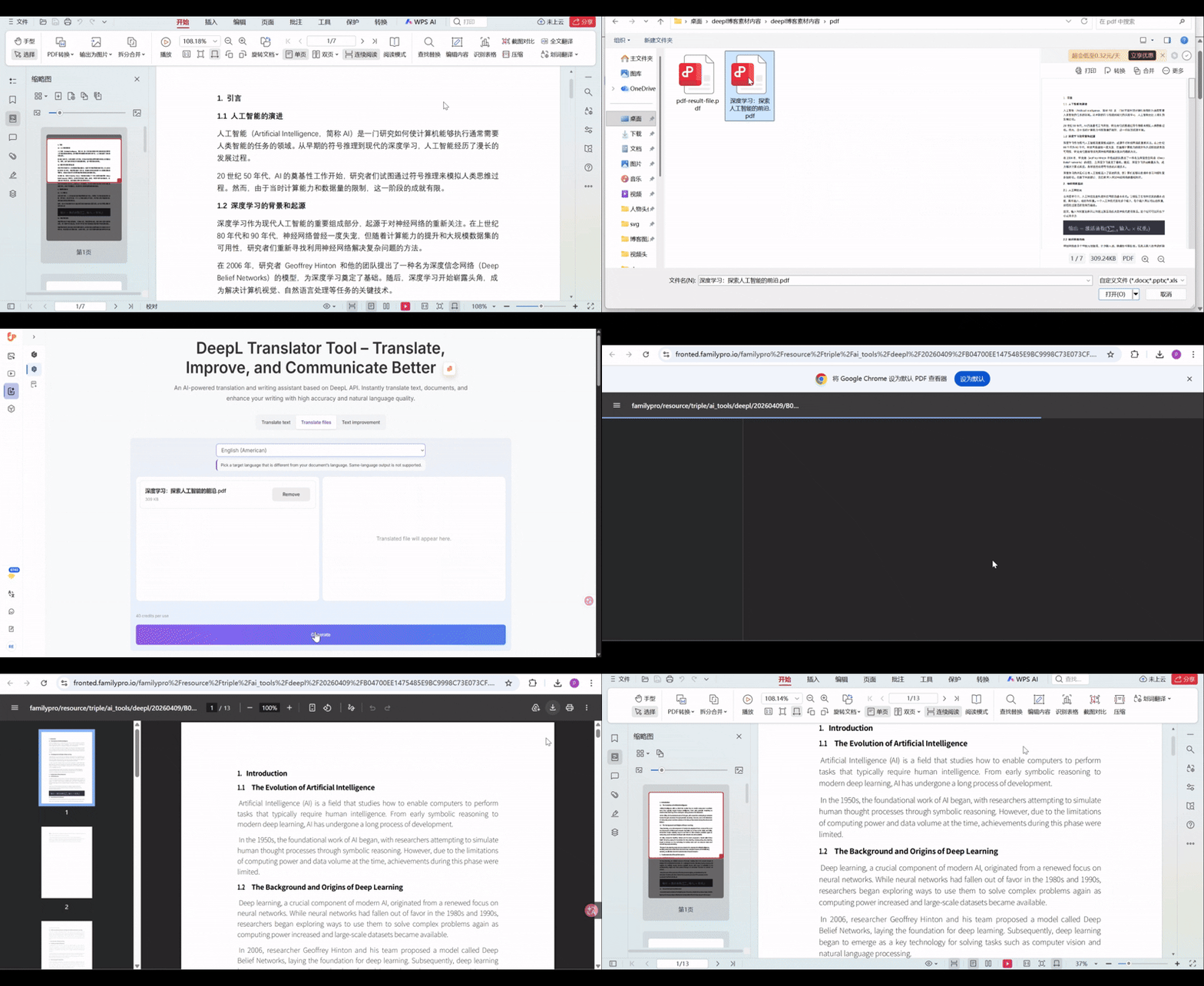
Step 2: Upload the file
Use the file translation function and upload the PDF directly. This is usually faster and more reliable than manually copying page by page.
Step 3: Choose the target language carefully
Pick the language you actually need for reading or reuse. If the result will later be edited for publishing or external use, plan to do a review pass afterward.
Step 4: Review the translated output page by page
Do not just check the first paragraph. Look at:
- headings
- lists
- tables
- page breaks
- repeated labels
- captions
Step 5: Polish the final text if needed
If the translation is clear but sounds too literal, use an editing step afterward. Our article on How to Improve Writing with a DeepL-Based Tool explains how to refine translated wording so it reads more naturally.
Upload PDF and translate
How to Get Better PDF Translation Results
A lot of formatting problems are easier to reduce than people think.
Use machine-readable PDFs when possible
If you can highlight or copy the text in the source file, the PDF is usually easier to process.
Watch out for tables
Tables often look simple visually but can become messy during translation. After translating, always inspect:
- merged cells
- row labels
- numeric alignment
- repeated headers
Expect text expansion
Some languages take more space than others. A short English phrase may become longer in German, French, or Spanish. This can affect line wrapping and spacing.
Keep expectations realistic for scanned files
If the PDF is image-based, the result may still be useful for understanding content, but the layout may need more review.
Check key terms manually
Even when the translation is strong overall, names, abbreviations, and product terms should still be checked.
Best Use Cases for PDF Translation
A browser-based PDF translator is especially useful for these scenarios:
Study materials
Students often need to understand content first. A readable translated PDF can save a lot of time.
Work documents
Internal reports, summaries, and reference materials are easier to review when you can translate the file directly.
Research reading
You may not need a perfect final document. You may just need fast access to meaning.
First-draft localization
Sometimes the goal is not final publication. It is getting a translated base version that can be edited later.
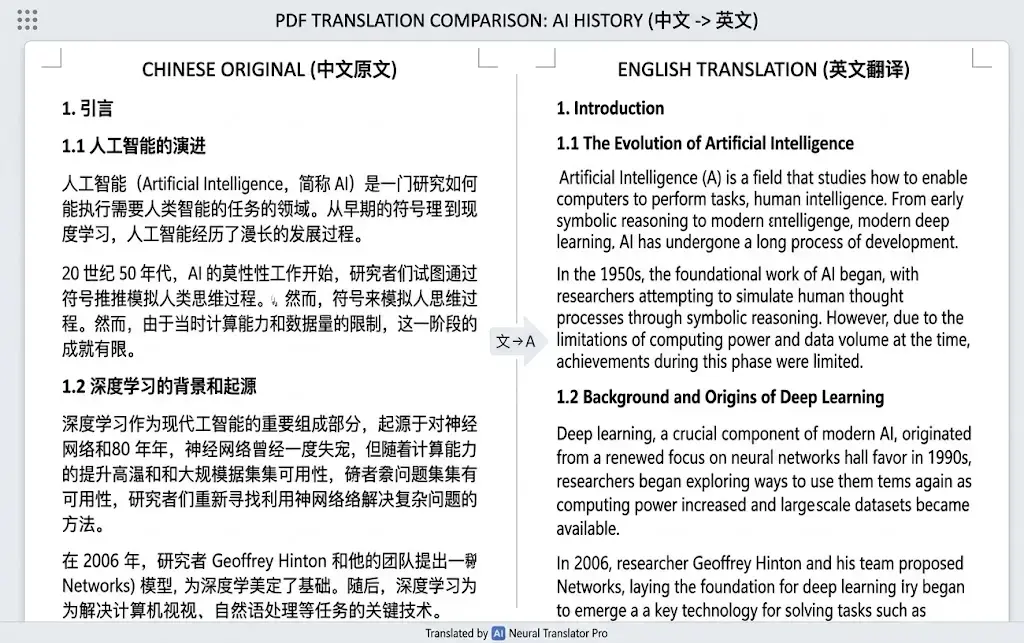
PDF before / after comparison
Translate PDF vs Translate Text: Which Should You Use?
If your content is short and easy to copy, text translation may be enough.
If your content is already inside a document and you want to preserve structure, PDF translation is usually the better choice.
Use text translation when:
- the content is short
- you only need a few paragraphs
- formatting does not matter much
Use PDF translation when:
- the file is long
- the document structure matters
- copying manually would take too long
- you want a more complete workflow
If you later need to polish the result, combine PDF translation with a second pass using an editing tool. You can see that process in How to Improve Writing with a DeepL-Based Tool.
Common Problems and What to Do
Problem: The translated PDF looks slightly different
This is normal for some files. Review spacing, line breaks, and section order.
Problem: Tables are harder to read
Double-check rows, headers, and labels. For table-heavy content, review the important pages manually.
Problem: The PDF is scanned
Scanned files are usually harder to process cleanly. If possible, use a text-based source version instead.
Problem: The wording is accurate but sounds stiff
That is where writing improvement helps. After file translation, refine the output using a polishing workflow. See How to Improve Writing with a DeepL-Based Tool.
Problem: I also need to translate editable documents
If your source files are DOCX or PPTX instead of PDF, see Translate Word and PowerPoint Files Online for Free.
A Simple Workflow That Works Well
For many users, the best workflow looks like this:
- Upload the PDF
- Translate the file
- Review layout and key pages
- Copy important sections if needed
- Improve wording for final reuse
This saves time while still giving you control over the final result.
Full PDF translation walkthrough
FAQ
Can I translate PDF files online for free?
Yes, an online PDF translator is one of the easiest ways to understand foreign-language documents without manually copying all the text.
Will the formatting stay exactly the same?
Not always. Many PDFs can stay readable and well-structured, but layout complexity, scanned pages, and tables can affect the final result.
What kind of PDF works best?
Text-based PDFs with clear structure usually work better than scanned or highly designed files.
Should I still review the translated file?
Yes. A quick review is always a good idea, especially for important documents, tables, and specialized terminology.
What if I need smoother wording after translation?
Use a writing improvement pass after translation. Our guide on How to Improve Writing with a DeepL-Based Tool explains how.
What if I need to translate DOCX or PPTX files instead?
See Translate Word and PowerPoint Files Online for Free.
Final Thoughts
If your goal is to translate PDF online without losing formatting, the most important thing is choosing the right workflow and setting the right expectations.
A good PDF translator should help you:
- understand the content faster
- reduce manual copy-and-paste
- keep the document readable
- move from file to usable result with less friction
It will not make every complex PDF perfect. But for many real-world tasks, it can save a lot of time and effort.
If you want to try the workflow yourself, start with a clean PDF, review the output carefully, and polish the final result where needed.
You can also continue with: