
Translate Word and PowerPoint Files Online for Free
If you work with documents and slides, plain text translation is often not enough.
You may need to translate:
- a Word proposal
- a client brief
- a training document
- a presentation deck
- a product introduction
- a project summary
In these situations, the goal is not only to convert the language. The goal is to keep the content usable. That is why many users search for phrases like translate Word online, translate PowerPoint online, or free file translator.
A browser-based workflow can save a lot of time here. Instead of copying section by section, you upload the file, translate it, review the output, and continue editing where needed.
If you also work with PDFs, read How to Translate PDF Online Without Losing Formatting. If your next step is polishing translated wording, see How to Improve Writing with a DeepL-Based Tool. For the full overview of our translation workflow, visit Free DeepL Translator Online for Text, Files, and Writing AI.
Why Office File Translation Is So Useful
Editable files are different from PDFs.
With Word and PowerPoint files, users often want two things at the same time:
- preserve structure as much as possible
- keep the content easy to edit after translation
That makes DOCX and PPTX translation especially practical for:
- business communication
- presentations
- internal documents
- school work
- client deliverables
- multilingual content drafts
A good file translation workflow helps people move faster from source file to usable translated version.
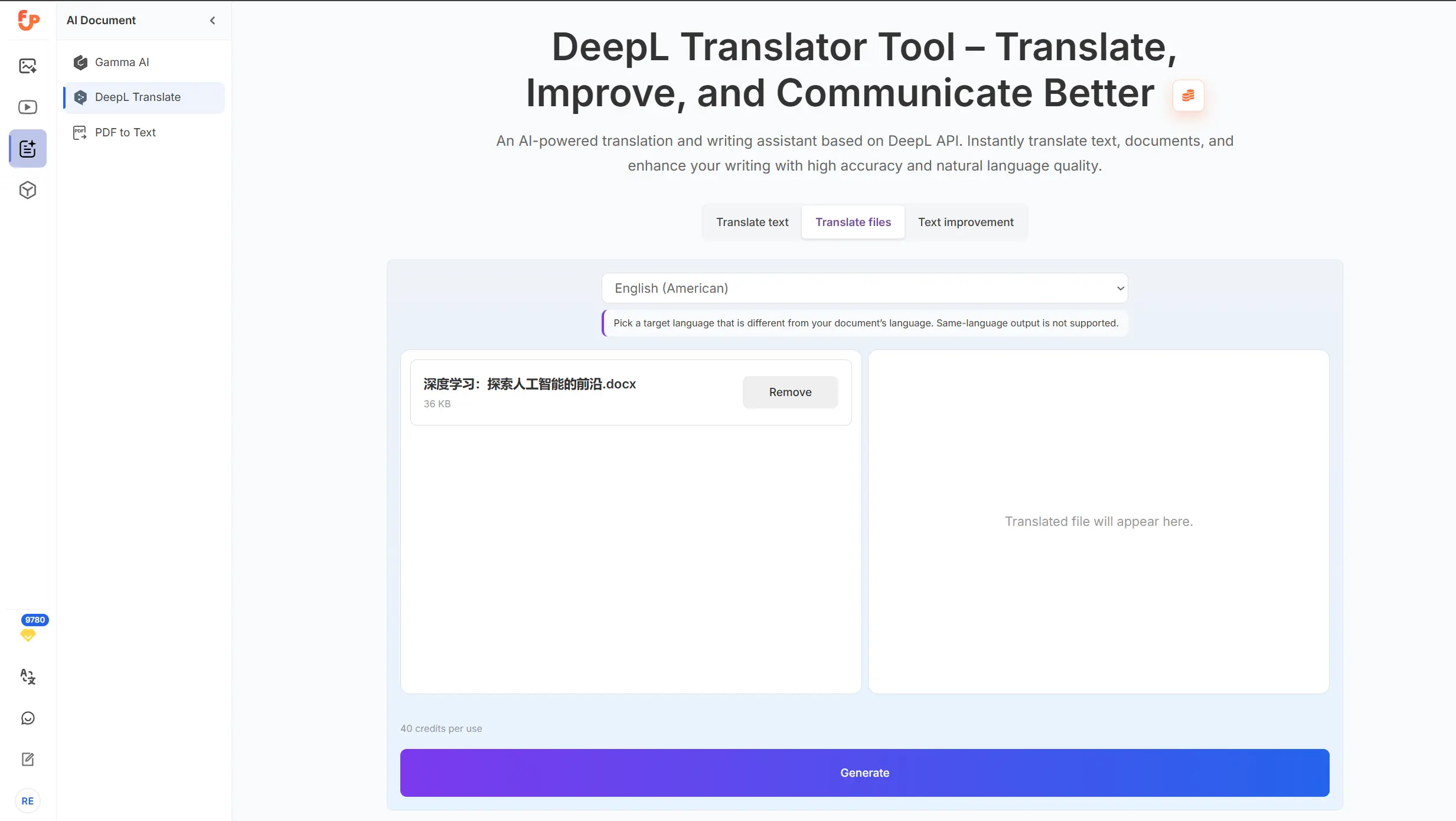
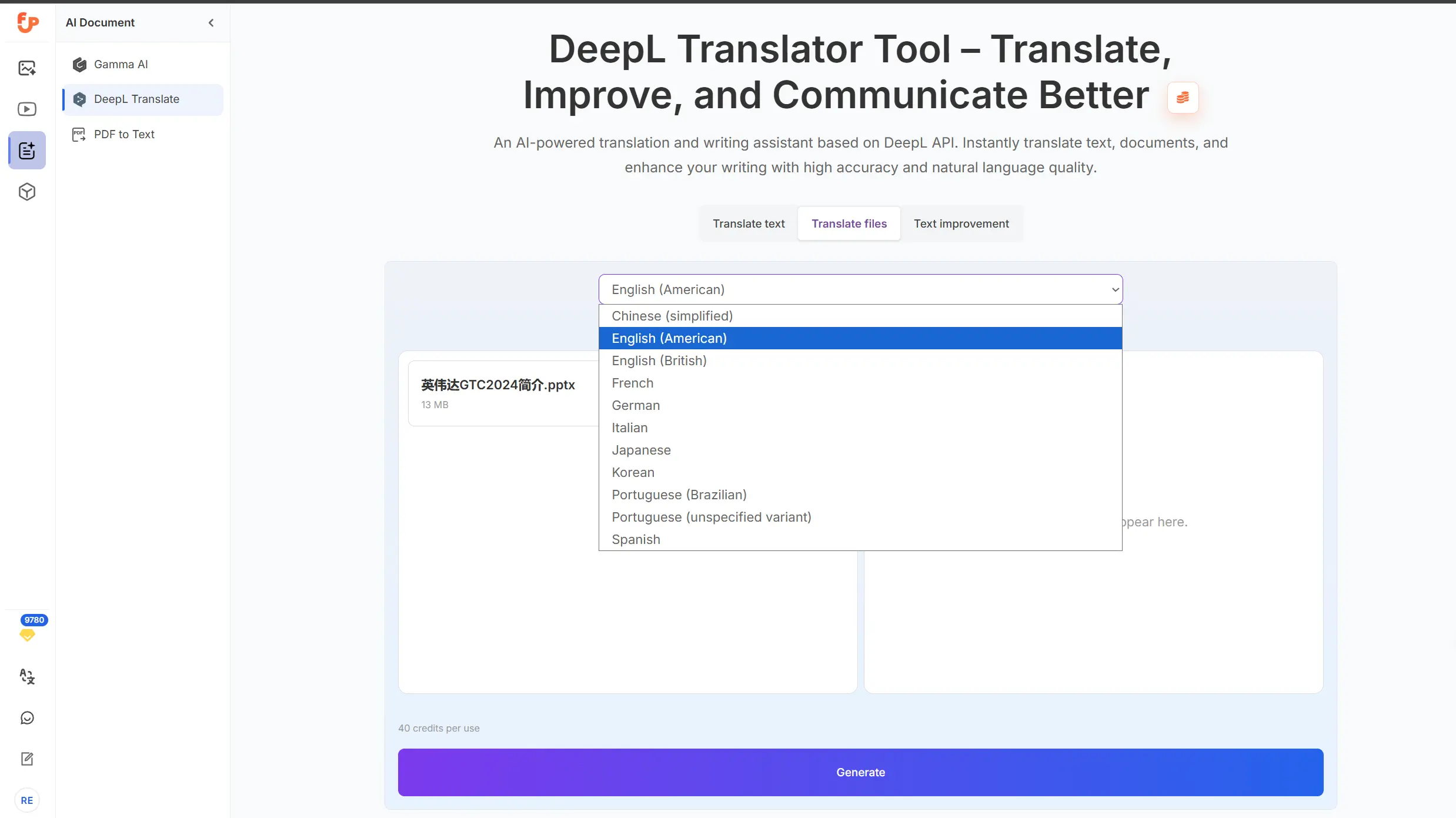
Word and PowerPoint translation overview
When to Translate Word Files Online
Word documents are one of the most common file types in multilingual work.
Typical examples include:
- proposals
- reports
- contracts for review
- internal documentation
- meeting notes
- case studies
- article drafts
Online Word translation is useful when you want to:
- save time
- avoid copy-paste work
- keep headings and paragraphs organized
- continue editing after translation
For text-heavy documents, translating the file directly is usually much more efficient than moving content manually.
When to Translate PowerPoint Files Online
PowerPoint translation solves a different kind of problem.
Slides are often short, visual, and tightly structured. Even when each slide contains only a little text, a full deck may still take a long time to translate manually.
This is common for:
- sales decks
- pitch presentations
- product overviews
- training materials
- company introductions
- workshop slides
People do not just need the words translated. They need the presentation to stay understandable.
That is why translating slides online can be so helpful. It reduces repetitive work and makes it easier to prepare a first translated version quickly.
How to Translate Word and PowerPoint Files Online
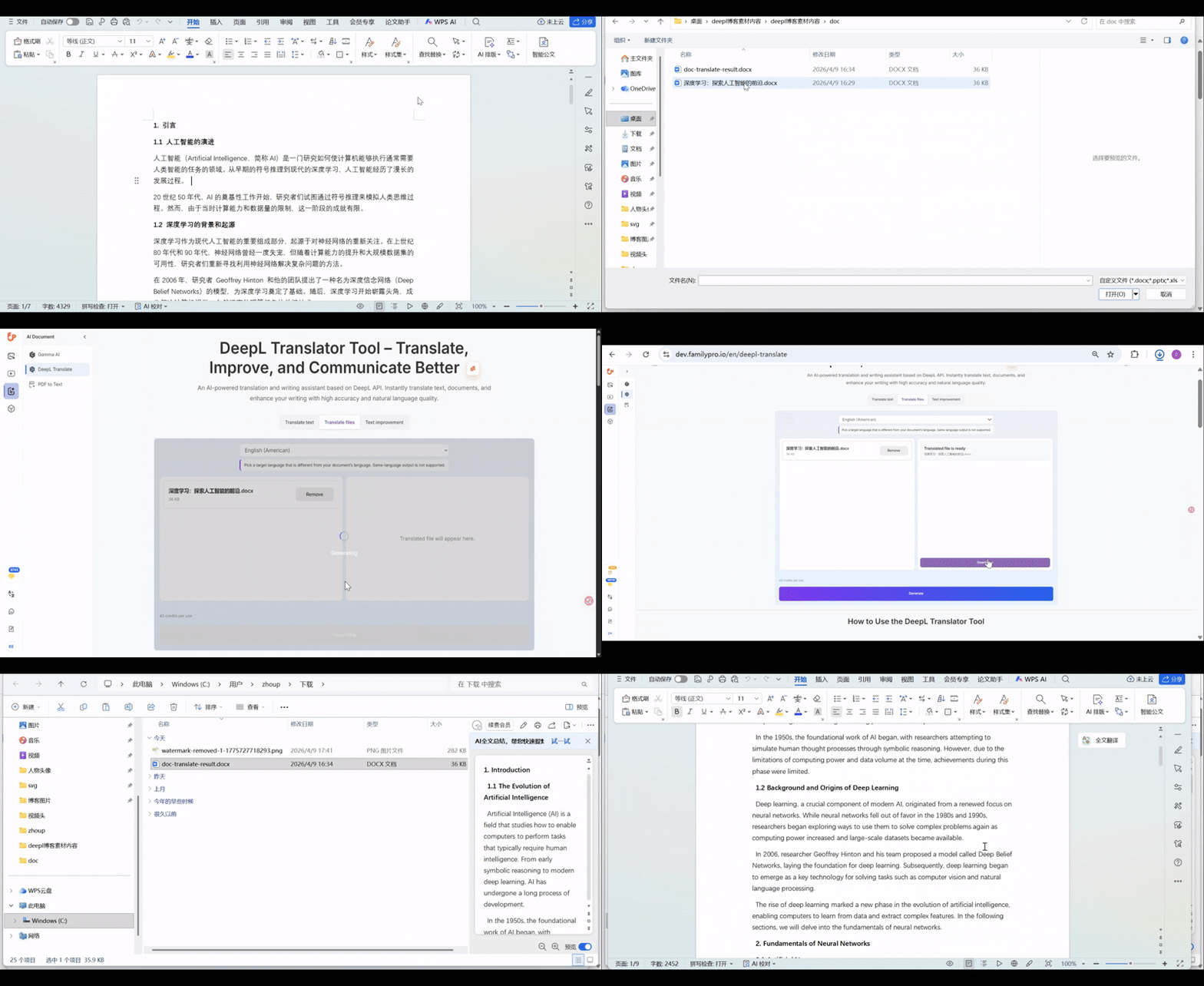
Step 1: Choose the file translation mode
Use the upload-based workflow instead of plain text mode.
Step 2: Upload the DOCX or PPTX file
Start with the actual source file you use for work or study.
Step 3: Select the target language
Choose the language you need for reading, internal sharing, or further editing.
Step 4: Review the translated output
For Word files, check:
- headings
- bullet lists
- tables
- page breaks
- repeated labels
For PowerPoint files, check:
- slide titles
- bullet hierarchy
- line breaks
- text overflow
- chart labels
- consistency across slides
Step 5: Improve wording if needed
If the result is accurate but not polished enough, refine the wording afterward. See How to Improve Writing with a DeepL-Based Tool.
DOCX upload to translated result
What Makes DOCX and PPTX Different From PDFs
Although all three are “documents,” the workflow is not exactly the same.
Word files
Usually easier to keep editable and structured. Great for long-form text, reports, and drafts.
PowerPoint files
Usually shorter per slide, but more sensitive to line length and layout. Text expansion matters more here.
PDFs
Often less flexible because structure is fixed and may be image-based or layout-heavy.
That is why it helps to use the right article for the right workflow:
- for PDFs: How to Translate PDF Online Without Losing Formatting
- for writing polish: How to Improve Writing with a DeepL-Based Tool
Tips for Better Word Translation Results
Start with a clean document
A well-structured file gives better results than a document filled with inconsistent styles and messy formatting.
Review headings and lists
These are important for readability and navigation.
Check tables carefully
Tables are common in reports and proposals, but they need a quick review after translation.
Watch technical terms
Brand, product, and industry-specific terms should be checked manually.
Improve key sections
For executive summaries, intros, or customer-facing content, use a writing improvement step after translation.
Tips for Better PowerPoint Translation Results
Keep text concise when possible
Slides usually work best with short, direct text. If the translated version becomes too long, readability can drop.
Review line breaks
A translated bullet point may wrap differently than the original.
Check text boxes for overflow
This is one of the most common slide-level issues after translation.
Review titles and repeated phrasing
Slide titles should stay consistent across the deck.
Use improvement mode for presentation polish
Once the slide text is translated, improve important slides so they sound smoother and more natural.
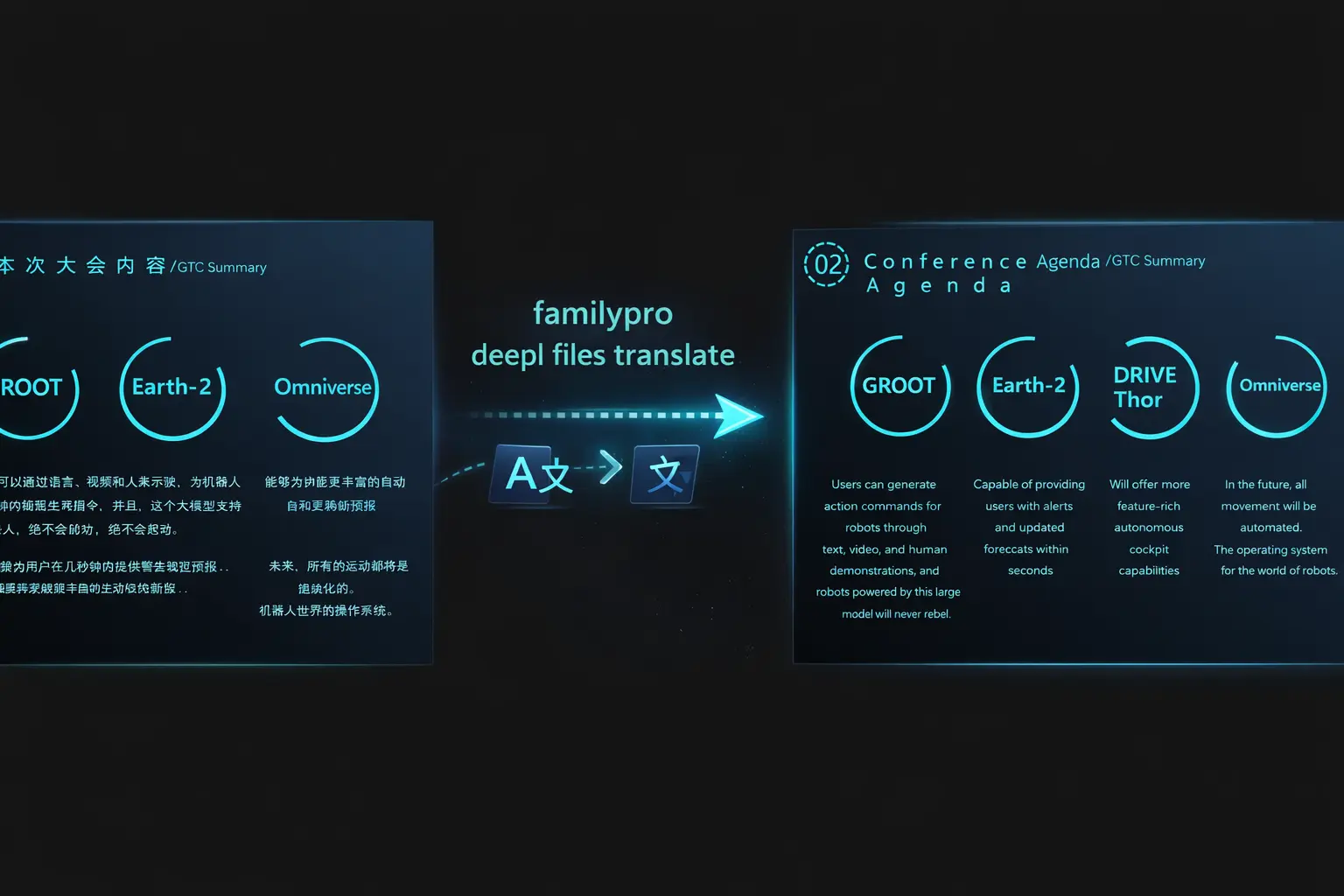
PowerPoint before / after slide comparison
Best Use Cases
Business proposals
Translate the file, review terminology, and then polish key sections before sending.
Sales presentations
Prepare a first translated deck faster, then review headlines and bullet tone.
Training materials
Translate internal or educational slides to improve accessibility for multilingual audiences.
Reports and summaries
Use Word translation for structured content that still needs editing after translation.
Content drafts
Translate a document draft, then refine it before publication or sharing.
A Practical Workflow for Office Files
For many users, the most efficient workflow looks like this:
- upload the DOCX or PPTX file
- translate the file
- review structure and layout
- improve important sections
- finalize manually where needed
This workflow balances speed and quality. It is especially effective when the goal is not perfect one-click publishing, but a strong usable draft.
What to Review After Translation
Do not just scan the first page or first slide.
For Word files
Review:
- headings
- numbered lists
- bullets
- tables
- repeated terms
- summary sections
For PowerPoint files
Review:
- slide titles
- speaker-facing clarity
- bullet spacing
- chart labels
- image captions
- slide consistency
For both
Check:
- proper names
- terminology
- language tone
- audience fit
If the wording needs work, continue with How to Improve Writing with a DeepL-Based Tool.
Full DOCX + PPTX workflow demo
Word / PowerPoint vs PDF: Which One Is Easier?
In general, editable office files are often easier to work with than PDFs because they are built for editing from the start.
That does not mean every office file will be perfect after translation. But it often means:
- easier review
- easier correction
- easier reuse
- easier final editing
If your source file exists in both PDF and DOCX or PPTX, it is often better to start from the editable version.
If the source only exists as a PDF, see How to Translate PDF Online Without Losing Formatting.
FAQ
Can I translate Word files online for free?
Yes. Online Word translation is a practical way to handle reports, notes, drafts, and structured documents more efficiently.
Can I translate PowerPoint files online?
Yes. This is especially useful for slide decks, training materials, and presentations that would be slow to translate manually.
Will the formatting stay exactly the same?
Not always. It depends on layout complexity, text expansion, and the structure of the source file. A quick review is always recommended.
What should I review after translation?
For Word files, review headings, lists, tables, and important terms. For PowerPoint files, review slide titles, bullet flow, and text overflow.
What if the translation is accurate but sounds stiff?
Use a polishing step afterward. See How to Improve Writing with a DeepL-Based Tool.
What if my file is a PDF?
Read How to Translate PDF Online Without Losing Formatting.
Final Thoughts
If you need to translate Word and PowerPoint files online for free, the real value is convenience plus usability.
A good workflow should help you:
- avoid repetitive copy-paste work
- preserve document structure
- keep files readable
- move faster from source file to translated draft
- polish the final wording where needed
That is why file translation matters so much in real work. Most people are not translating isolated sentences. They are translating documents, presentations, and practical business or study materials.
When you combine file translation with a second writing improvement step, you get a much stronger final result.
Continue with: