
Grok Verification Code Not Received? Here's How to Fix It
Waiting for a Grok verification code that never shows up? You're not alone.
A lot of users get stuck at the same point: Grok asks for a verification code, they check their inbox, and... nothing.
Before requesting another code 10 times or changing your password, there are a few things worth checking first.
The problem could be as simple as the email going to Spam. But it could also be a delayed email, the wrong email address, multiple verification codes being requested, or even using a different login method from the one associated with your account.
This guide walks through the most common reasons Grok verification codes are not received, and what you can do to troubleshoot the problem step by step.
Quick answer: Check that you're using the correct email address, look through Spam/Junk and other filtered folders, wait a few minutes, and request a new code only once. If you receive multiple codes, use the newest one. If nothing arrives, check your login method and try a fresh browser session.
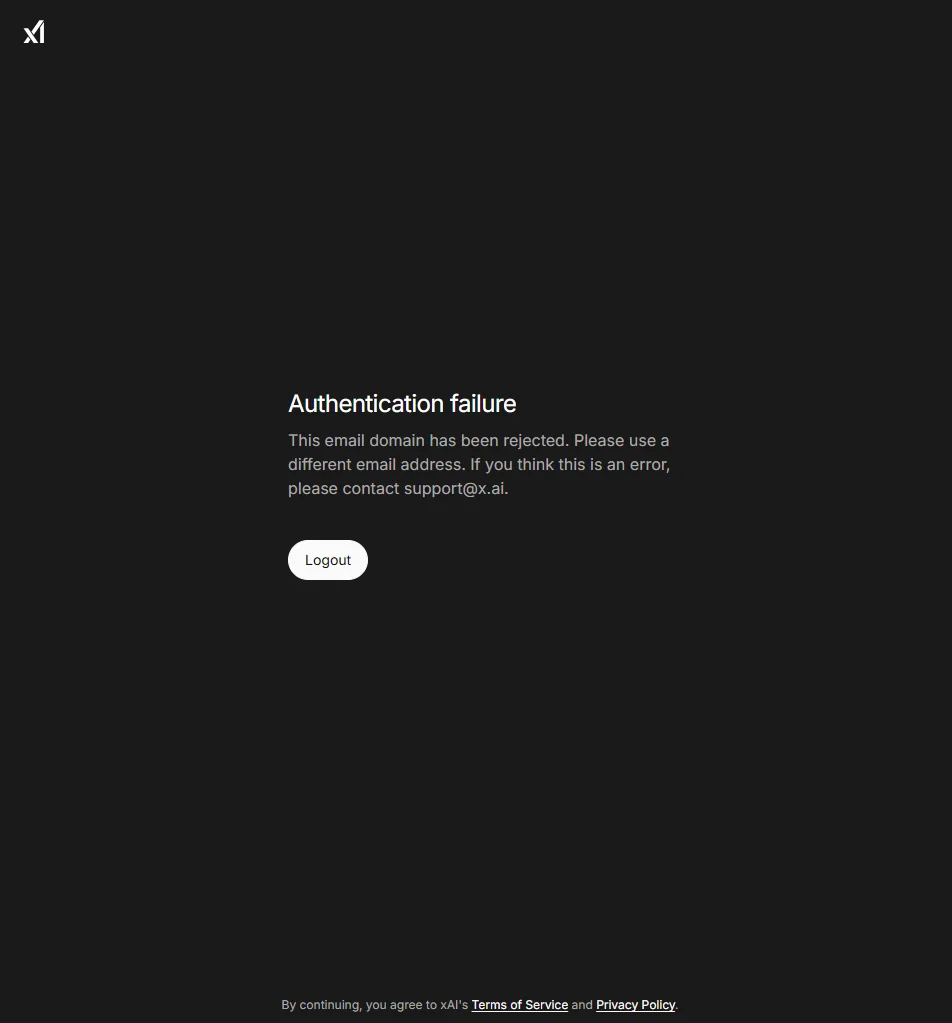
Why Am I Not Receiving My Grok Verification Code?
There isn't always one single reason.
When Grok asks you for a verification code but the email doesn't arrive, the problem can happen at several points in the login process.
Common possibilities include:
- The wrong email address was entered.
- The verification email is delayed.
- The message went to Spam or Junk.
- Your email provider filtered the message.
- You requested several codes in a short period.
- You are looking at an older verification email.
- The code has already expired.
- You are using a different login method from the one you normally use.
- Your browser has an old login session.
- Your mailbox has a storage or delivery problem.
- There may be a broader authentication or service-side issue.
That's why it's usually better not to jump straight to "Grok isn't sending the code." Instead, work through the login process one step at a time.
Quick Diagnosis: Why Didn't I Receive the Grok Verification Code?
Before going through all the troubleshooting steps, use this table to narrow down what you're seeing.
| What you're seeing | What it may mean | What to try |
|---|---|---|
| No verification email arrives at all | Email delivery delay or wrong email | Check the email address and wait a few minutes |
| The email arrives late | Email provider delay | Wait and use the newest code |
| The email is in Spam | Mail filtering | Move it to your inbox |
| Several codes arrive | Multiple requests | Use the newest code |
| The code says invalid | Old or expired code | Request one new code |
| Google login works but email login doesn't | Different login method | Check which method you normally use |
| The code works on one browser but not another | Browser/session issue | Try Private or Incognito mode |
| Other emails aren't arriving either | Email provider issue | Check mailbox storage and filters |
| Nothing works after multiple attempts | Broader account or authentication issue | Stop repeatedly requesting codes and investigate further |
The goal is to identify which part of the process is failing rather than repeatedly requesting another code.
How to Fix Grok Verification Code Not Received
If you're stuck waiting for a Grok verification code, go through the following steps in order.
You don't necessarily need to complete every step. Once the code arrives and works, you're done.
Step 1: Check That You're Using the Correct Email Address
Start with the simplest possibility.
Make sure the email address you're entering is the one associated with the Grok account you're trying to access.
For example, you may have several addresses:
text
yourname@gmail.com
yourname@outlook.com
yourname@yahoo.com
It's surprisingly easy to use the wrong one, especially if you have multiple accounts.
Check for:
- Typing mistakes
- Missing characters
- Extra spaces
- An old email address
- A different Gmail account
- A different email provider
- An email address you no longer use
If you're copying the email address, check it manually as well.
A verification code can only be useful if it's being sent to the email account you're actually trying to access.
Step 2: Wait a Few Minutes Before Requesting Another Code
Don't immediately click "Send code" again if the first email hasn't arrived. Email delivery isn't always instant.
You may request a code and see nothing in your inbox for a while. Then several minutes later, the email suddenly appears.
If you keep requesting new codes while waiting, you can make the situation more confusing because several verification emails may eventually arrive.
A better approach is:
Request verification code
        ↓
Wait a few minutes
        ↓
Check your inbox
        ↓
Check Spam/Junk
        ↓
Still nothing?
        ↓
Request one new code
The important part is: don't repeatedly request codes every few seconds. Give the first request some time to arrive.
Step 3: Check Spam, Junk, Promotions, and Filtered Folders
This is one of the first things you should check.
Verification emails can sometimes end up outside your normal inbox. Depending on your email provider, check:
- Spam
- Junk
- Promotions
- Social
- Updates
- Archived mail
- Other inbox categories
- Custom folders
- Email filtering rules
For Gmail, for example, don't only look at the Primary inbox.
Search your mailbox for "Grok". You can also search for other terms related to the verification email if you know them.
If you find the email in Spam or Junk, move it to your inbox. That can also help your email provider recognize future messages as legitimate.
Step 4: Search Your Entire Mailbox for Grok
Sometimes the email is there—you just don't see it.
Instead of scrolling through hundreds of messages, use your email provider's search function.
Try searching for:
Grokverificationcode
The exact email subject can vary, so searching for the sender or service name may be easier.
This is especially useful if you requested the code several times. You may discover that the verification email arrived several minutes ago but was simply buried in your inbox.
Step 5: Request One New Verification Code
If you've checked your inbox and Spam folder and still don't see anything, request a new verification code.
But this time, request one new code and wait for it. Don't click the button repeatedly.
First request
    ↓
No email yet
    ↓
Wait
    ↓
Still nothing
    ↓
Request one new code
    ↓
Wait again
This gives you a cleaner test.
If five or ten requests are sent at once, it becomes difficult to know which email corresponds to the latest login attempt.
Step 6: If You Receive Multiple Codes, Use the Newest One
This is important.
Suppose you requested a verification code three times. A few minutes later, your inbox contains:
- Grok verification code #1
- Grok verification code #2
- Grok verification code #3
Don't automatically use the first one you see. Use the newest code associated with your latest request. Older codes may no longer be valid.
Rule of thumb: If you've requested a new verification code, use the newest verification email you received. Don't mix an old email with a new login attempt.
Step 7: What If the Code Arrives but Doesn't Work?
Sometimes the problem isn't that the verification code wasn't received. The code arrives, but Grok rejects it.
This is a slightly different problem.
Possible reasons include:
- You're entering an older code.
- The code has expired.
- You requested another code after receiving the first one.
- The code was copied incorrectly.
- A character was entered incorrectly.
- The verification session has changed.
If you receive multiple codes, start fresh:
- Return to the Grok login page.
- Request one new code.
- Wait for the new email.
- Open the newest message.
- Enter that code.
- Don't use an older code from a previous request.
If the newest code still doesn't work, continue with the browser and login-method checks below.
Step 8: Check Whether Your Email Inbox Is Working Normally
This step is easy to overlook.
Before assuming Grok is the problem, check whether your email account is receiving other messages normally. For example, if you have access to another email account, send yourself a test email.
If other messages arrive normally but the Grok verification email doesn't, the issue may be specific to that message or delivery path. But if no new emails are arriving at all, you may have an email account problem instead.
Check:
- Mailbox storage
- Email forwarding
- Spam filters
- Blocked senders
- Custom filtering rules
- Corporate email security rules
- Email provider restrictions
This distinction can save you a lot of time:
Other emails arrive → Email account probably works → Investigate Grok verification email

No emails arrive → Check email account/provider
Step 9: Make Sure You're Using the Login Method You Normally Use
This is particularly important if you have previously used Google login.
Grok may provide different ways to access an account. For example:
- Google login
- Email login
If Google login works but you aren't receiving an email verification code, don't automatically assume the entire Grok account is inaccessible. You may simply be using a different authentication path.
Ask yourself: "How did I normally log in to this account?"
Did you usually click "Continue with Google" or did you normally enter your email and password?
If Google login works but email-based authentication doesn't, you've already learned something useful about the problem.
A Real User Case: Google Login Worked, But Email Login Didn't
This situation has appeared in real user support feedback.
One user reported that they could enter Grok using their Google account, but couldn't log in using their outlook email.
The user described the situation as:
"I can't log in to Grok. I can enter with my Google account, but I can't log in with my outlook email."
This is an important distinction. The user wasn't completely unable to access Grok. Instead:
Google account  → Login works
Outlook email → Login fails
That means it's useful to investigate the authentication method rather than immediately assuming the password or the entire Grok service is broken.
Note: The original support case did not establish that the user specifically failed to receive a verification code. We use this case to illustrate why different login methods should be checked when troubleshooting Grok authentication problems.
Another Real User Case: Google Account Could Not Be Found
Another user reported that Grok displayed a message indicating that their Google account could not be found.
At first glance, this might look like a login or password problem. But the first thing to verify in this situation is the account itself.
Check:
- Which Google account is currently signed in
- Whether you're using the expected email address
- Whether you are switching between multiple Google accounts
- Whether this is the same account you previously used with Grok
The lesson is simple: account identification problems and verification-code problems aren't necessarily the same thing.
Another Real User Case: Login Information Was Copied and Pasted
A separate user reported copying and pasting Grok email login information and still encountering an error.
This is a useful reminder that copied credentials aren't automatically perfect. When troubleshooting a login problem, check each piece separately:
Email → Correct?
   ↓
Password / verification method → Correct?
   ↓
Login method → Correct?
   ↓
Browser session → Fresh?
If you're copying information from another application, try entering the email or code manually to rule out accidental spaces or incorrect characters.
Note: This case was reported as a login error, not explicitly as a missing verification-code issue. It is included because credential-entry and authentication-method problems can look similar from the user's perspective.
Step 10: Try a Fresh Browser Session
If the verification code still doesn't arrive or the login page behaves strangely, try a fresh browser session.
The easiest test is usually an Incognito or Private window.
For Chrome:
- Open a new Incognito window.
- Open Grok.
- Start the login process again.
- Enter the correct email address.
- Request one verification code.
- Check your email.
- Enter the newest code.
A fresh session can help rule out problems caused by:
- Old cookies
- Cached session information
- Browser extensions
- A previous authentication session
- Conflicting login state
If the process works in Incognito but not your normal browser, the browser environment is an important clue.
What If I Still Don't Receive the Grok Verification Code?
If you've gone through all the steps above and still haven't received anything, don't keep clicking "Send Code" repeatedly.
At this point, collect some useful information about what you've already tested:
| Check | Status |
|---|---|
| Email address | Confirmed |
| Spam/Junk | Checked |
| Mailbox search | Checked |
| Other emails | Working normally |
| New verification request | Tried |
| Google login | Works |
| Email verification | Still not received |
| Browser | Chrome + Incognito tested |
This is much more useful than simply saying "I didn't get the code."
If you need to contact support, include:
- The exact email address or account identifier, where appropriate
- The exact error message
- The approximate time you requested the code
- A screenshot of the login page
- Whether the email arrives eventually
- Whether Spam/Junk was checked
- Whether Google login works
- Whether another browser was tested
- Whether other emails are arriving normally
Security tip: Never share your password or the actual verification code with anyone.
What If the Verification Email Arrives Very Late?
This can be especially confusing.
You might request a code, see nothing, request another one, and then suddenly receive several emails.
For example:
| Time | Action |
|---|---|
| 10:00 | Request code |
| 10:01 | Nothing |
| 10:02 | Request code again |
| 10:03 | Nothing |
| 10:05 | Three emails arrive |
Now you have multiple codes and aren't sure which one to use.
The safest approach is to start with the latest verification request and use the newest code associated with it. Avoid trying every old code one after another.
If the latest code doesn't work, request one fresh code and repeat the process once rather than creating a long chain of overlapping requests.
What If I Receive the Code but It Says "Invalid"?
A received-but-invalid code is different from a code that never arrives.
If the code is rejected, check:
- Are you using the newest code? — If you requested several codes, an older code may no longer be valid.
- Did you enter the code correctly? — Check every digit.
- Did you wait too long? — Verification codes may have a limited validity period.
- Did you start another login attempt? — If you opened another Grok login session and requested another code, make sure you're using the code associated with the current login attempt.
- Try one fresh request — If you're unsure, start again with one new verification request.
What If Google Login Works but I Don't Receive the Email Code?
This is a common point of confusion.
If you can successfully access Grok through Google but cannot complete email-based verification, don't automatically conclude that your Grok account is broken.
First confirm:
- Is the Google account the same account you're trying to access?
- Is the email address the same?
- Did you originally use Google to sign in?
- Is email verification actually the login method you normally use?
If Google login works, you may already have a working authentication path.
If email login is the method you specifically need, continue troubleshooting the email delivery problem.
For broader login issues, see our guide to Grok Login Error.
What If I Forgot My Grok Password Too?
If you're dealing with both problems at the same time—for example, you can't remember your password and you're also not receiving the verification email—don't treat them as one problem.
First determine which login method your account uses.
If the issue is specifically a password problem, see: Grok Wrong Password.
If the issue is that you don't receive the verification code, continue with the steps in this guide.
Separating the two problems usually makes troubleshooting much easier.
Common Mistakes When Troubleshooting Grok Verification Codes
There are a few things users commonly do when they're stuck.
1. Requesting the code repeatedly
This can result in multiple messages arriving later and make it unclear which code is current.
Better: Request one code and wait.
2. Using the first code you see
If you have requested several codes, the first email may not correspond to your latest request.
Better: Use the newest code.
3. Only checking the main inbox
Verification emails can be filtered elsewhere.
Better: Check Spam, Junk, Promotions, Updates, and search the entire mailbox.
4. Assuming the password is the problem
A missing verification code can be an email-delivery or authentication-method issue.
Better: Check the entire login flow.
5. Switching between multiple accounts
If you have several Google or email accounts, it's easy to troubleshoot the wrong account.
Better: Confirm the exact account first.
6. Sharing your verification code
Never give your verification code to someone else just because they claim they need it to "help" you log in. Your verification code is part of your authentication process. Keep it private.
Grok Verification Code Not Received: Quick Checklist
Before moving on, run through this checklist:
- [ ] Did I enter the correct email address?
- [ ] Am I using the correct Grok account?
- [ ] Did I check Spam?
- [ ] Did I check Junk?
- [ ] Did I check Promotions or other filtered folders?
- [ ] Did I search my entire mailbox for "Grok"?
- [ ] Did I wait a few minutes?
- [ ] Did I avoid repeatedly requesting codes?
- [ ] Did I request one fresh code?
- [ ] If I received multiple codes, did I use the newest one?
- [ ] Is my email inbox receiving other messages?
- [ ] Did I check my email filters?
- [ ] Does Google login work?
- [ ] Did I try Incognito or Private mode?
- [ ] Did I try another browser?
- [ ] Did I record the exact error message?
If you've checked most of these boxes, you should have a much clearer idea of where the problem is.
Grok Verification Code FAQ
Why am I not receiving my Grok verification code?
The email may be delayed, filtered into Spam or Junk, sent to a different email address, or affected by an email-provider issue. Start by confirming your email address and checking all mailbox folders.
How long should I wait for a Grok verification code?
Give the email some time to arrive before requesting another code. If nothing appears after waiting, check Spam and search your entire mailbox before requesting one new code.
Why is my Grok verification email not coming to my inbox?
Check that you're using the correct email address and look in Spam, Junk, Promotions, and other filtered folders. Also check whether your mailbox is receiving other emails normally.
What should I do if I requested several Grok verification codes?
Stop requesting new codes for the moment. Check your inbox for the most recent verification email and use the newest code associated with your latest login attempt.
Why does my Grok verification code say it's invalid?
You may be using an older or expired code, especially if you've requested multiple codes. Request one new code and use the newest message you receive.
Can I use Google login if I don't receive the Grok verification code?
If Google login is available for your account and works, it may provide another way to access the account. However, make sure the Google account is the same account you are trying to access.
Why does Grok send me a verification code but then reject it?
The code may be old, expired, incorrectly entered, or associated with a previous login attempt. Start with one fresh verification request and use the newest code.
What if I still don't receive the Grok verification code?
After checking your email address, Spam/Junk folders, mailbox filters, browser, and login method, record the exact error and what you've already tried. If the problem continues, you may need further account or service-level assistance.
Final Thoughts
Not receiving a Grok verification code is frustrating, especially when you're sitting there refreshing your inbox and wondering what went wrong.
But don't assume the worst immediately. Start with the basics:
- Check the email address.
- Check Spam and Junk.
- Search your entire mailbox.
- Wait before requesting another code.
- Use the newest code if multiple messages arrive.
- Check whether you're using the correct login method.
- Try a fresh browser session.
And if none of that works, stop repeatedly requesting new codes and document exactly what you're seeing.
The key is to troubleshoot the whole authentication process instead of treating every login problem as a simple "Grok didn't send my code" issue.
Related Grok Troubleshooting Guides
Having a different Grok login problem? You may also find these guides useful:
About This Guide
FamilyPro Editorial Team publishes practical troubleshooting guides based on real user questions, support feedback, and hands-on research into AI tools and online services.
Our goal is simple: explain confusing problems in plain English and give you practical steps you can actually try.
Note: Grok's interface, authentication methods, and account features may change over time. The steps in this guide are intended as general troubleshooting guidance. If the issue is caused by a temporary service-side or account-level problem, local troubleshooting may not resolve it.