Model
Reference Images

Drag and drop reference images here, or click to browse
Up to 10 images are supported
Prompt *
Aspect Ratio
Quality
Image Format
Background
10 credits per use
GPT Image 2.6 Sunburst AI Image Generator
Create detailed compositions with GPT Image 2.6 Sunburst. Turn text and reference images into product visuals, illustrated guides and focused edits online.
How to Use GPT Image 2.6 Sunburst Online
Step 1
Write a Specific Prompt
Describe the subject, style, colors, composition, and intended format. For an edit, upload a reference image and clearly name the area that should change.
Step 2
Choose Your Settings
Select the available aspect ratio, resolution, and image format for your project. Use a quick setting for drafts and a higher-quality setting for polished creative work.
Step 3
Generate, Refine, and Download
Generate your image, review the result, and use a focused follow-up prompt for revisions. Ask the model to keep everything else unchanged when you only need a local edit.
Meet GPT Image 2.6 Sunburst
GPT Image 2.6 Sunburst is OpenAI’s image model for detailed visual work. Start from a written brief or reference photo to build a composition, then refine lighting, materials or individual objects. It suits projects where the small details deserve a closer look. You can also generate animated GIFs from text prompts on FamilyPro.
GPT Image 2.6 Sunburst examples
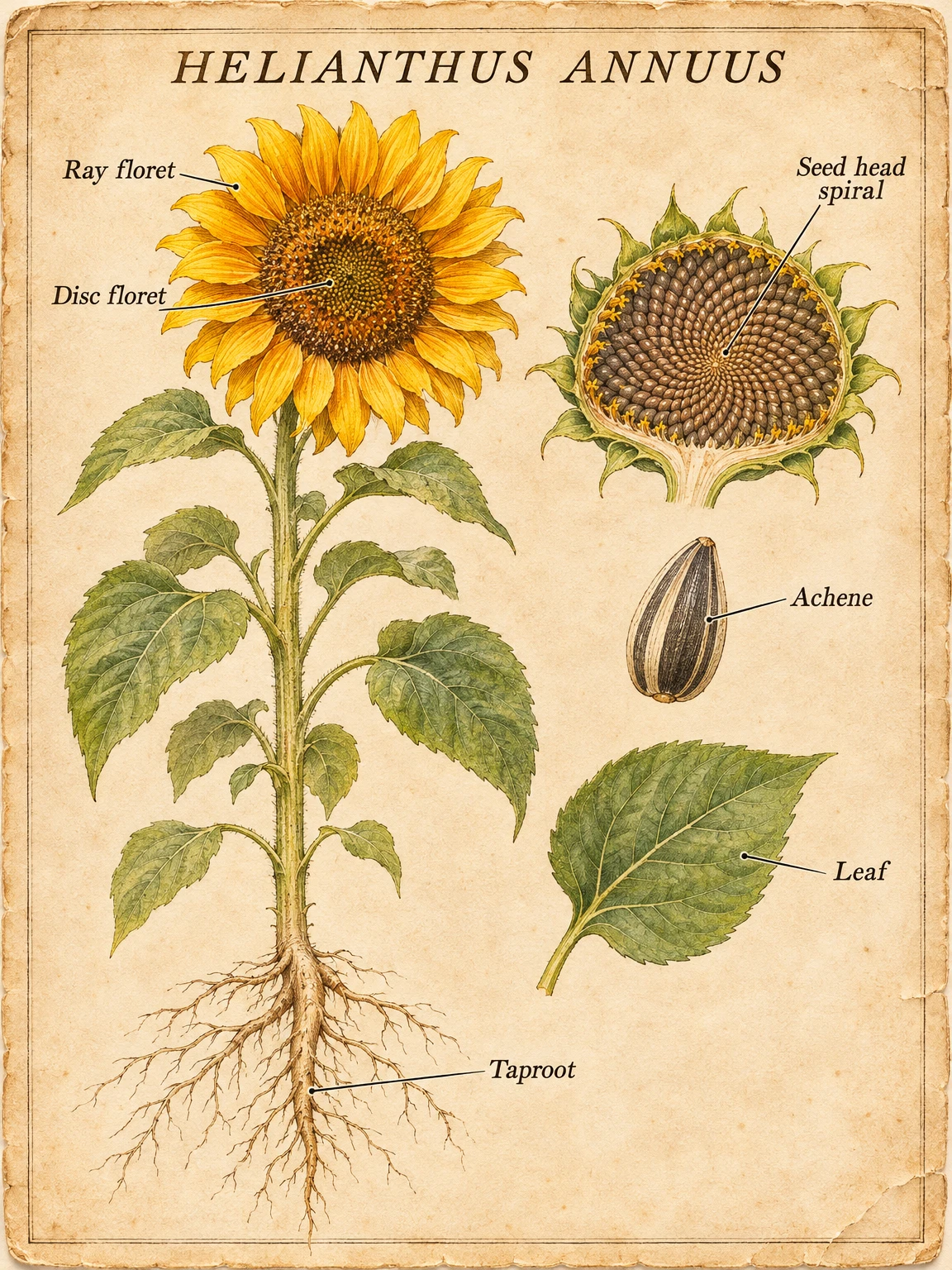
A botanical plate with labels
Create a vintage botanical plate with a sunflower, close-up plant details and neatly arranged labels. Use it for educational posters, nature guides and illustrated learning materials.
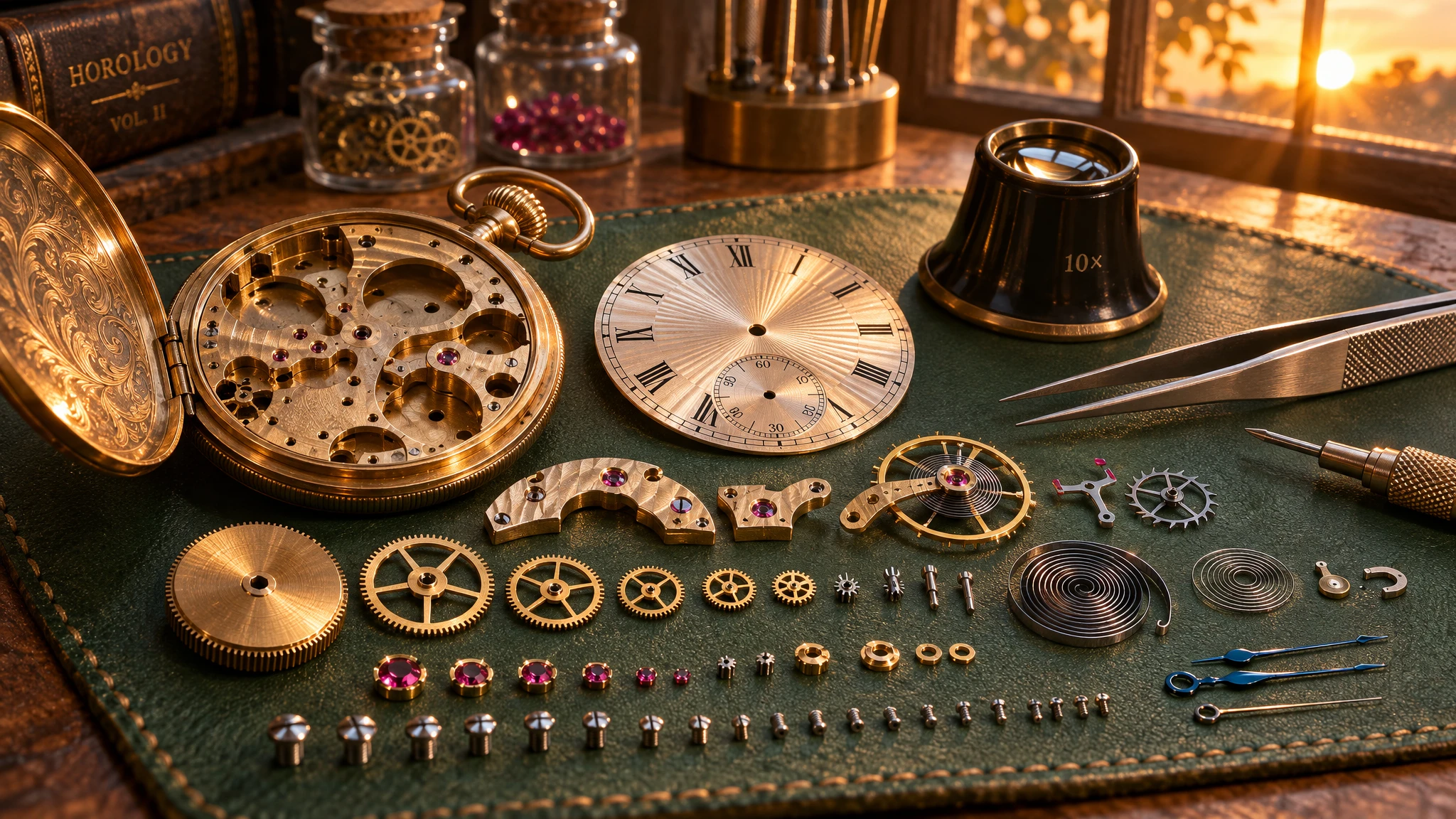
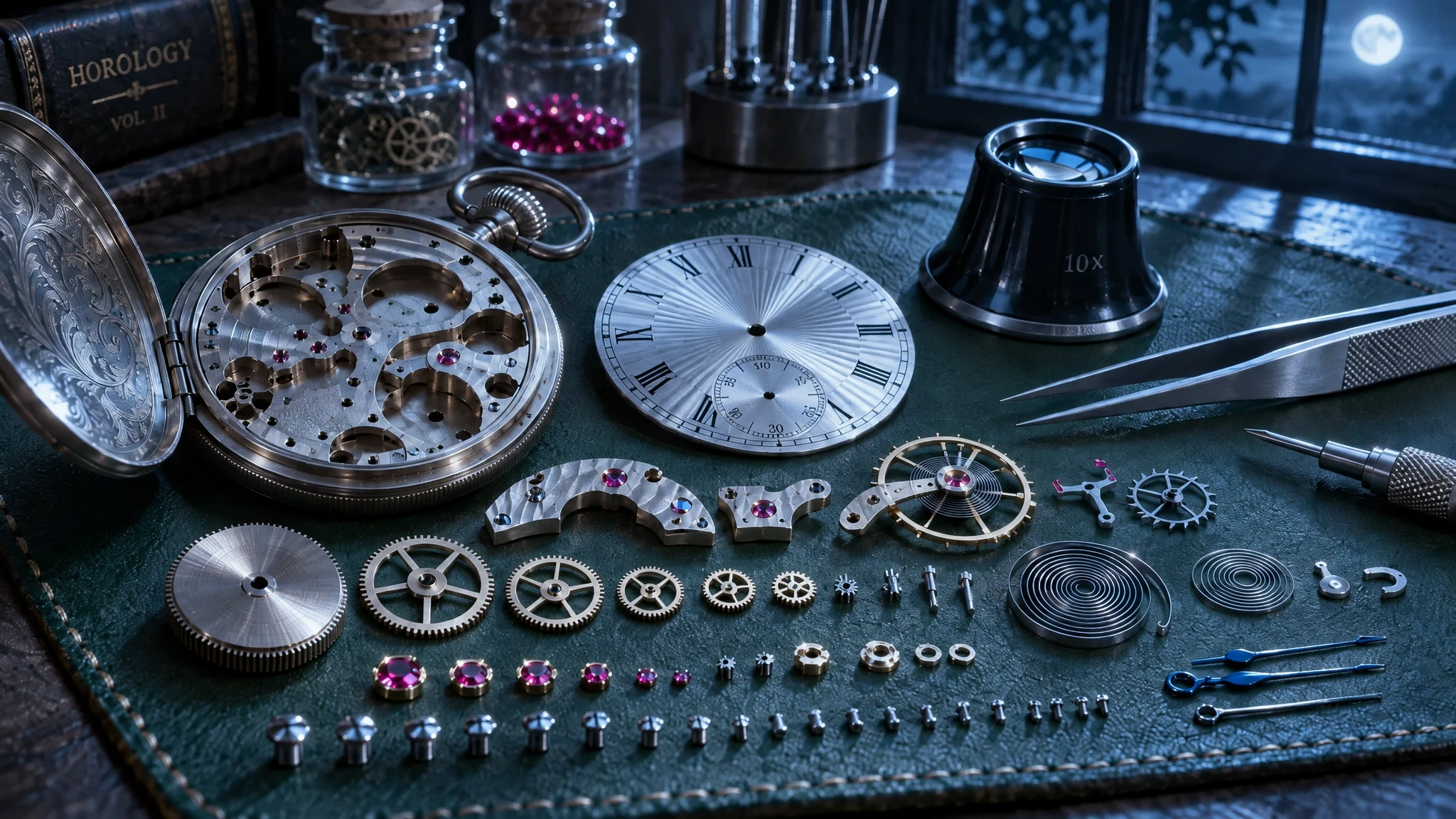
A change of light, a familiar composition
Give a watchmaker’s workbench a different mood by replacing warm evening light with cool moonlight. Specify which gears, tools and framing should stay in place when exploring a new lighting direction.
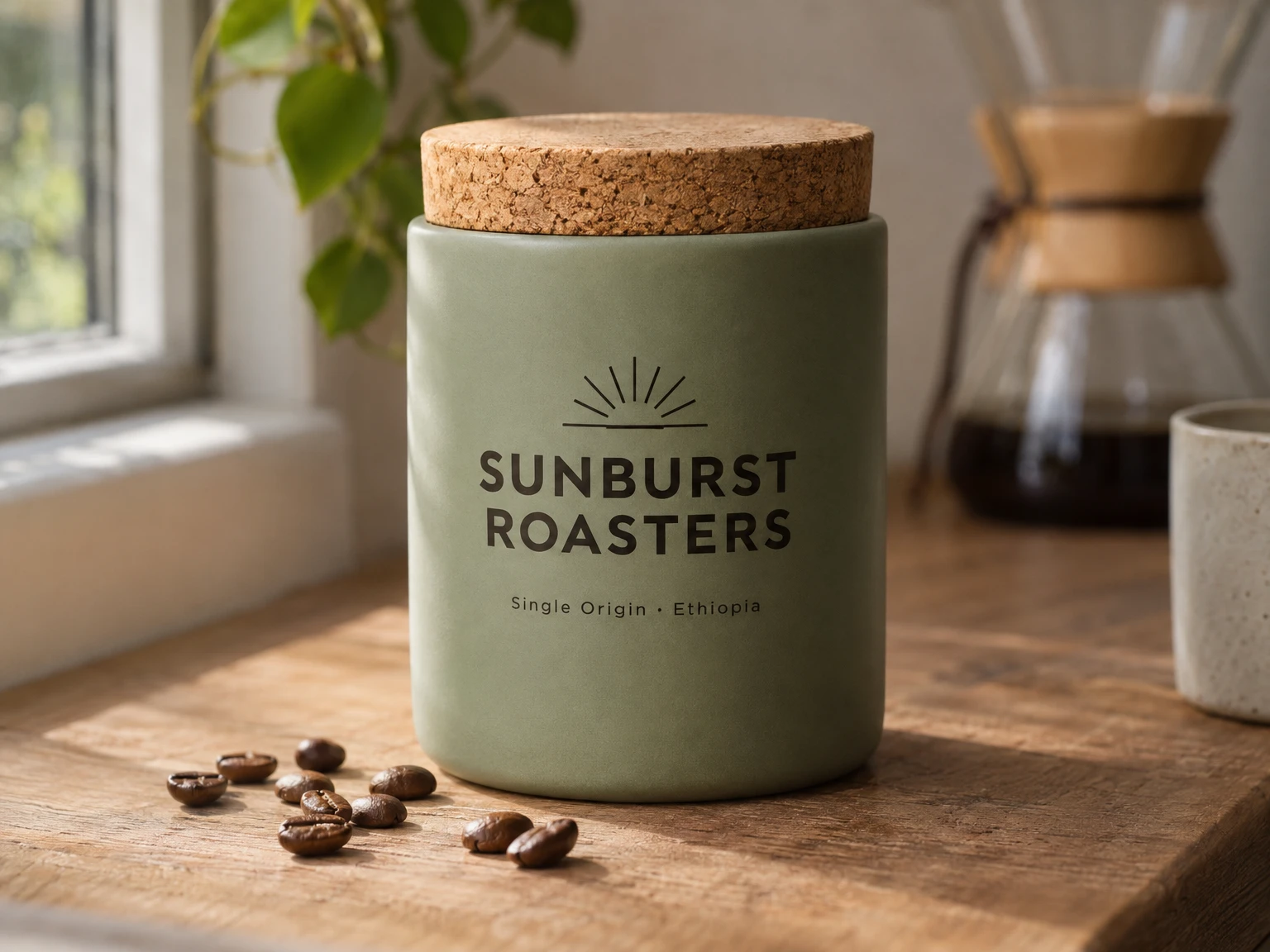
Product photography with printed text
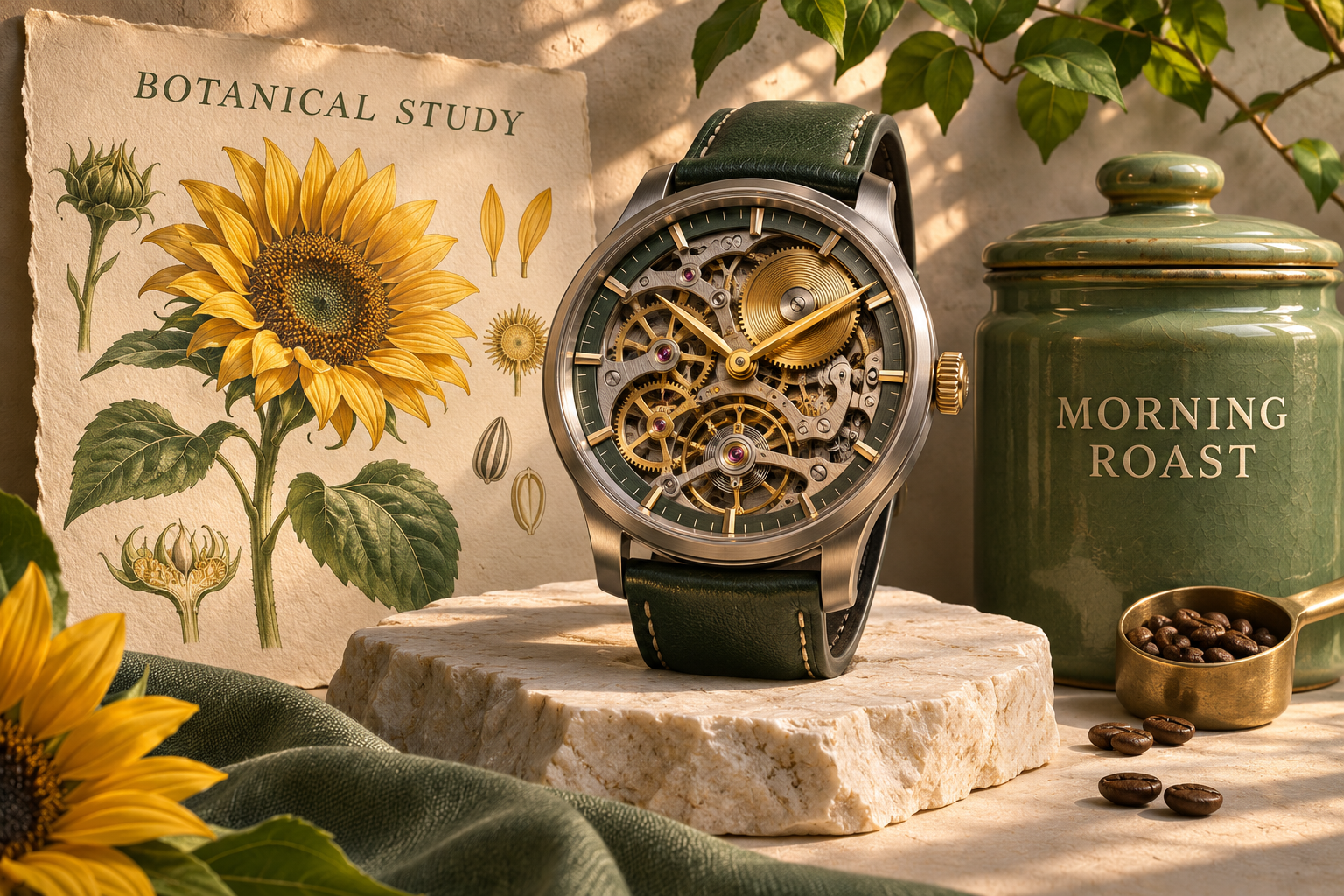
Create product photography with a ceramic coffee canister, readable packaging text and soft window light. Shape the materials, shadows and composition for shop listings and brand campaigns.
Why choose GPT Image 2.6 Sunburst?

Make room for detail
Describe the materials, lighting and arrangement together to create product scenes and layered illustrations with a clear visual hierarchy.

Refine a specific change
Use an existing image as a starting point and ask for a focused revision, such as changing the light while retaining the composition.

Build around your references
Combine text instructions with reference images to guide the subject and visual direction, from an initial concept to a finished still image.
Create animated GIFs from text
Describe a short action, choose GIF as the output format and create an animation for social posts, character expressions or playful campaign visuals. Generate GIFs from text without uploading reference images.
Five quality levels for different needs
Choose Low, Medium, High, XHigh or Max to balance quality, generation time and credit use. Start with a lower setting to explore ideas, then use a higher setting for a final image.

Seven aspect ratios for different layouts
Choose from 1:1, 3:2, 2:3, 4:3, 3:4, 16:9 and 9:16. Compose square social posts, landscape banners and portrait visuals in the proportions your project needs.
More AI Image Generators to Explore

Grok Imagine Image Generator
Unleash bolder AI creativity with Grok Imagine by xAI. Fewer limits, wider possibilities, and powerful image generation for ideas beyond the ordinary.
Nano Banana 2 AI Image Editor
Create and edit images with multimodal prompts, reference photos, style transfer, and practical visual workflows powered by Google’s image model family.

Seedream 4.5 AI Image Generator
Unlock cinematic creativity with Seedream 4.5 by ByteDance – your advanced web-based visual engine. Seamlessly fuse multiple styles and render precise typography instantly, offering free access with no account required
GPT Image 2.6 Sunburst Frequently Asked Questions
Should I choose Sunburst or Flare?
Choose Sunburst for detailed compositions and careful image edits. Choose Flare for fast creative iteration. Both accept text and reference images; the best choice depends on your brief.
Can I edit an existing image?
Yes. Upload a reference, describe one change, and specify what should stay the same. Check the whole result before downloading, especially small text and fine details.
Which formats can I download here?
Download PNG, JPEG, WebP or animated GIF. Choose PNG or WebP for transparent backgrounds. GIF output is for text-to-image generation without reference images; SVG and drawn markup editing are not available here.
Is GPT Image 2.6 Sunburst free on FamilyPro?
You can try GPT Image 2.6 Sunburst free on FamilyPro using available free credits after signing in. Each generation uses credits based on your settings. Free use is limited by your credit balance; check the displayed cost before generating and purchase more credits if needed.
How do I create a GIF with GPT Image 2.6 Sunburst on FamilyPro?
Write a prompt describing the scene and movement, choose GIF in Image Format, then generate. Leave Reference Images empty: GIF output does not support image inputs. For edits to existing images, choose PNG, JPEG or WebP instead.
Try GPT Image 2.6 Sunburst
Create detailed compositions with GPT Image 2.6 Sunburst. Turn text and reference images into product visuals, illustrated guides and focused edits online.
Get More Credits